
How to Add Route Planning to Dynamics 365 Without Disrupting Dispatch

The short answer
Set up master data and planning rules before go-live, pilot one warehouse while the others keep their current process, and extend site by site once the pilot meets agreed exit criteria. RouteCTRL features are disabled by default and settings are held per warehouse, so each site goes live separately and dispatch keeps a working fallback throughout.
What does adding route planning to Dynamics 365 involve?
Adding route planning to Dynamics 365 moves decisions that are often made in spreadsheets, a separate routing tool or a planner’s memory onto the order, customer and item records used by sales, warehouse and finance: which orders travel together, which vehicle and operator carry them, the stop sequence and the dispatch time. RouteCTRL is fully integrated into Dynamics 365 Supply Chain Management, Business Central, Sales and Power Platform, so planning records sit beside the orders they come from. For the full planning workflow, see the guide to route planning in Microsoft Dynamics 365.
Operators are the drivers, technicians and crews who receive their routes on the RouteCTRL Operator App.
Why do route planning rollouts disrupt dispatch?
Disruption during a route planning rollout usually traces to three gaps:
- Missing master data. Geocoded addresses, delivery windows, service times, vehicle capacities and operator certificates were never needed by a spreadsheet, so they are incomplete when planning starts.
- A single cutover. Every site switches on the same day, so there is no working fallback when a rule or a record is wrong.
- Unprepared teams. Dispatch, warehouse, customer service, finance and operators learn on go-live day what has changed for them.
A controlled rollout closes each gap in turn: prepare the data and rules, pilot one warehouse, then extend site by site.
What should be set up first?
Routes calculated from incomplete master data look valid in planning and fail at the first stop. Set up in this order, because each step depends on the one before it. The page names below are those used in Business Central.
| Order | Area | What to set up | Why at this point |
|---|---|---|---|
| 1 | Company settings | RouteCTRL Parameters: what happens when a delivery is confirmed (post the shipment, create and email the invoice, or no action) and which optional features are enabled | Posting behavior affects finance from the first live delivery |
| 2 | Warehouses | Route Warehouses: proof-of-delivery rules, units, breaks, loading doors, trailer rules and Operator App settings. Route Warehouse Users link each planner to a warehouse | Settings held per warehouse are what allow one site to go live alone |
| 3 | Fleet | Vehicles and vehicle groups: type, capacity, capabilities such as liftgate, refrigeration and hazmat classes, roads to avoid and running costs. Trailers where used | Capacity and capability checks depend on these records |
| 4 | Operators | Operator cards: certificates, licenses, availability, crews and costs. Driving rule profiles for hours-of-service (HOS) | Assignment proposals and release checks read these records |
| 5 | Addresses | Geocoding of customer, ship-to, supplier and site addresses, with flagged addresses corrected. Delivery windows and service times | Sequence, ETAs and window checks are calculated from them |
| 6 | Planning structure | Destination groups, order selection presets and stop priority rules | Lets planners build the first routes from familiar groupings |
| 7 | Access | Permission sets and role centers for planners, dispatch, transport managers and read-only users | Each role sees only the pages it needs |
| 8 | Field | Operator App devices and, where enabled, customer notification templates | Operators and customers see the first live routes |
Depends on: an owner for master data at each warehouse, and agreed posting rules from finance before step 1 is finalized.

How do you run a pilot warehouse?
A pilot confines the effect of a wrong rule or master record to one warehouse.
- Choose the site. Pick a warehouse with a representative order mix (deliveries, pickups and transfers) and a planner who knows the current routes well.
- Keep the other sites unchanged. New features are disabled by default and settings are held per warehouse, so the remaining warehouses continue with their current process.
- Plan in parallel. Build routes in RouteCTRL from the same orders the current process uses, and compare stop sequences, vehicle counts and estimated times with the routes actually dispatched.
- Go live at the pilot site. Release routes to the Operator App, capture proof of delivery and let confirmed deliveries trigger posting under the agreed rules.
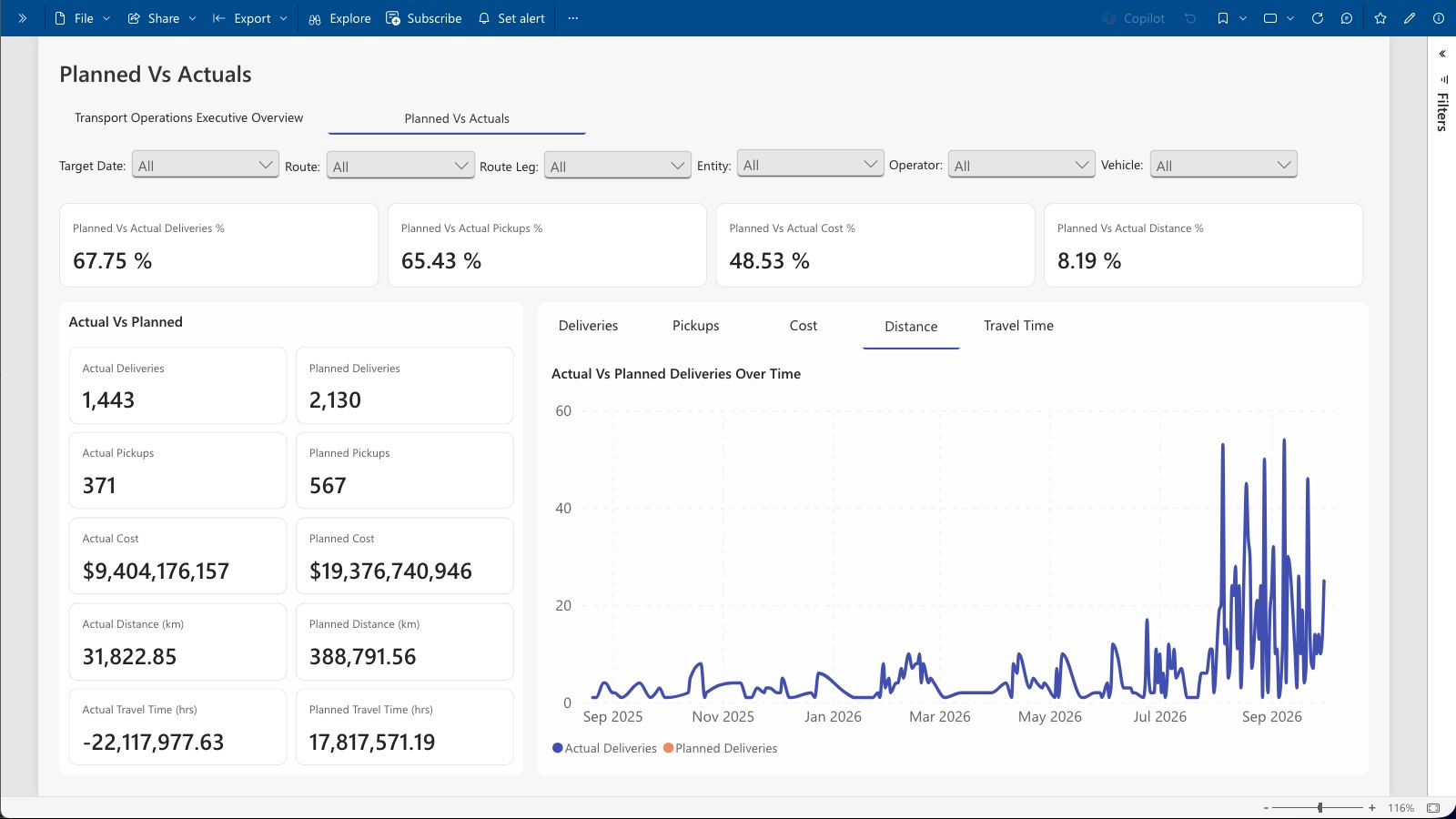
- Compare planned with actual. Review distance, time and cost per route each week, and correct service times, delivery windows and groupings where they differ.
- Agree exit criteria in advance. For example: no unresolved flagged addresses, planned and actual times within a tolerance that operations sets, and posting rules producing the expected transactions.
Alspec followed this approach, moving key sites first and extending site by site.
What changes for each team?
Teams that learn about changes on go-live day work around the new process instead of using it. Agree each team’s changes before the pilot starts.
| Team | Before | With RouteCTRL | What to prepare |
|---|---|---|---|
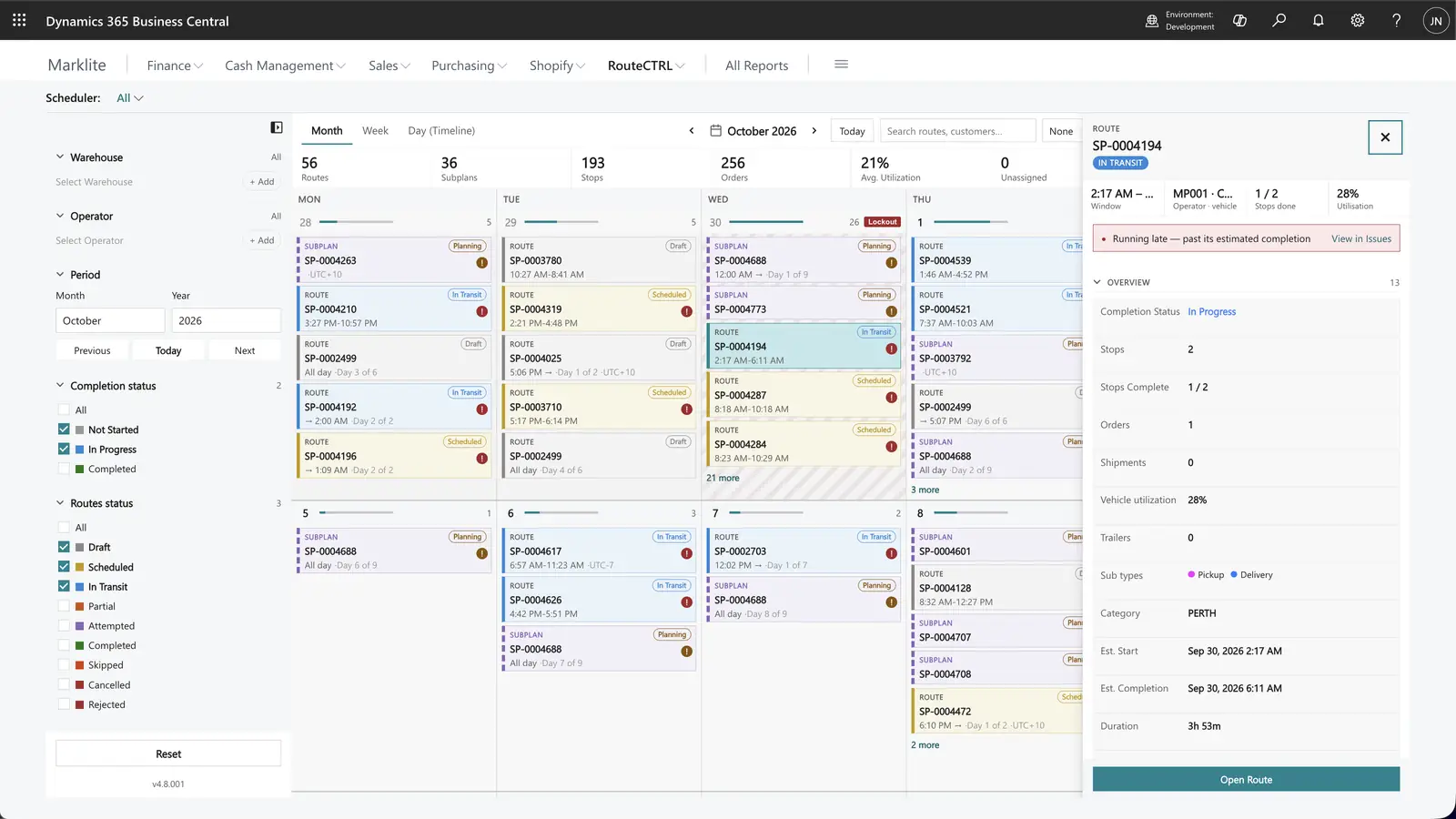
| Planners and dispatch | Routes built in a spreadsheet or separate tool, changes phoned through | Routes built from orders in route plans, with the Optimizer, destination groups or the Scheduler. Dispatched routes changed through Live Changes | Training on the four route-building methods; saved presets for regular work |
| Warehouse | Picking without route context | Loads per vehicle and a shipping door schedule | Loading doors and load rules in Route Warehouses |
| Customer service | Calls to dispatch to locate an order | Each order shows its route or carrier shipment and its routing status | Which order fields to check; notification templates where enabled |
| Finance | Invoicing after paper POD returns | Confirmed deliveries trigger shipment posting and invoicing where configured; planned and actual cost per route | Posting rules per order type and any customer exceptions |
| Operators | Paper run sheets and phone calls | Routes, navigation and proof-of-delivery capture in the Operator App | Devices, sign-in and a first route on a training day |
| IT or partner | Exports and imports between systems | Planning inside Dynamics 365; integrated orders from other systems through Integration Sources | Permission sets, connected services and integration mapping |

How do you extend to more warehouses?
Each new site carries the same risks the pilot removed, unless the pilot’s standard is applied before it goes live.
- Use the pilot warehouse’s Route Warehouse settings as the reference for each new site, adjusting doors, units and breaks where they differ.
- Bring each site’s addresses, fleet and operator records up to the pilot standard before its go-live date.
- Lock the cutover days in the Scheduler so committed plans are not changed during the switch.
- Enable route automation at a site only after manual planning there is stable.
- Review planned against actual weekly at each new site for its first weeks live.
Practices that reduce rollout risk
- Name a master data owner per warehouse. Addresses, windows, service times and vehicle data drift without one.
- Keep the previous process available at the pilot site until the exit criteria are met.
- Agree posting rules with finance first. Rules agreed before the pilot prevent unexpected transactions on the first live delivery.
- Train operators on real routes. A training day on the site’s own stops shows more than a demo route.
- Add integrated orders after core planning is stable. Orders from e-commerce or a WMS add volume and mapping work; bring them in once the pilot site plans its own orders reliably.
A rollout on the records you already use
Because planning records sit beside the Dynamics 365 orders, a rollout changes how routes are built and confirmed without moving order, customer or financial data to another system. Each warehouse goes live when its data and teams are ready.
Bring your warehouse list and a typical day of orders to a demo. We will walk through the setup order, a pilot plan and the planned-against-actual review for one of your sites.
Related reading
- Route planning in Microsoft Dynamics 365 and Power Platform, the complete guide
- How to plan delivery and pickup routes from Business Central orders
- When spreadsheet route planning stops working
- How to plan deliveries backward from the promised date