How to Plan Delivery and Pickup Routes from Business Central Orders

The short answer
In RouteCTRL, planners create a route plan for a date and warehouse, add Business Central orders, and build each vehicle’s route manually, with the Optimizer, from destination groups or in the Scheduler. Planners then assign operators and vehicles and release the routes to the RouteCTRL Operator App. Operators record stop outcomes and proof of delivery, which synchronize back to Business Central. Where automatic posting is configured, confirmed deliveries can trigger shipment posting and invoice creation.
What is route planning in Business Central?
Route planning in Business Central is the process of turning open orders into routes: deciding which orders travel together, which vehicle and operator carry them, the stop sequence and the dispatch time. With RouteCTRL, this happens inside Business Central, on the same order, customer and item records used by sales, warehouse and finance.
What problem does it solve?
Many Business Central customers that run their own fleet plan routes outside Business Central. Orders are exported to a spreadsheet or a separate routing tool, stops are sequenced by hand, and vehicles and operators are assigned from experience. Capacity, delivery windows and cost are checked late or not at all. Every order change means replanning, and proof of delivery comes back on paper before the shipment can be posted and invoiced.
RouteCTRL addresses this in three stages:
- Plan: build routes from Business Central orders and check capacity, windows and cost before release.
- Execute: release routes to the Operator App and manage changes while routes are in progress.
- Prove and bill: record proof of delivery against the order and post and invoice from it.
For route planning across Supply Chain Management, Sales and Power Platform, see the guide to route planning in Microsoft Dynamics 365.
Which orders can be planned together?
Plans built around sales deliveries alone leave supplier pickups, returns and transfers to separate runs, and vehicles come back empty. RouteCTRL plans all of these Business Central documents on the same routes.
| Source document | What it becomes on the route |
|---|---|
| Sales order | Delivery to a customer or one of its branches |
| Sales return order | Pickup of returned goods from a customer |
| Purchase order | Pickup from a supplier |
| Transfer order | Inventory transfer between warehouses, stores and sites |
| Service order | Technician visit, planned alongside deliveries |
| Project and assembly orders | Delivery of project materials and assembled goods |
| Ad-hoc order | One-off job with no order behind it |
| Integrated order | Order from e-commerce, a WMS or another ERP, brought in through RouteCTRL Integration Sources, with delivery status written back to the source |
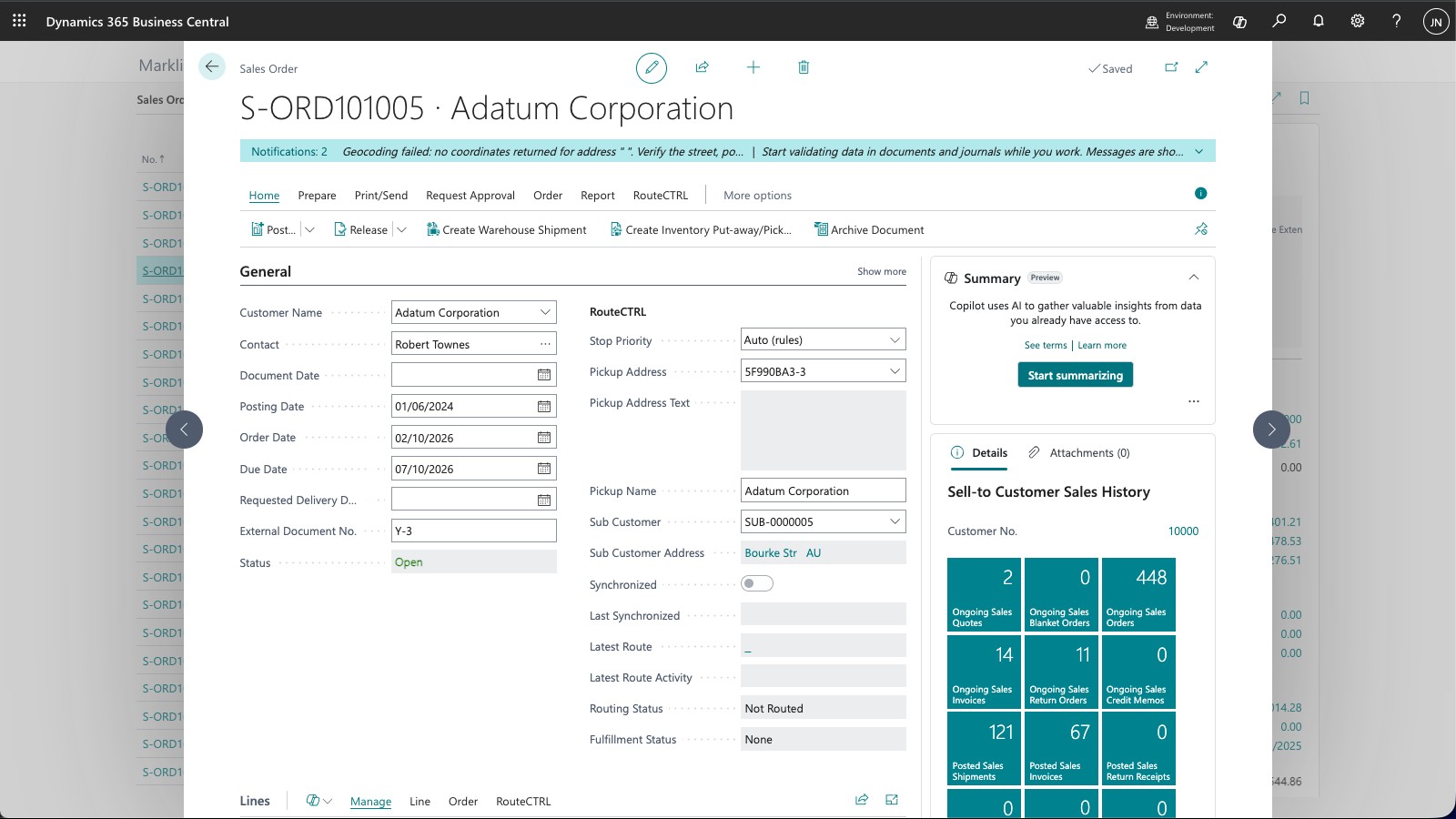
A mixed route can combine customer deliveries with a supplier pickup on the return leg, which reduces empty backhaul miles. Stop sequencing accounts for vehicle capacity at each stop and for the supplier’s pickup window. Each order displays its current route or carrier shipment and its routing status, so customer service can answer “where is my order?” from the order.
How are route plans, subplans and routes related?
When proposals and committed work share one file, an operator can be sent a version that has already changed. RouteCTRL separates proposed work from the route released for execution, using three records:
| Record | What it represents |
|---|---|
| Route plan | The planning container for a date or date range at a warehouse. It groups subplans and summarizes the workload: stops, orders and packages, broken down by deliveries, pickups, transfers and service jobs. |
| Subplan | A proposed vehicle run: selected orders, departure and arrival locations, resources and a planned stop sequence, with estimated distance, time, load and cost. A vehicle can perform several runs in a planning period, each with its own subplan. |
| Route | The execution record generated from an accepted subplan, with its stops, shipments, assigned resources and dispatch timing. |
Each stage produces a distinct result. Estimating a subplan calculates the proposed sequence and operating figures. Generating a route creates a Draft route from the accepted subplan. Releasing the route makes it available to the assigned operator in the Operator App, and dispatch follows when the operator starts the route. Some actions combine stages: the Scheduler can create a subplan, estimate it and generate a Draft route in one step, but the records remain separate.
How do orders get into the plan?
An exported order list is out of date as soon as an order changes. Planners add orders directly from Business Central order lists, and a changed order can be refreshed in the plan. Order selection presets store saved filters for order types, dates and areas. Stop priority rules determine which stops are served first.
Addresses are geocoded when orders are added, and addresses that cannot be located are flagged for correction before planning. Delivery windows, quantities, packages and shipment requirements, such as refrigeration or a liftgate, are read from the order and the customer record. Items still in production or on a purchase order are not planned before their expected availability date.
Depends on: complete addresses, delivery windows and service times on the customer record, and package or weight data on the item.
What are the ways to build routes?
A route sequenced by hand, with capacity checked only at the dock, can look workable on paper and fail when the vehicle is loaded. In RouteCTRL, every method produces a subplan that is estimated for distance, drive time, load and cost before a route is generated. Planners can combine the four methods, for example by generating subplans from destination groups, reviewing them on the Scheduler and sending selected orders to the Optimizer.
| Method | Use it when |
|---|---|
| Manual planning | The planner needs direct control over which orders share a run and the stop sequence. |
| Optimizer | The planner wants to compare calculated alternatives for a selected set of orders and resources. |
| Destination groups | The operation regularly serves the same addresses and reuses those groupings. |
| Scheduler | The planner creates work from unplanned orders while reviewing dates and resource commitments. |
Build a route manually
In the route plan, create a subplan and set its departure and arrival locations. Add the orders, then select the vehicle, operator and, where required, trailer. Use the Map Planner to review the stops and set the sequence, then estimate the subplan to calculate distance, drive time, service time, load and estimated cost. Adjust the grouping, sequence or resources and re-estimate as needed. When the proposal is acceptable, generate the route and open the Draft route for review.
Compare route options with the Optimizer
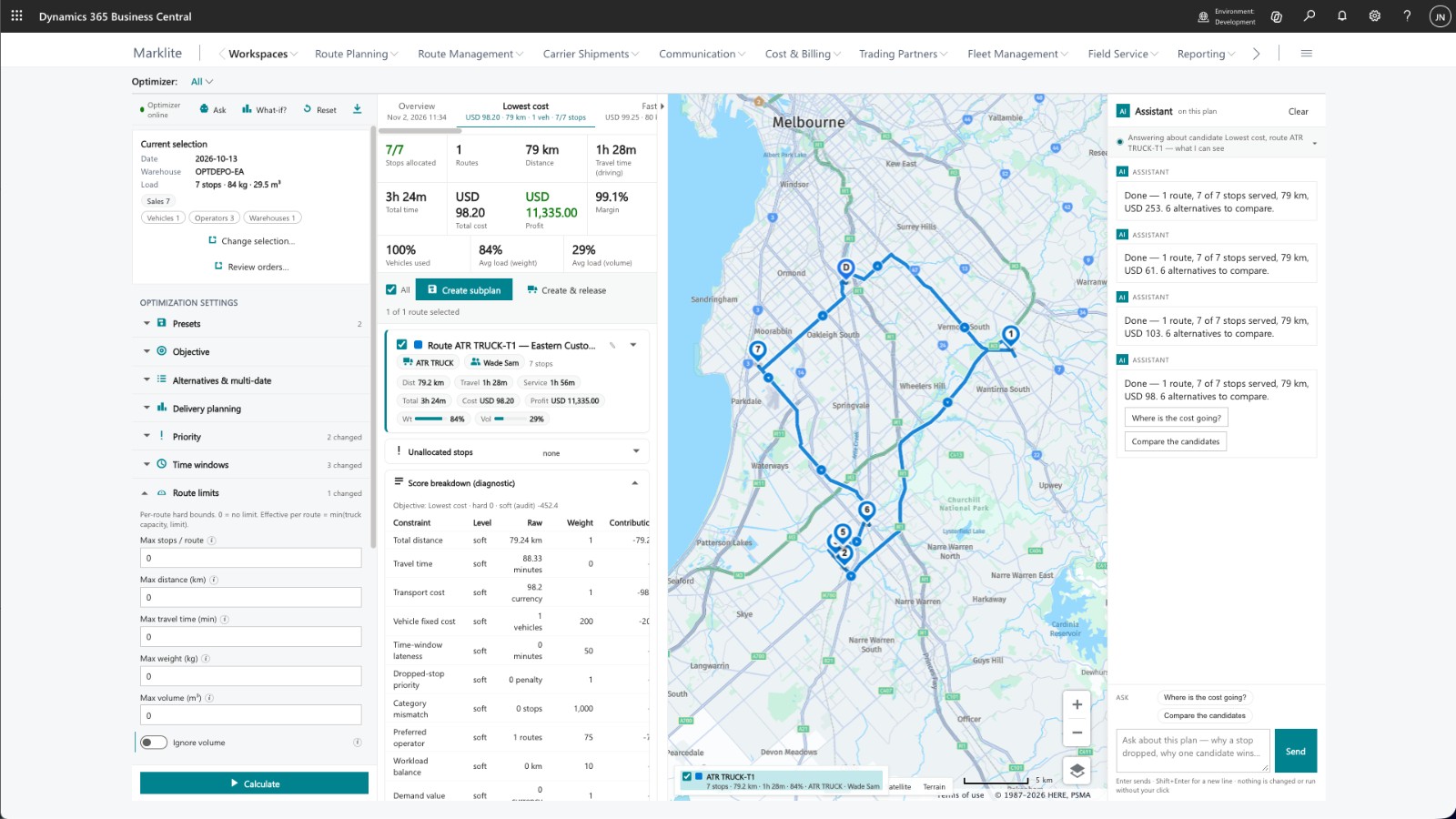
With the AI Planning Assistant add-on, planners can describe the plan in plain English, for example “Plan tomorrow’s deliveries for the north region with two vans.” The AI Planning Assistant selects the matching orders, confirms them with the planner, runs the Optimizer and presents the results.
Alternatively, planners select orders in the Optimizer directly or through an order selection preset, a saved query for recurring order types and filters. They then set the departure point, the arrival point, which can differ from the departure point, and the available vehicles, trailers and operators.
After Calculate, the Optimizer returns four options: Cheapest (lowest estimated transport cost), Fastest (best time performance), Fewest (fewest vehicles) and Balanced (the trade-off between cost, time and resources). Each option shows its estimated cost, time, resource use and unallocated orders. The planner selects an option and uses Create Subplan, and routes are generated from the result for review before release. Unallocated orders stay open for another run, another resource, a later date or a carrier shipment.
Generate subplans from destination groups
A destination group stores addresses that are regularly served together, with planning defaults such as the departure and arrival warehouse and the usual vehicle. Membership and address assignment are separate steps: a customer, vendor, location or sub customer becomes a member, and each actual address is assigned to the group. Different ship-to addresses of one customer can belong to different groups.
Generate Subplan gathers the eligible unplanned order lines for the group’s addresses, filtered by the selected order types, date ranges and readiness conditions, and creates or updates subplans. Planners then estimate and adjust the subplans and generate the routes.
With Auto Allocate and Auto Geocode enabled, Group Allocation Criteria assign new or changed customer ship-to addresses to groups by postal address (country/region, city and ZIP code). Route Automation can schedule Generate Subplan from Dest. Group for selected groups, days and time windows.
Create routes from the Scheduler
The Scheduler is both the planning calendar and an entry point for unplanned orders. In the Orders view, planners filter unplanned orders or apply an order selection preset, select the orders and choose Plan Selected. In Add orders to day, the Add to option sets the target:
| Add to | Result |
|---|---|
| New subplan and route | Creates and estimates a subplan and generates a Draft route. Requires a route warehouse and a vehicle. |
| New subplan | Creates a subplan without generating a route. |
| Existing subplan | Adds the orders to a subplan already planned for that day. |
| Live route | Adds the orders to a released or dispatched route through Live Changes. |
| Route optimizer | Sends supported orders (sales, sales return, purchase and transfer) to the Optimizer. |
A Draft route created from the Scheduler is not released until the planner reviews and releases it.
Depends on: geocoded addresses, departure and arrival locations, vehicle capacity, trailer and equipment data on vehicle cards, and realistic service times at each stop.
How do you plan to promised delivery dates?
Manually selected dispatch days can miss promised delivery dates, and the conflict stays hidden at planning time. Delivery planning schedules orders backward from the promised delivery dates instead. It generates three plan options, separate from the Optimizer’s four. Best Service prioritizes promised dates within the available vehicles and operators. Lowest Cost minimizes vehicles and miles and may move some orders to a later date. Recommended balances cost and service. Each option lists the orders that would be late and by how many days. For more detail, see delivery planning from promised dates.
How are vehicles and operators assigned?
Assignment based on planner knowledge alone risks compliance and service failures, such as a hazmat load assigned to an uncertified operator or a liftgate delivery assigned to a vehicle without a liftgate. RouteCTRL filters vehicle and operator proposals by availability, certifications and equipment. Planners can override a proposal; the override reason is recorded.

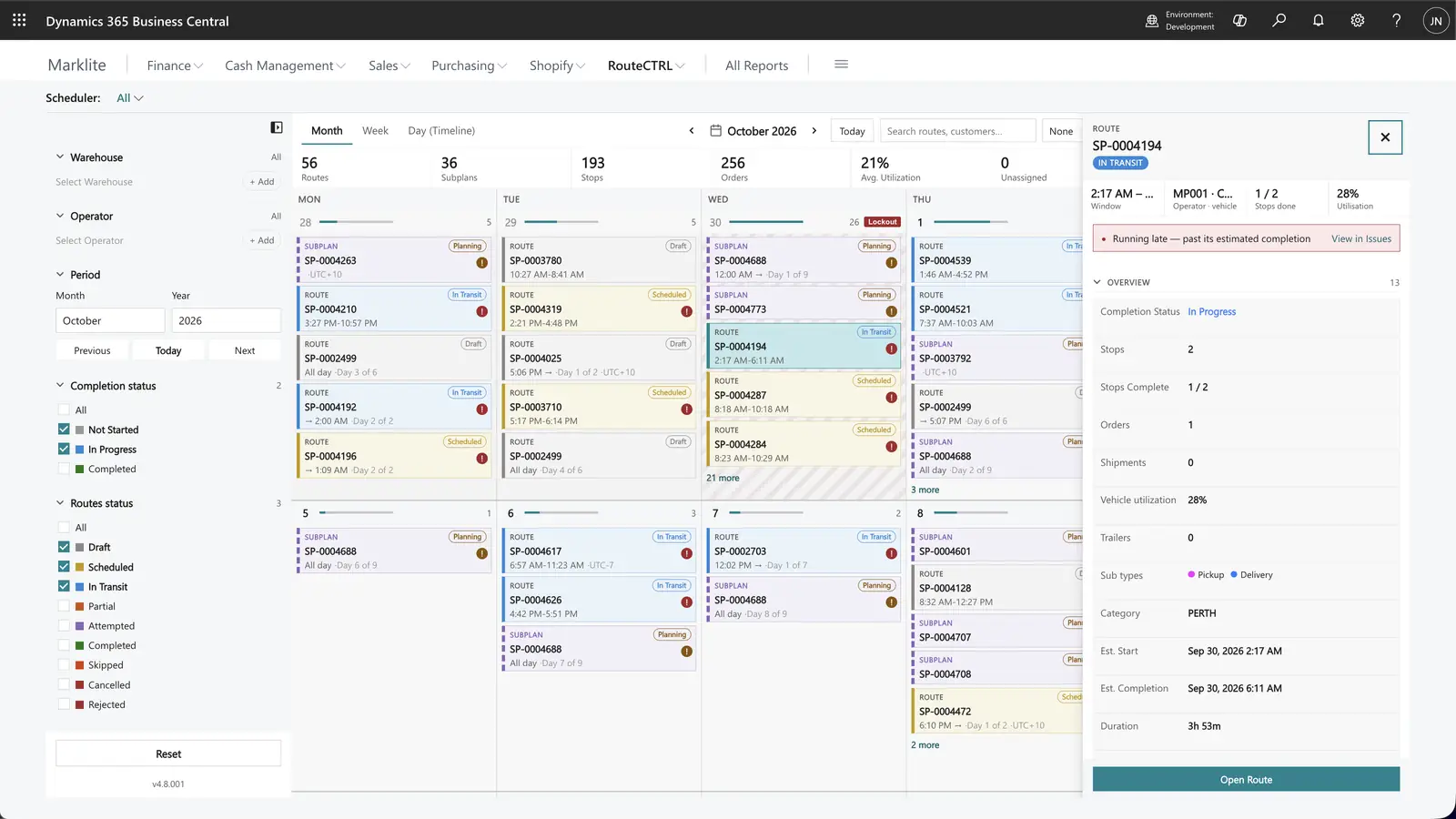
The Scheduler displays routes, stops, carrier shipments and unplanned orders in day or week view. Planners can drag a route to another date or operator. Locked days prevent changes to plans that must remain fixed.
Depends on: operator certificates, licenses and availability, and vehicle capabilities kept current in Business Central.
What is checked before a route is released?
A route that leaves with an unqualified operator, an overloaded vehicle or an invalid address fails on the road, where the problem is most expensive to fix. Every generated route starts as a Draft. Planners open it, confirm the operator, vehicle, trailer, departure and arrival locations and dispatch timing, and reschedule it if needed.
On release, RouteCTRL validates resource assignments, dispatch timing, required packages, availability, capacity, licenses and capabilities, and hours-of-service (HOS) limits. A route that breaches the configured hours-of-service rules cannot be released. The released route appears in the Operator App with its stops, packages, sequence, loading plan and attached documents, and dispatch follows when the operator starts the route.
Route automation can build, optimize, assign and release routes on a schedule, for example overnight, so routes are ready at the start of the shift.
Operators are the drivers, technicians and crews who receive their routes on the RouteCTRL Operator App.
How are progress and proof of delivery captured?
Paper proof of delivery must be collected, verified and entered manually before it can support posting, invoicing or a delivery dispute. Operators navigate with live traffic in the Operator App, and offline maps support areas with limited coverage. Dispatchers monitor route progress on the live map in Business Central and in the RouteCTRL Command Center.
At each stop, operators record the stop outcome and proof of delivery: signature, photos, location, timestamp and delivered items. These records synchronize back to Business Central, and Retrieve Updates on the route brings in the latest execution data for review. A physical stop can include several shipments, each with its own tracking reference, packages and outcome. Where customer notifications are enabled, customers receive email, SMS or WhatsApp updates when a delivery is scheduled, on the way and delivered.
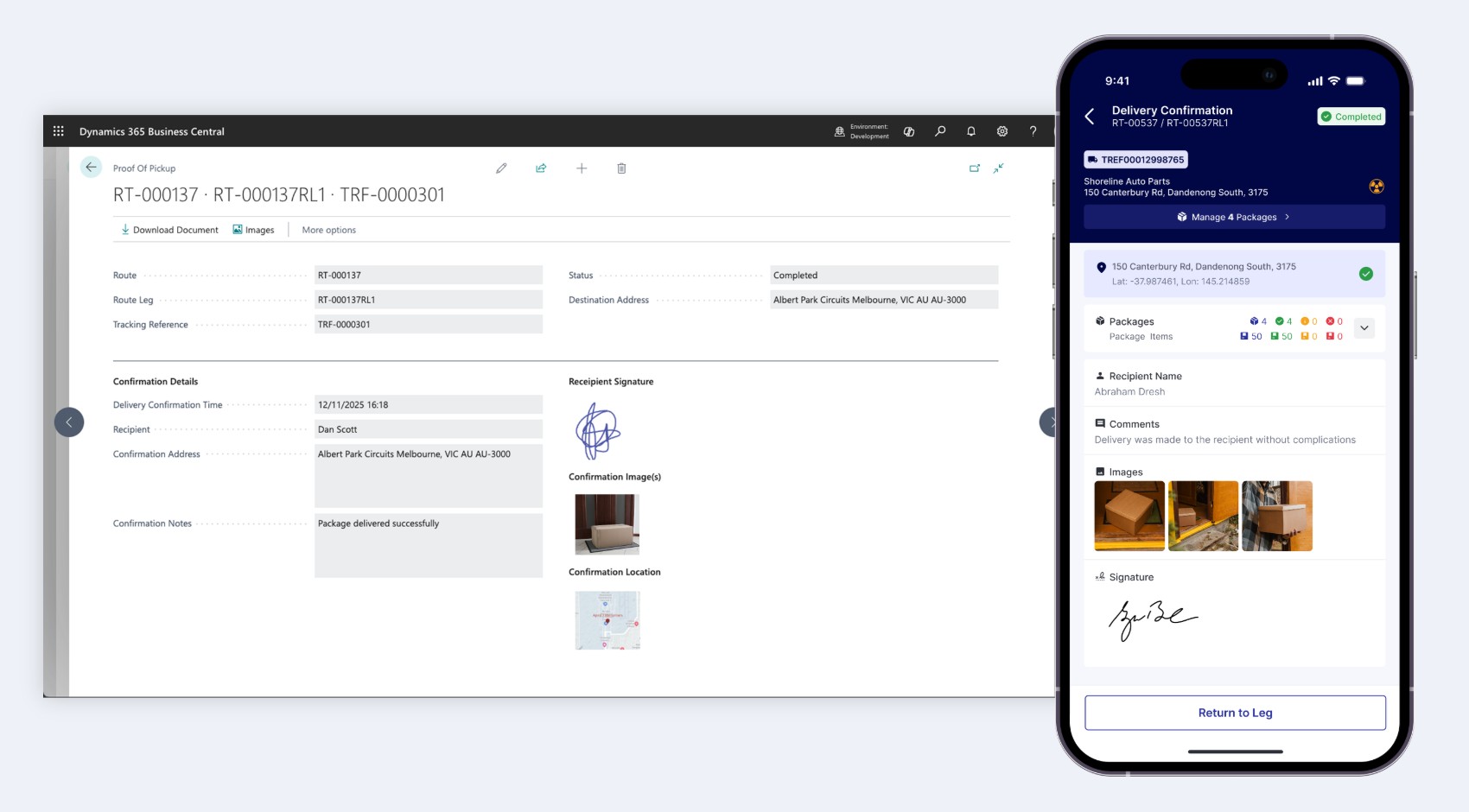
How are shipments posted and invoiced?
Paper proof of delivery holds up posting and invoicing. Where automatic posting is configured in RouteCTRL, confirmed deliveries can trigger shipment posting, invoice creation and invoice emailing. Posting rules are defined by order type and can be set per customer.
If an operator delivers less than the ordered quantity, the order can be updated to the delivered quantity and the remaining quantity kept as a back order for a later route. Each route records a planned cost and an actual cost, so variances from extra distance, longer stop times or failed deliveries can be analyzed by route, customer and period.
Depends on: posting rules configured per order type, and operators confirming each stop in the app.
What happens when orders change after dispatch?
Without a link between the plan and the route, each change requires manual replanning and a call to the operator. A supplier changes a pickup time, a customer cancels, or a vehicle becomes unavailable. The Live Changes actions on the route page in Business Central let dispatchers modify a dispatched route:
- add an order or a service job to a route in progress
- insert a pickup at the warehouse or a supplier ahead of the deliveries that need those goods
- cancel several stops at once, or reinstate a cancelled stop
- move stops to another route, or to a new route with its own operator and vehicle
After a change, ETAs for the remaining stops are recalculated and the update is sent to the Operator App.
How do carrier shipments fit into the plan?
Orders handed to a carrier are often tracked on the carrier’s website, outside the plan. Here, orders can be assigned to a carrier, such as UPS, DHL or a local courier, as a carrier shipment. Carrier shipments can be created from an order, a route stop or the Scheduler, and multiple orders for the same address can be consolidated into one shipment.
Carrier tracking events are recorded on the shipment, and the Signed By field shows the recipient’s name where the carrier reports it. Delivered carrier shipments follow the same posting rules as fleet deliveries. The Shipments Dashboard compares carrier and fleet performance.

What planning practices improve results?
The plan is only as accurate as the data behind it. These practices apply to any route planning operation:
- Keep customer data current. Correct addresses, delivery windows and realistic service times have more effect on plan quality than any optimization setting.
- Record vehicle and operator capabilities. Capacity, equipment and certificates kept current prevent assignment errors.
- Save recurring selections. Presets and destination groups for regular work reduce daily setup and keep plans consistent between planners.
- Lock days once committed. Locking prevents late edits to routes that warehouse and customers are already working to.
- Review planned against actual every week. Variances in distance, stop time and cost show where service times, windows or groupings need adjusting.
What should partners and IT teams know?
- Deployment. RouteCTRL is installed from Microsoft AppSource into the customer’s Business Central environment. Licensing combines feature licenses, Last Mile & Fleet Operations and Field Service, with optional add-ons such as the Operator App, Command Center and Customer Portal.
- Phased rollout. New features are disabled by default. Company-wide settings are maintained in RouteCTRL Parameters and warehouse-level settings in Route Warehouses, which supports a phased rollout by site.
- Security and roles. Ready-made permission sets and role centers cover administrators, dispatch, transport managers, managers and read-only users.
- Reporting. Power BI data feeds cover routes, stops, costs, carrier shipments, incidents, payments and fleet data.
From order to invoice in Business Central
Routes built in a separate tool leave the order, the route and the proof of delivery in different places. RouteCTRL links the route, the proof of delivery and the posting to the related Business Central orders and shipments.
Bring a representative day of Business Central orders to a demo. We will plan the routes with you and walk through the route options, the Operator App workflow and the proof of delivery recorded in Business Central.
RouteCTRL for Business Central is available on Microsoft AppSource.
Related reading
- Route planning in Microsoft Dynamics 365 and Power Platform, the complete guide
- Carrier shipping in Dynamics 365 and Business Central
- How to add route planning to Dynamics 365 without disrupting dispatch
- When spreadsheet route planning stops working
- How to plan deliveries backward from the promised date