Route Planning in Microsoft Dynamics 365 and Power Platform

The short answer
Route planning in Microsoft Dynamics 365 decides which orders go on which route and which vehicle and operator does the work. It also sets when the work happens and how to respond when the plan changes. Microsoft Business Applications cover parts of this. Supply Chain Management plans transportation and freight. Business Central manages orders and shipments. Sales maps customer accounts, and Power Apps can order the stops of a single route.
RouteCTRL is a transport management system (TMS) fully integrated into Microsoft Business Applications. It plans routes for the whole fleet from Dynamics 365 orders and dispatches them to operators. It then tracks every route live and records proof of delivery on the same records.

What route planning involves
“Route planning” is used for five different jobs:
- Freight routing: choosing carriers, transport routes and rates for loads moving between locations or through hubs.
- Mapping and navigation: finding an address and giving directions from one point to another.
- Stop sequencing: putting the stops of one vehicle’s route in the best order.
- Multi-vehicle route optimization: sharing many stops across vehicles and operators within capacity, time windows, travel times and other constraints.
- Dispatch and execution: releasing work, tracking progress, handling exceptions and recording what happened at each stop.
A map can show the shortest path between stops without knowing whether the vehicle has room for the load or the operator is free. Standard Transportation Management in Supply Chain Management builds loads and selects carriers, routes and rates; optimizing a day of stops across vehicles and operators is not documented among its standard features. Most delivery and service operations need all five working together.
What Microsoft Dynamics 365 and Power Platform include
Microsoft Dynamics 365 Supply Chain Management
Supply Chain Management has a full transportation management module. It covers multi-stop route plans through hubs, route guides, scheduled routes, load building, carrier selection and freight rating. It supports shipping with your own fleet as well as with carriers. Multi-vehicle stop optimization, operator scheduling, a mobile app for operators and electronic proof of delivery are not documented as standard Transportation Management features.
Microsoft Dynamics 365 Business Central
Business Central manages sales, purchase and transfer orders, warehouse shipments, shipping agents and delivery addresses. Its online maps show an address and give directions. It has no standard multi-vehicle route optimizer, fleet scheduler or mobile route execution.
Microsoft Dynamics 365 Sales
Sales shows accounts and contacts on a map, offers address suggestions and gives directions. That helps a sales team plan its visits. Sharing a day’s deliveries, pickups and service jobs across several operators takes more.
Microsoft Power Platform
Power Apps is for building your own business apps. Its map control can calculate routes between waypoints and reorder stops by travel time or distance, which Microsoft documents as a preview feature. A full route planning solution on Power Platform needs much more: a data model, allocation rules, scheduling, an operator app, syncing and exception handling. Your team designs and maintains all of it.
At a glance
| Application | What it covers for routes | What daily fleet operations still need |
|---|---|---|
| Dynamics 365 Supply Chain Management | Transportation route plans for carriers and your own fleet, load building, route guides and rates | Not documented as standard: multi-vehicle stop optimization, operator scheduling, mobile proof of delivery |
| Dynamics 365 Business Central | Orders, warehouse shipments, addresses, shipping agents, map directions | Multi-vehicle optimization, fleet scheduling, route execution |
| Dynamics 365 Sales | Account and contact maps, address suggestions, directions | Fleet allocation, route dispatch, proof of completion |
| Microsoft Power Platform | App-building tools, maps, single-route waypoint ordering (preview) | A complete multi-vehicle planning and execution app |
Standard Microsoft functionality, based on Microsoft documentation reviewed November 2026.
Where daily route planning gets difficult
A simple delivery day can be planned by hand. It gets harder when orders arrive late, stops have fixed time windows, vehicles have different capabilities and customers expect accurate updates.

Spreadsheets and manual planning. A planner exports orders, groups them by ZIP code and orders the stops in a spreadsheet or mapping tool. That works at low volumes. As volumes grow, every change means another round of allocation, sequencing and phone calls, and the plan depends on one person’s knowledge. Our guide to when spreadsheet route planning stops working lists the warning signs.
A standalone TMS connected by middleware. Specialist TMS products plan and dispatch well. The cost is integration: deciding which system owns orders and statuses, moving updates both ways and fixing errors when the two disagree. Alspec worked this way before moving to RouteCTRL.
A custom app on Power Platform. Building your own keeps data close to your Microsoft Business Applications. It also makes you the owner of routing rules, resource allocation, the operator app, offline use and reporting, now and for every future change.
Each approach can be judged by how many handoffs it needs between allocation and verified completion. For the wider picture, see transportation management in Dynamics 365.
How RouteCTRL connects planning with execution
RouteCTRL is fully integrated into Dynamics 365 Supply Chain Management, Business Central, Sales and Microsoft Power Platform. Planners, dispatchers and operators work from the same orders, customers and vehicles, from the first planning decision to the signed proof of delivery.
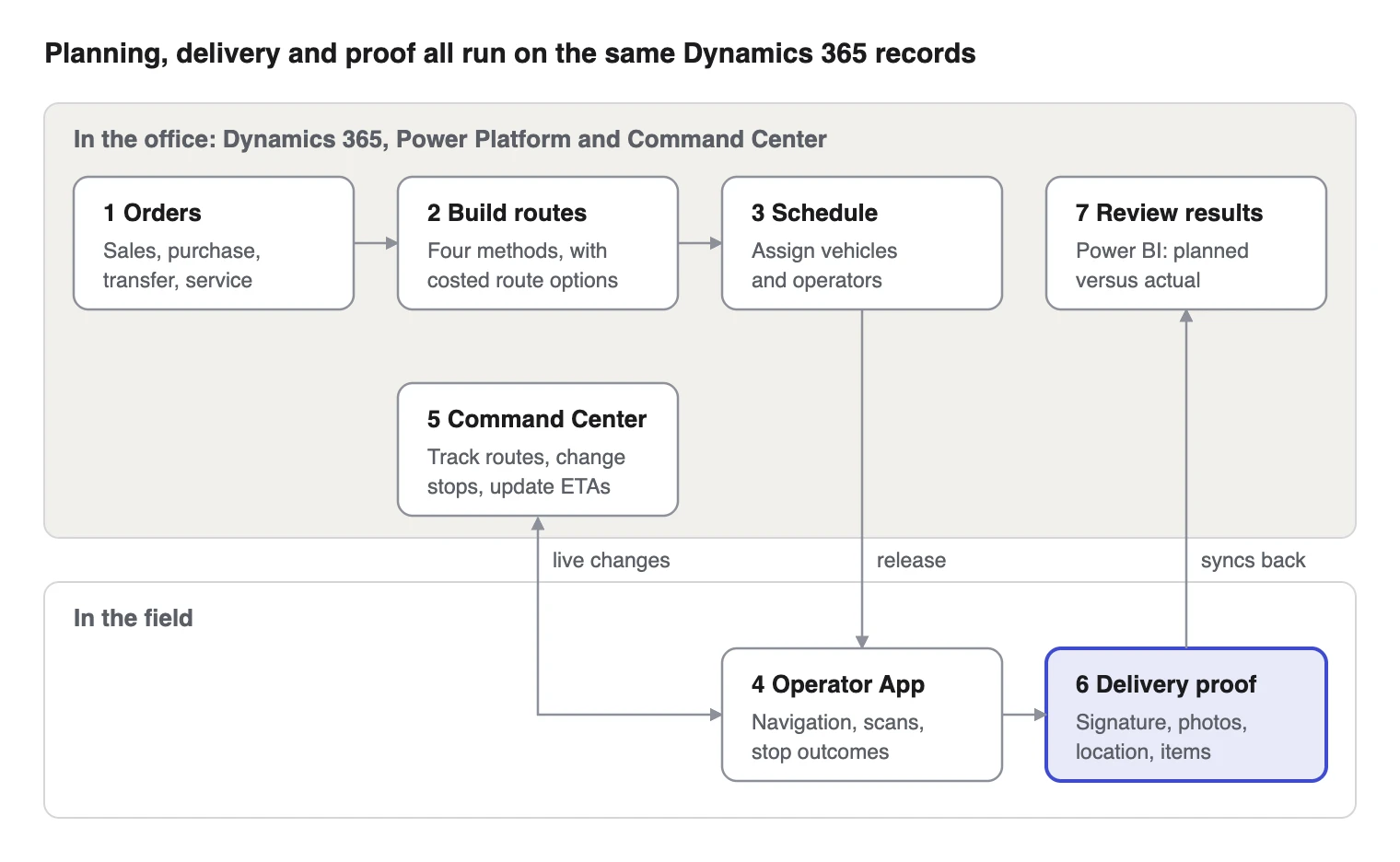
Steps 1 to 3 and 7 happen in Dynamics 365 or Power Platform, and dispatchers follow and change live routes in the Command Center (step 5). Steps 4 and 6 happen in the field, and every result syncs back to the same records.
1. Select the work to plan
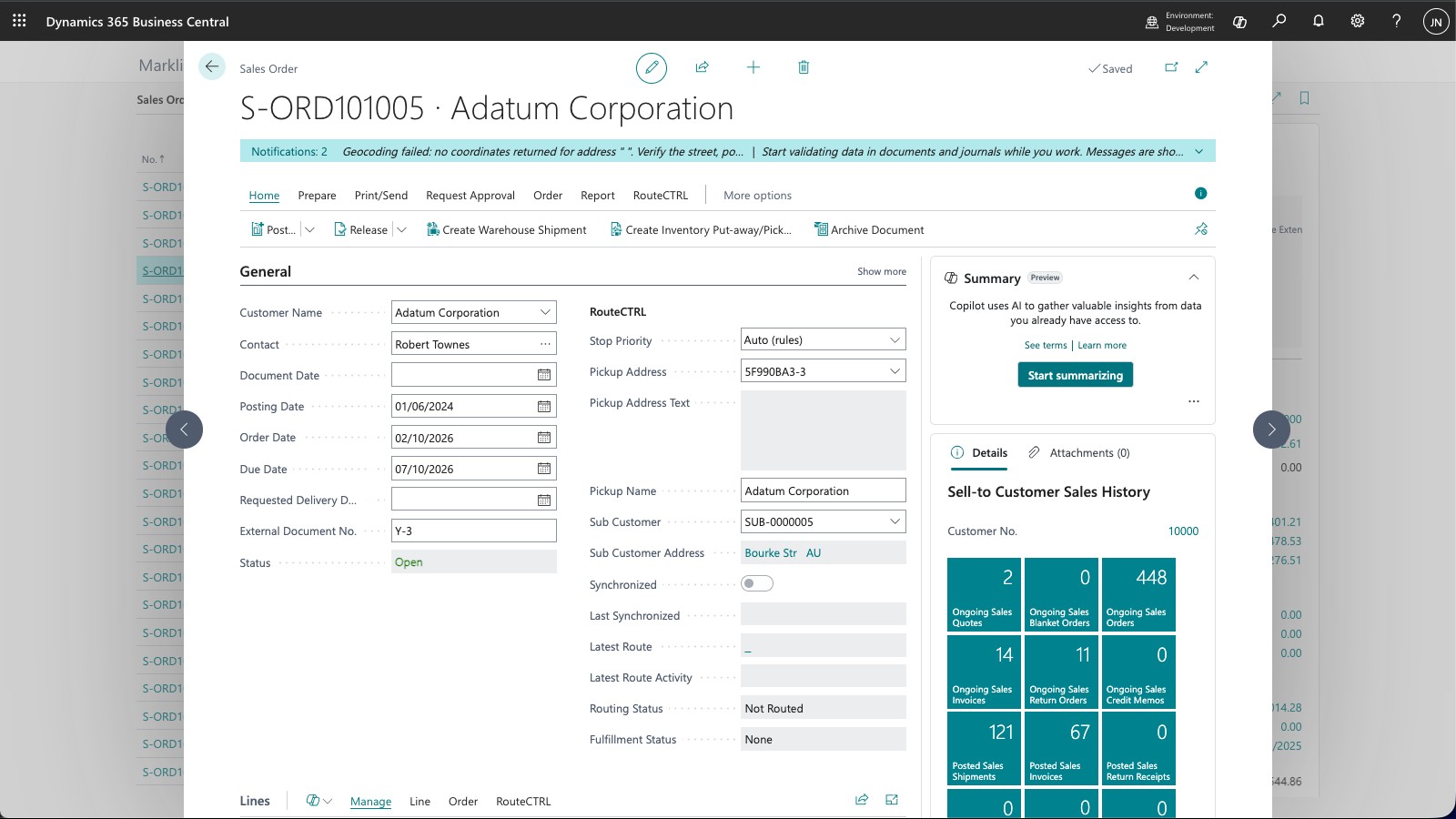
Planners start with the orders and jobs that need doing: sales, purchase, transfer, return and service orders, integrated orders from e-commerce, WMS and other ERP systems, and field visits that have no order behind them. A route plan holds the work for a date or date range at a warehouse, and each subplan is one proposed vehicle run. Saved selections and destination groups mean common order sets and service areas don’t have to be rebuilt every day.
Everything that needs assigning is visible, including what is still unplanned, without retyping orders into a separate list.
2. Build and optimize the routes
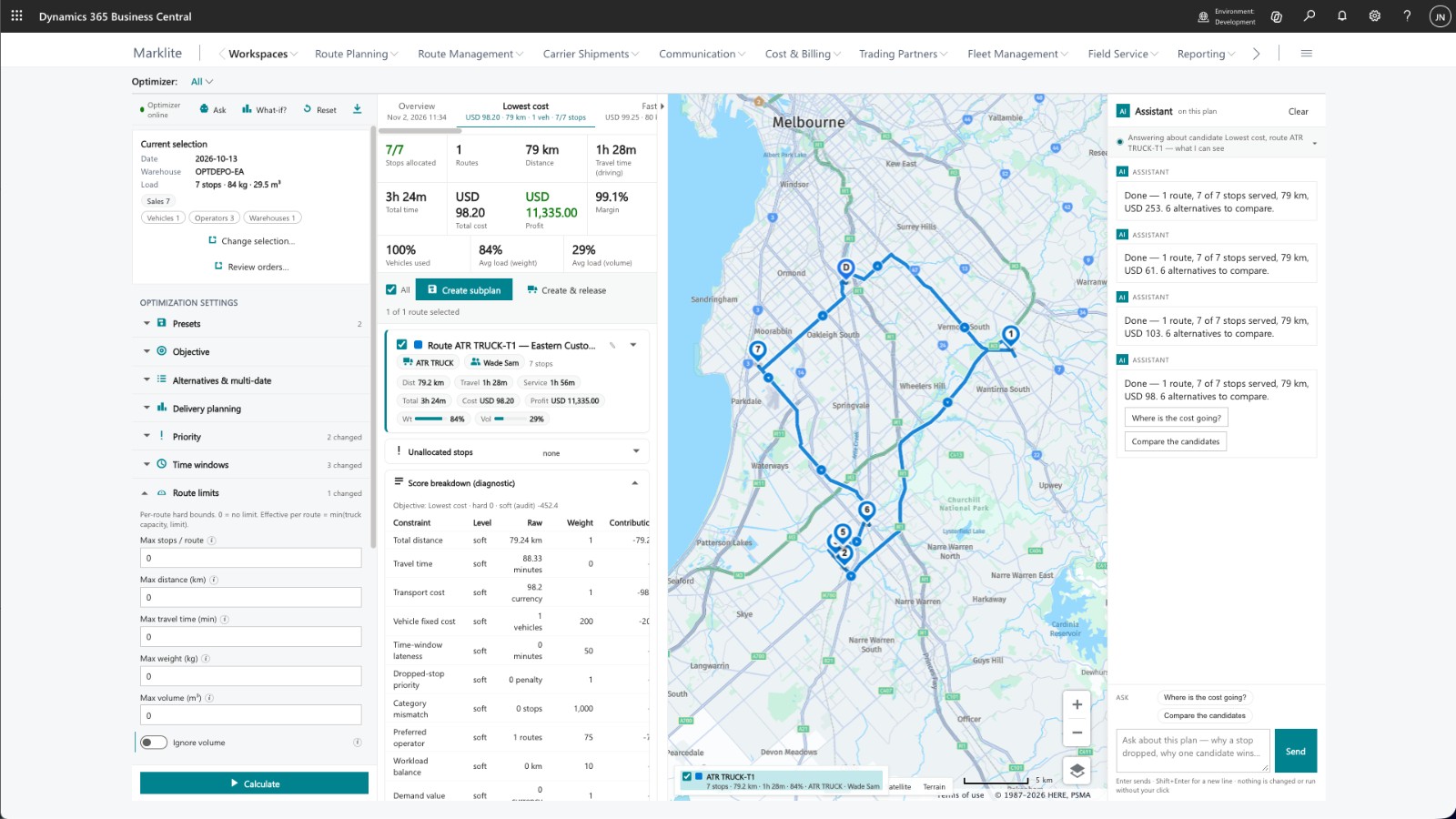
Planners can build routes by hand on the map or let the RouteCTRL Optimizer calculate them. The optimizer shares stops across the available vehicles and operators and puts each route in order, taking into account:
- delivery windows, whether strict, flexible or booked appointments
- vehicle and trailer capacity
- what each job needs, such as refrigeration, a liftgate or hazmat handling, matched to capable vehicles and qualified operators
- truck routing, road restrictions and travel times
- hours-of-service (HOS) limits, with rest stops planned into the route
It returns several costed options to compare, each with distance, driving time, vehicle use and any stops that didn’t fit. Planners can test a change, such as adding a vehicle or moving the date, before they commit. Orders for outside carriers are planned in the same place as your own fleet. Delivery planning can also work back from the dates promised to customers, with Best Service, Lowest Cost and Recommended plans to choose from. Routine planning can run overnight, so routes are ready when planners arrive.
Planners compare workable plans with their costs in view before committing.
3. Schedule vehicles, operators and time slots
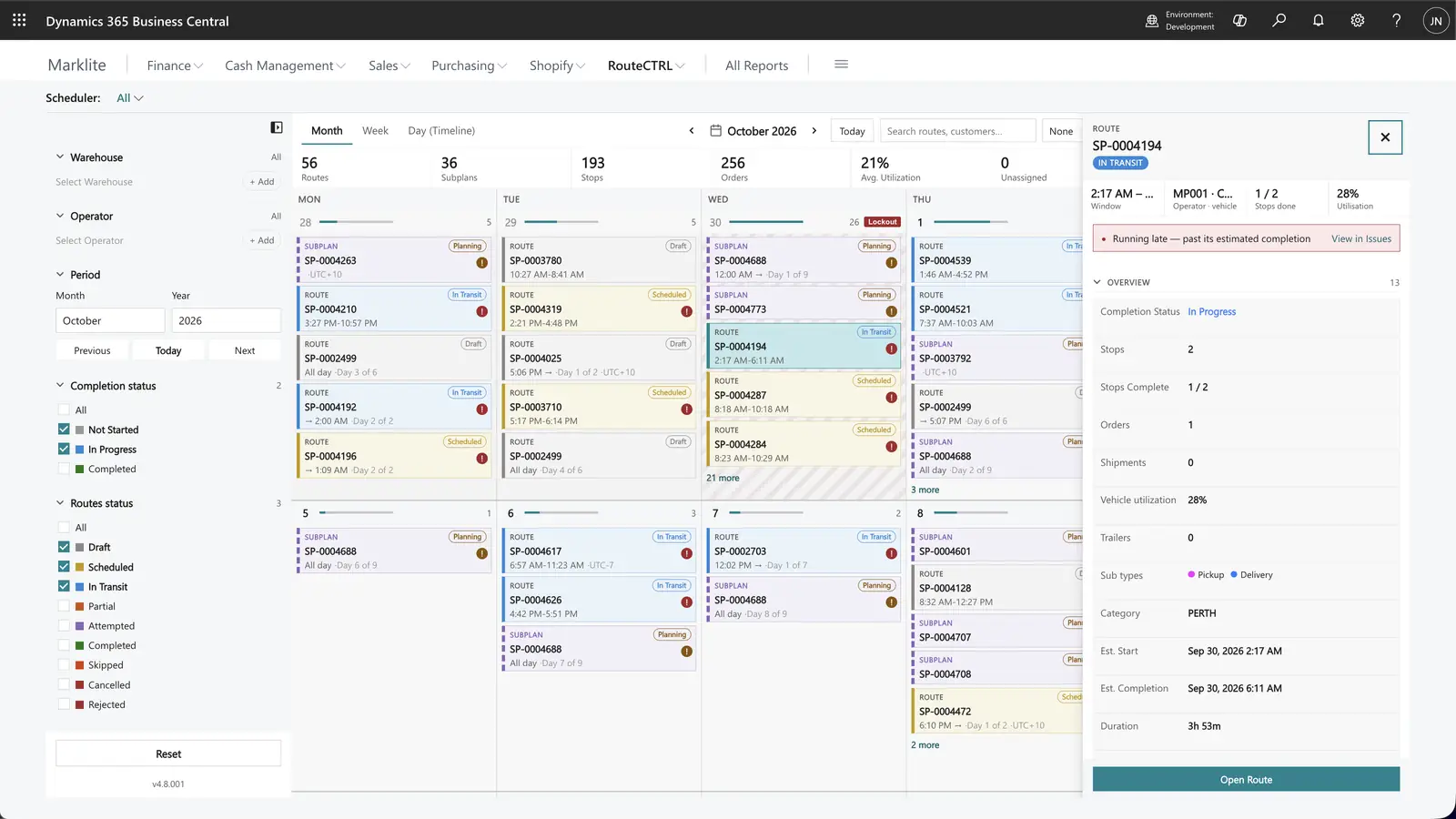
The Scheduler shows routes, stops, carrier shipments and unplanned orders on a calendar by day, week or month, grouped by operator, vehicle or carrier. Planners drag work to another day, vehicle or operator and see the effect before confirming. RouteCTRL proposes vehicles and operators that are available and hold the right certificates, flags conflicts, and lets planners lock days that must not change.
Conflicts are resolved before a route is released.
4. Release work to the Operator App
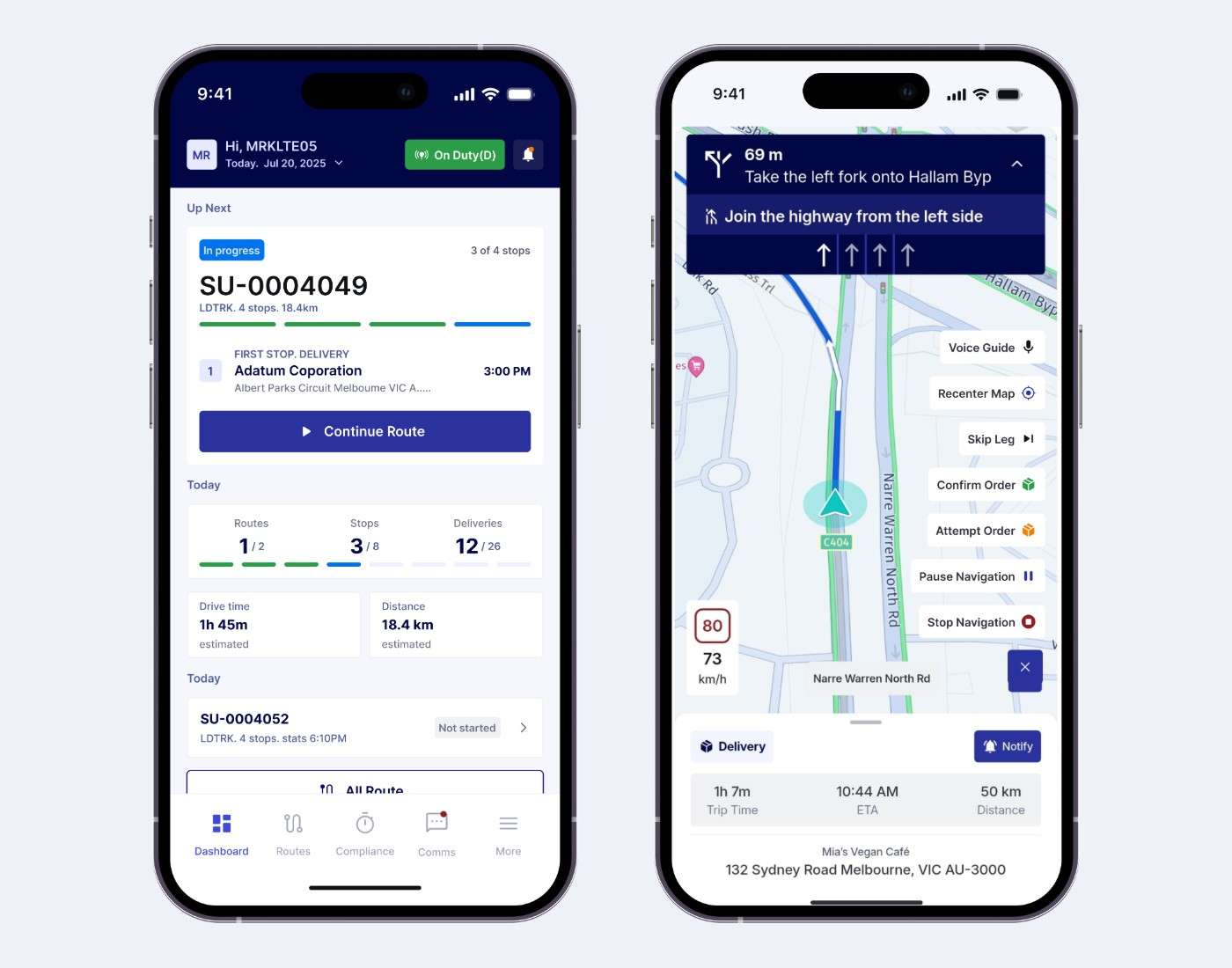
Released routes go straight to the RouteCTRL Operator App on each operator’s phone. In RouteCTRL, an operator is anyone who carries out the work on the road or on site: drivers, field service technicians, second crew members and outside contractors.
The app shows every stop with its status, load, time and instructions. It gives turn-by-turn navigation with real-time traffic and automatic re-routing. Operators check in, complete vehicle and safety checklists, scan barcodes to confirm the right items and record each outcome. The app keeps working offline and syncs as soon as a connection returns.
Operators work from one assigned route, and field outcomes reach dispatch without calls, messages or paper.
5. Respond to changes during the day
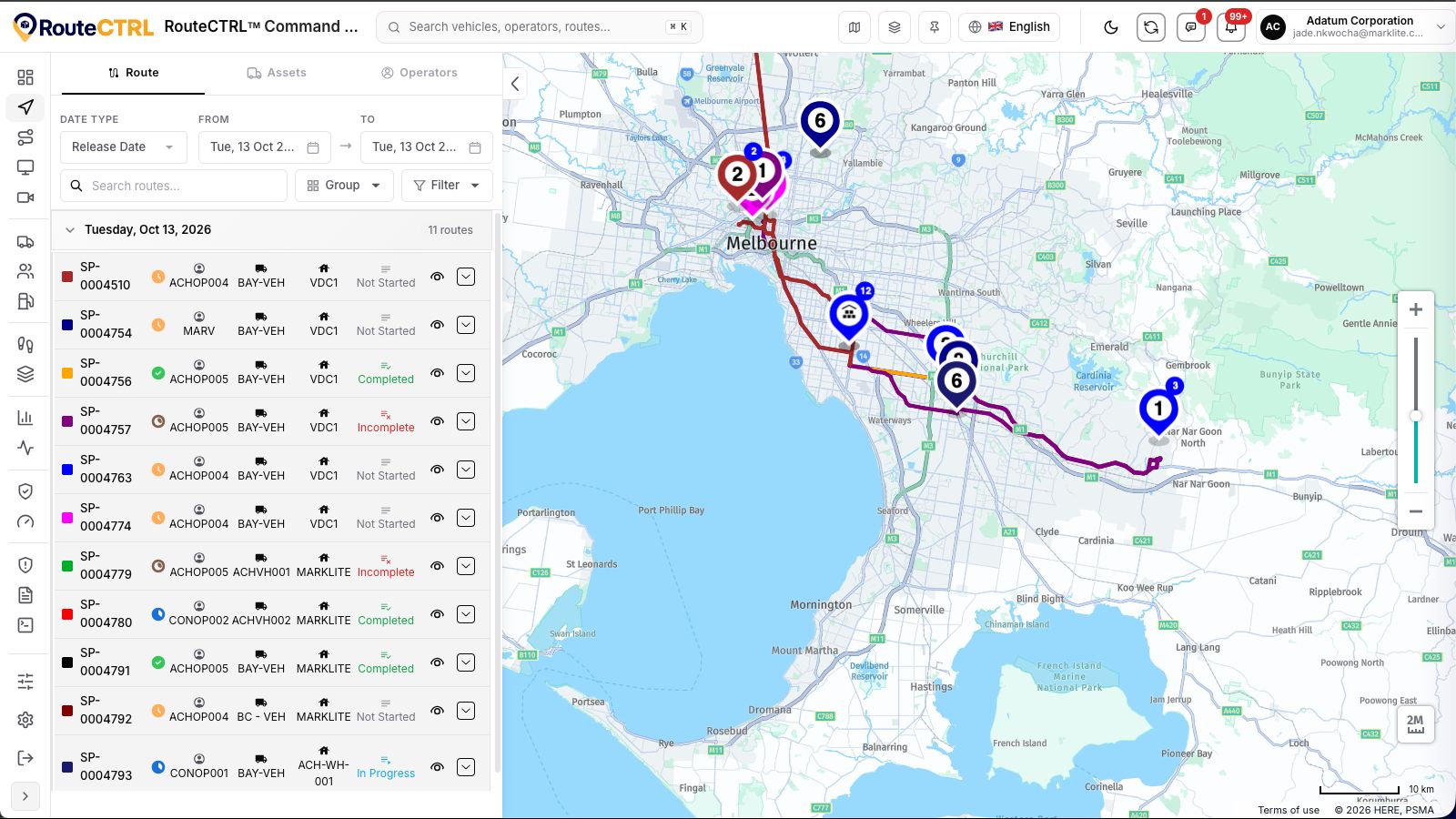
When a customer cancels, a pickup is added or an operator is unavailable, planners can add, cancel, move or transfer stops on a running route, and the change is sent to the operator’s app. In the Command Center, dispatch teams follow every active route with live positions and ETAs. Routes falling behind, exceptions and live traffic are on the same screen.
Dispatchers adjust routes during the day and see recalculated ETAs for the stops that follow.
6. Capture delivery and job outcomes
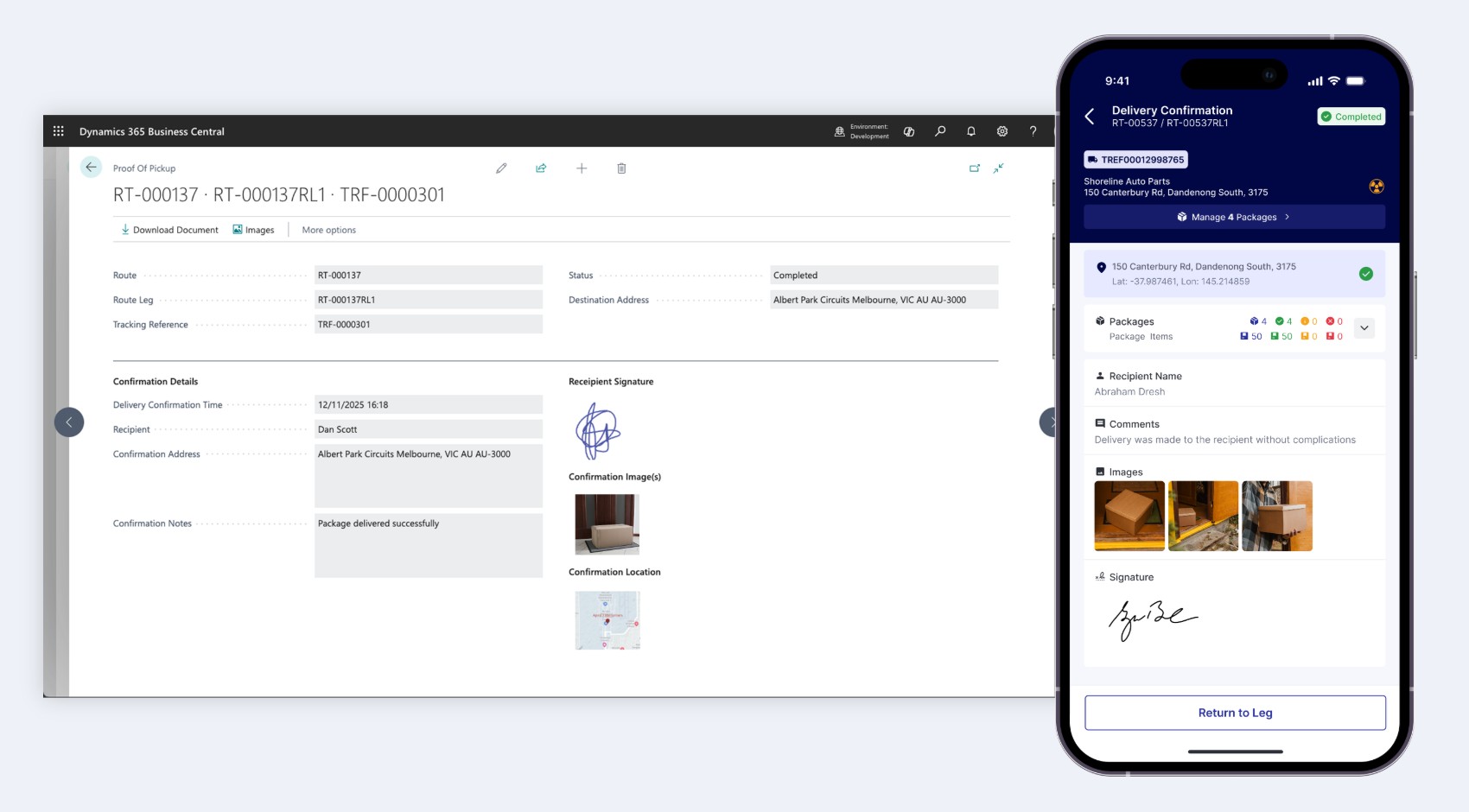
At each stop the operator records the outcome: items delivered, barcode scans, signature, photos, time and location, or the reason a delivery was partial or failed. This electronic proof of delivery (ePOD) is recorded against the Dynamics 365 record when the app syncs, so posting and invoicing can follow under each customer’s rules. Customers get updates by email, SMS or WhatsApp and can view proof of delivery in the Customer Portal. More in our guide to proof of delivery in Dynamics 365.
Customer service and finance can act on the recorded outcome as soon as it syncs.
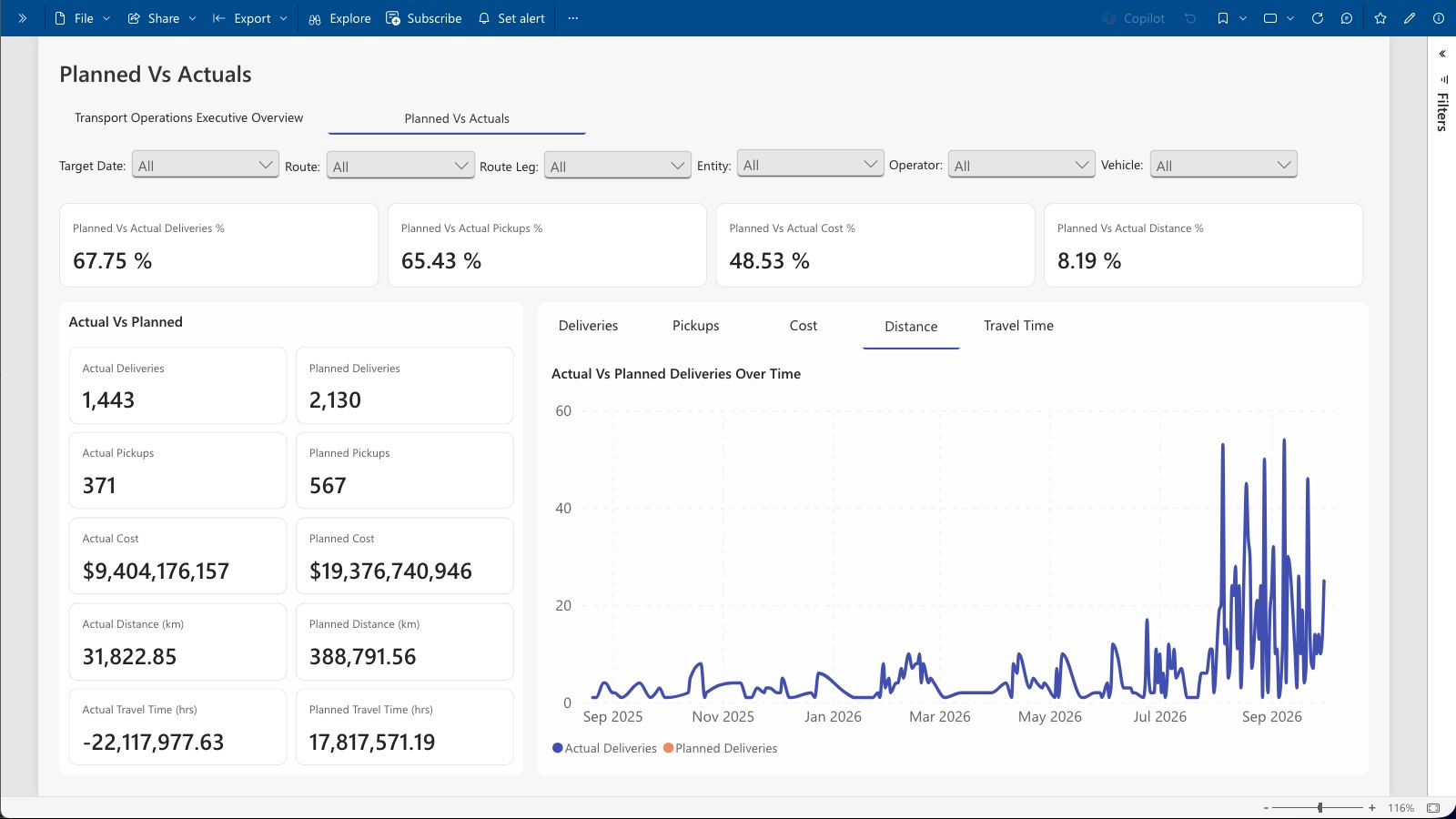
7. Compare the plan with what happened
Planned and actual routes are compared on the map and in Power BI: route timing, distance, cost, exceptions, delivery in full and on time (DIFOT), vehicle use and operator performance.
Managers identify recurring problems, such as unrealistic delivery windows, underused vehicles or recurring delays, and use the evidence to improve planning rules.
How the approaches compare
| Approach | Main advantage | Main limitation |
|---|---|---|
| Spreadsheets and manual planning | Low cost and familiar | Hard to scale, audit and change during the day |
| Standalone TMS | Specialist planning and dispatch | Separate data and an integration to maintain |
| Custom Power Platform app | Built around your exact processes | You build and maintain routing, dispatch and the operator app |
| Microsoft Business Applications on their own | Strong order, customer and freight data | No standard multi-vehicle stop optimization or operator mobile app |
| RouteCTRL | Planning, dispatch, Operator App, live tracking and proof of delivery, fully integrated into your Microsoft Business Applications | Vehicles, operators and planning rules are set up before go-live, usually rolled out site by site |
See how RouteCTRL would plan your routes. Book a demo
Customer story: Alspec
Alspec (Aluminium Specialities Group) makes and distributes aluminum systems from 14 sites across Australia. Many of its deliveries are promised for the same or next day.
Before RouteCTRL, its transport planning system reached Dynamics 365, warehouse systems and customer support tools through middleware. Each site had its own routing and proof of delivery process. Planning was mostly manual, the interfaces needed constant IT support, and late proof of delivery held up invoicing and customer service.
Alspec chose RouteCTRL to run route planning inside Dynamics 365 and standardize how its sites work. The rollout went site by site: key sites moved first while the rest of the network kept running.
At the sites running RouteCTRL, planners adjust routes in real time and managers follow progress and exceptions on live dashboards. Alspec’s teams report better workflow alignment, faster issue resolution, less load on IT and more confidence in meeting delivery promises.
Read the full Alspec case study
Getting started with route planning in Dynamics 365
Because RouteCTRL uses the data already in Dynamics 365, setup is mostly about adding the transport details your ERP doesn’t hold yet. Most teams work in this order:
- Define the planning scope. Choose the sites, order types, pickups and service jobs to plan together.
- Check addresses and delivery points. Make sure locations place correctly on the map, and record time windows and service areas.
- Set up vehicles and trailers. Record capacity, capabilities such as refrigeration or a liftgate, availability and GPS trackers.
- Set up operators. Add certificates, availability, the vehicles each may use and Operator App access.
- Define planning and compliance rules. Record delivery windows, service times, driving and rest rules, and hazmat requirements.
- Agree how the day runs. Decide how routes are released, changed and completed, what proof each job needs, and which updates customers receive.
- Pilot one site. Run live routes from one site first, compare planned and actual results, then extend site by site, as Alspec did.
Frequently asked questions
Does Dynamics 365 Business Central include route optimization?
Business Central handles orders, warehouse shipments, shipping agents, delivery addresses and online map directions. It does not include standard multi-vehicle route optimization or operator dispatch. RouteCTRL for Business Central adds route planning, optimization, dispatch, the Operator App and proof of delivery inside Business Central.
Can Supply Chain Management plan transportation routes without RouteCTRL?
Yes. Supply Chain Management includes transportation planning for carriers and your own fleet: route guides, scheduled routes, load planning, carrier selection and freight rating. RouteCTRL adds multi-vehicle stop optimization, operator scheduling, the Operator App, live tracking and proof of delivery. For a side-by-side view, see Dynamics 365 SCM Transportation Management vs. a dedicated add-on.
Can Power Apps optimize a delivery route?
The Power Apps map control can calculate a route between waypoints and reorder the stops by time or distance. Microsoft documents this as a preview feature, and it works on one route at a time. It does not share work across a fleet or provide dispatch, an operator app or proof of delivery. RouteCTRL provides all of these on Microsoft Power Platform.
What is the difference between route planning and route optimization?
Route planning is the whole decision: what work must be done, by whom, with which vehicle and when. Route optimization is the calculation that finds the best allocation and stop order for your goals and constraints. Optimization is one step in planning. Dispatch and execution follow it.
Can a route include deliveries, pickups and field service visits?
Yes. Deliveries, pickups, returns and field service jobs can share a route, so a technician’s day can mix installations, repairs and drop-offs. Orders for outside carriers are planned and tracked alongside your own fleet.
What does RouteCTRL mean by an operator?
An operator is anyone who carries out planned work on the road or on site: delivery drivers, field service technicians, second crew members and outside contractors. Each operator has a record in Dynamics 365 with their certificates, availability and permitted vehicles. Operators receive their routes and jobs in the RouteCTRL Operator App.
Does the Operator App work without internet access?
Yes. Operators keep working offline with the route already on their phone, and everything they record syncs when the connection returns. Live positions and new changes from dispatch arrive once the phone is back online.
How does proof of delivery get back to Dynamics 365?
The operator records the signature, photos and outcome in the Operator App. When the phone syncs, the proof of delivery is recorded against the order in Dynamics 365 and shown in the Customer Portal. Posting and invoicing can then follow automatically under each customer’s rules.
Does RouteCTRL follow driving-hours rules?
Yes. You set up the driving, break and rest rules that apply in your country. RouteCTRL then plans rest stops into routes, warns operators before a limit is reached, records duty time and logs violations. A route that would break the rules cannot be released.
See RouteCTRL plan a day like yours
Tell us your order and job types, fleet size, sites and delivery windows when you book. In the demo we’ll build routes in your Dynamics 365 app and compare the optimizer’s options and their costs. Then we’ll follow one job from dispatch to signed proof and show what setup your operation would need.
Related
- RouteCTRL for Supply Chain Management
- RouteCTRL for Business Central
- Operator App
- Command Center
- Customer Portal
- Alspec case study
More in this series
- How to plan delivery and pickup routes from Business Central orders
- How to add route planning to Dynamics 365 without disrupting dispatch
- When spreadsheet route planning stops working
- How to plan deliveries backward from the promised date