
When Spreadsheet Route Planning Stops Working: Signs It’s Time to Plan Inside Dynamics 365

The short answer
Spreadsheet route planning stops working when the plan can no longer keep pace with the orders behind it. Typical signs: routes are rebuilt several times a day, capacity and delivery windows are checked only at loading, one planner holds the routing knowledge, and paper proof of delivery holds up invoicing. At that point, planning belongs on the Dynamics 365 order records.
What is spreadsheet route planning?
In spreadsheet route planning, a planner exports open orders from the ERP, groups them by area, assigns vehicles and operators, and orders the stops by hand or with a mapping tool. The spreadsheet holds a copy of the orders, so changes made in Dynamics 365 after the export do not reach the plan. For how planning works when it stays on the order records, see the guide to route planning in Microsoft Dynamics 365.
Operators are the drivers, technicians and crews who carry out the routes.
Why does spreadsheet planning work at first?
At low volumes a spreadsheet is a reasonable tool. Few vehicles, stable customers and one planner who knows the area mean most checks happen in the planner’s head, and the cost of a dedicated system is hard to justify.
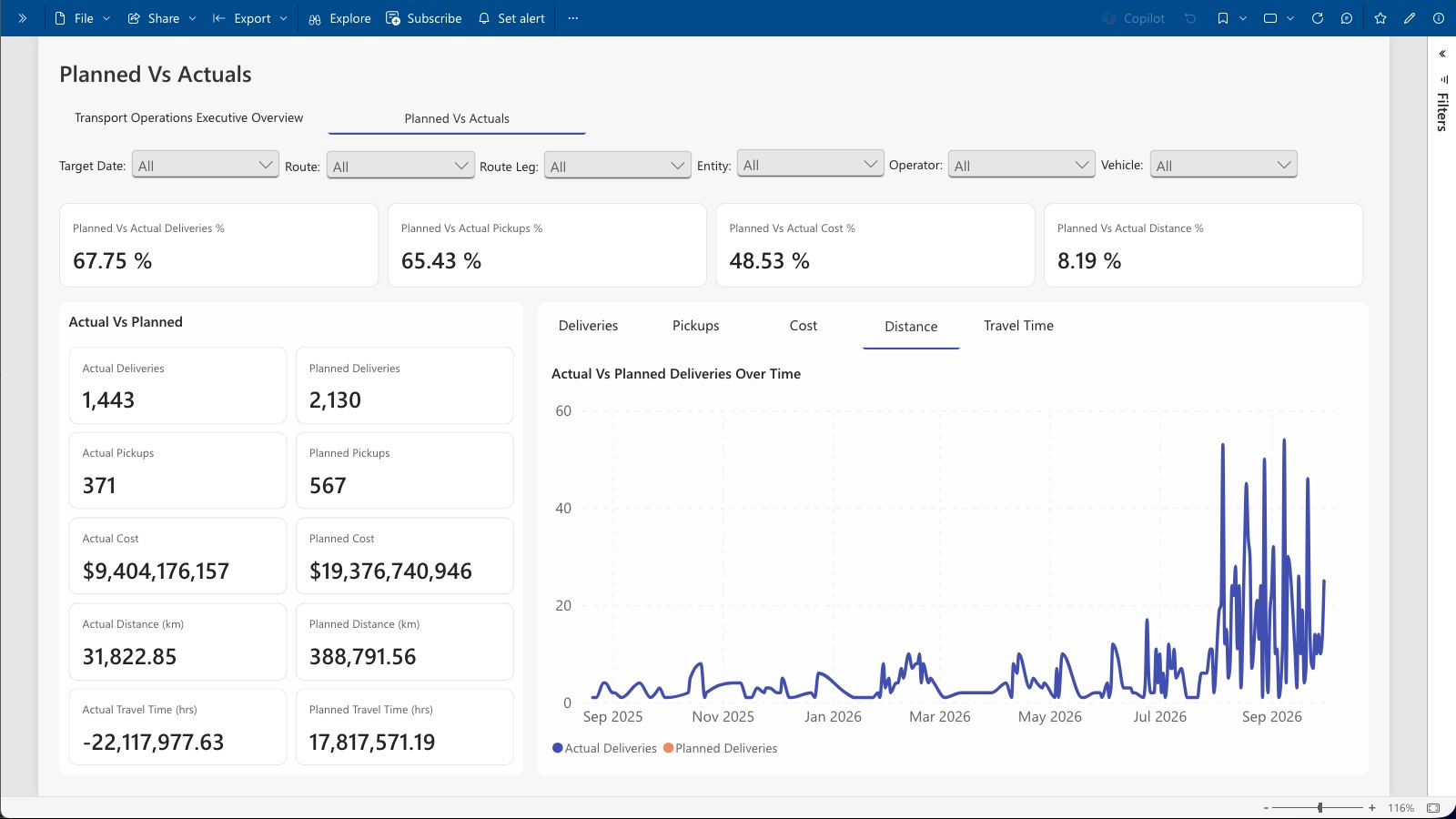
The limit is structural: a spreadsheet holds a copy of the orders with no link back to the ERP, and capacity, delivery windows, service times, operator certificates and cost are checked only as far as someone builds and maintains the formulas. As order volume, order types and same-day changes grow, every one of those checks stays manual. The signs below show when that manual work has become the constraint.
Which signs show spreadsheet planning has reached its limit?
The eight signs fall into three groups: data (the plan no longer matches the orders), control (capacity, windows and knowledge sit outside any system) and evidence (delivery and cost results cannot be checked). Each sign includes a measure, so the current position can be recorded before any decision.
1. The plan is rebuilt several times a day
Each new or changed order means re-sorting the sheet and phoning operators who are already on the road. Measure: the number of times the day’s plan is rebuilt after the first release.
2. Orders change after export and the plan does not
A quantity change, a new ship-to address or a cancellation entered in Dynamics 365 after the export is missing from the route. Measure: orders changed in the ERP after the plan was exported, per day.
3. Capacity and delivery windows are checked at the dock or at the customer
Where the sheet holds no reliable capacity or window data, an overloaded vehicle is found at loading and a missed window is found at the stop. Measure: loads reworked at loading, and deliveries outside the agreed window, per week.
4. One planner holds the routing knowledge
Which customers go together, which sites need a smaller vehicle and which roads to avoid are in one person’s memory. Measure: plan preparation time and missed windows on days the main planner is absent.
5. Pickups, returns and transfers are planned separately
Supplier pickups, customer returns and inventory transfers sit in different lists, so vehicles return empty while another vehicle makes the pickup. Measure: pickups and transfers carried on separate routes that could have been combined with deliveries.
6. Customer service has to ask dispatch where an order is
The order record does not show which route it is on, so every “where is my order?” call goes to dispatch. Measure: delivery status calls per day.

7. Paper proof of delivery holds up invoicing
Signed delivery notes have to be collected, checked and keyed in before the shipment can be posted and invoiced. Measure: days from delivery to invoice.
8. No one can compare planned with actual
Without planned and actual distance, time and cost per route, there is no evidence of which routes, customers or service times are causing overruns. Measure: whether planned and actual figures per route exist at all.
How do you know when it is time to change?
Record the eight measures for two weeks. Occasional signs can be managed with a workaround. Signs that occur every day, or that grow with order volume, indicate a structural limit of the spreadsheet rather than a planning error. The measures also become the baseline for judging any new system.
What changes when routes are planned inside Dynamics 365?
With RouteCTRL, fully integrated into Dynamics 365 Supply Chain Management, Business Central, Sales and Power Platform, planning records sit beside the orders, and each sign has a direct counterpart:
| Sign | Planning inside Dynamics 365 with RouteCTRL |
|---|---|
| Plan rebuilt several times a day | Live Changes add, cancel and move stops on dispatched routes; ETAs for the remaining stops are recalculated and sent to the Operator App |
| Orders change after export | Orders are added from the ERP order lists, and a changed order can be refreshed in the plan |
| Capacity and windows checked late | Each subplan is estimated for distance, drive time, load and cost; release validation checks capacity, availability, licenses and capabilities |
| One planner holds the knowledge | Destination groups, order selection presets and stop priority rules record the planner’s rules; the Optimizer compares options; route automation runs routine plans on a schedule |
| Pickups and transfers planned separately | Sales, return, purchase, transfer and service orders are planned on the same routes |
| Status calls to dispatch | Each order shows its route or carrier shipment and its routing status; customer notifications where enabled |
| Paper POD holds up invoicing | Operators record proof of delivery in the Operator App; it synchronizes to the order, and where automatic posting is configured, confirmed deliveries can trigger shipment posting and invoice creation |
| No planned against actual | Each route records a planned and an actual cost, with distance and time, for review by route, customer and period |
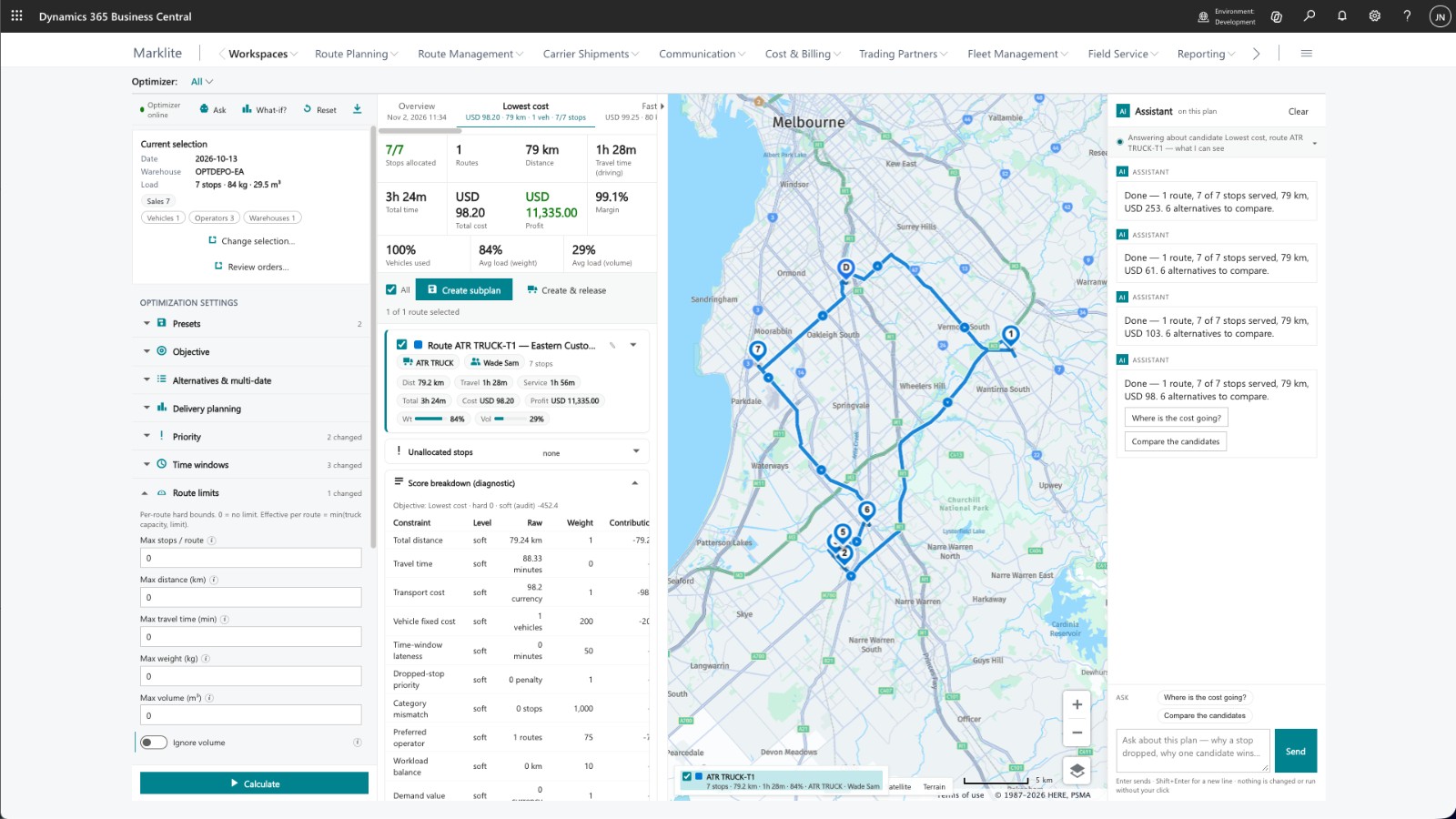
For the step-by-step workflow, see how to plan delivery and pickup routes from Business Central orders.
What should be done before moving off spreadsheets?
- Set the baseline. Keep the two weeks of measures, so the change can be judged on the same figures.
- Clean the master data. Correct addresses, delivery windows and realistic service times have more effect on plan quality than any optimization setting.
- Write down the planner’s rules. Customer groupings, access restrictions and vehicle preferences become destination groups, vehicle capabilities and stop priority rules.
- Start with one warehouse. A pilot site keeps the spreadsheet available as a fallback until the new process meets agreed criteria. See how to add route planning to Dynamics 365 without disrupting dispatch.
Planning from the orders themselves
A spreadsheet plans from a copy that starts aging at export. Planning on the Dynamics 365 order records keeps the plan, the route and the proof of delivery tied to the order from planning through to the invoice.
Bring your current planning spreadsheet and a typical day of orders to a demo. We will build the same day’s routes in RouteCTRL and compare them with your plan.
Related reading
- Route planning in Microsoft Dynamics 365 and Power Platform, the complete guide
- How to plan delivery and pickup routes from Business Central orders
- How to add route planning to Dynamics 365 without disrupting dispatch