
 Microsoft Dynamics 365 Business Central
Keep your fleet and field teams moving with RouteCTRL
Organize deliveries, collections, and service visits without juggling spreadsheets and phone calls. RouteCTRL helps your team schedule daily work, send assignments to drivers and technicians, and follow progress from the office.
Why RouteCTRL
Get more from the resources you already have
-
Support more ways to work
Organize deliveries, service visits and carrier shipments in RouteCTRL as your business takes on different types of work.
-
Compare before committing
Evaluate route scenarios for cost, vehicle use, and workload before choosing the plan that makes sense for your business.
-
Keep existing GPS devices
Monitor your fleet with RouteCTRL using supported GPS and telematics devices you already own.
-
Share live route progress
Give dispatchers and managers live route visibility in Command Center without extra Dynamics 365 licenses for your teams.
Features
Explore what RouteCTRL brings to Microsoft Dynamics 365 Business Central
Planning
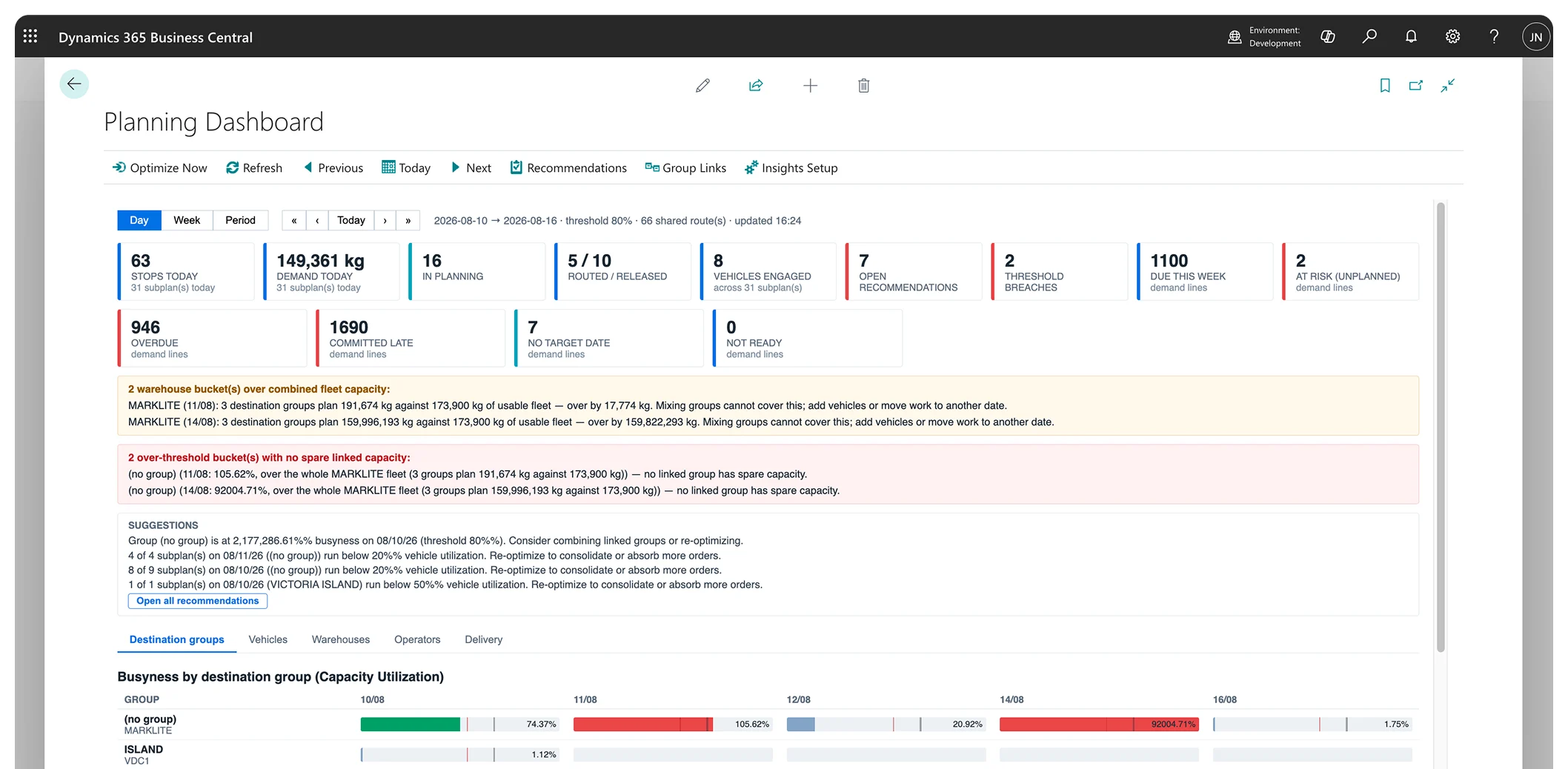
Planning Dashboard
Review demand, route readiness, and capacity warnings in the Planning Dashboard to identify assignments needing attention.
- Check overdue demand, unplanned orders, and capacity thresholds.
- Compare activity across destination groups, vehicles, warehouses, and operators.
- Review the recommendations listed for the selected planning period.
Planning
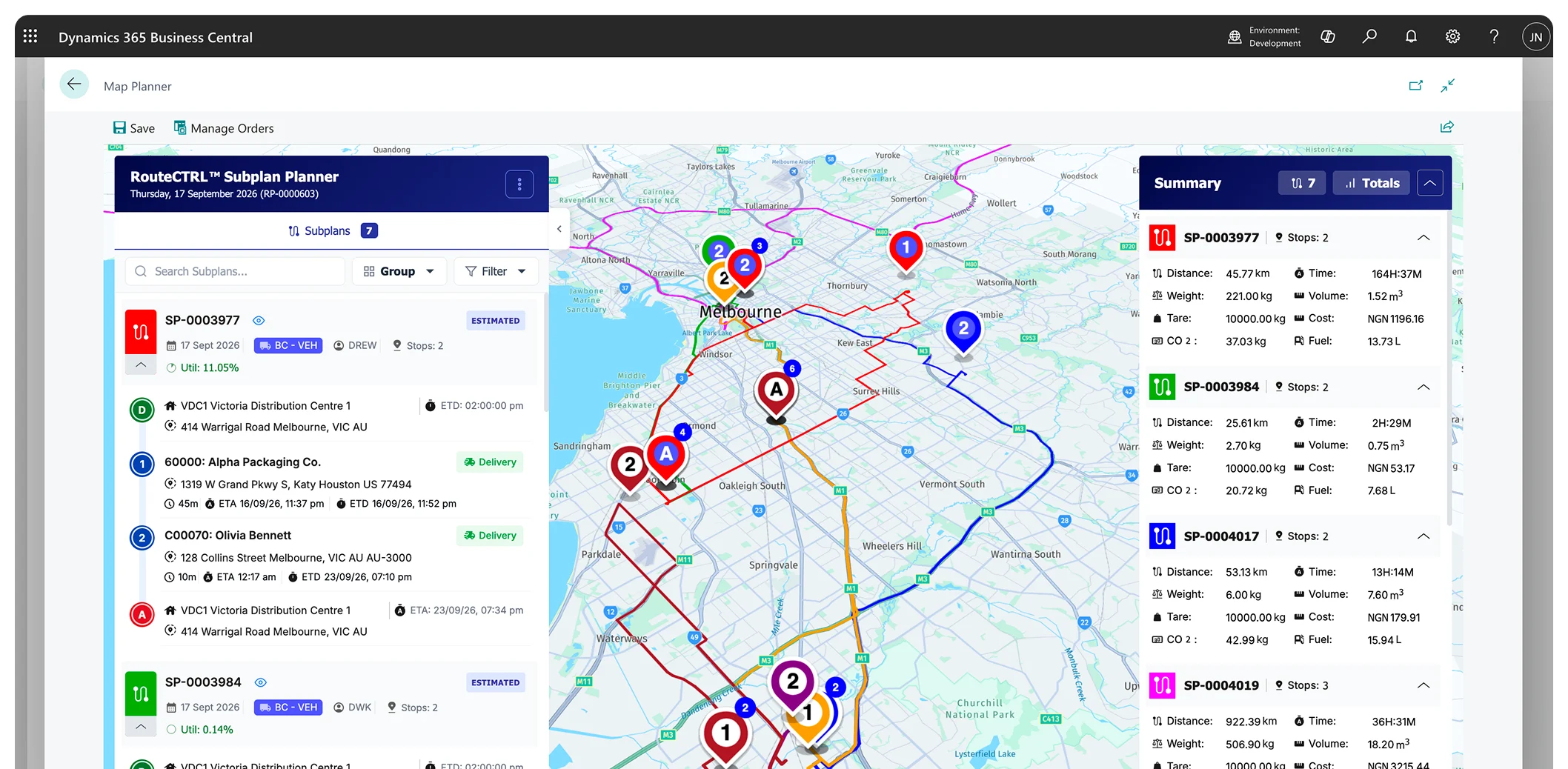
Map Planner
Review planned stops on the map alongside their sequence, estimated arrival times, and route totals.
- Follow the planned stop sequence between departure and arrival locations.
- Check stop addresses, service durations, and estimated arrival and departure times.
- Review route summaries for distance, duration, load, and estimated cost.
Optimization
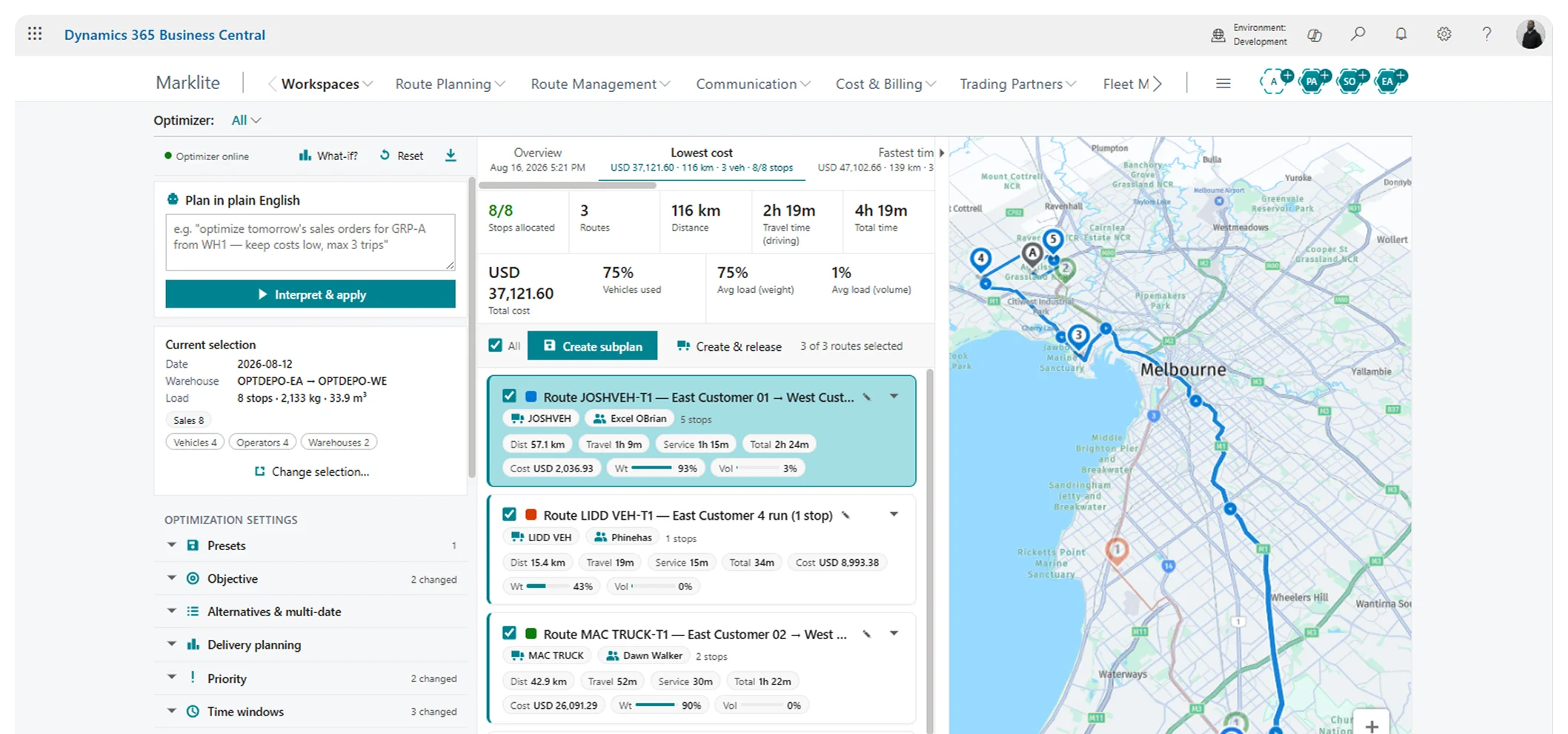
Route Optimizer
Find a route plan that fits your operational priorities. Use the Optimizer to evaluate alternatives before committing resources to execution.
- Describe route requirements in plain English to tell the Optimizer what you need the plan to achieve.
- Compare what-if scenarios before applying a plan, assessing how alternative choices affect estimated costs, travel times, and resource use.
- Optimize for lowest cost or fastest time, depending on whether the priority is controlling transport spend or shortening journeys.
Planning
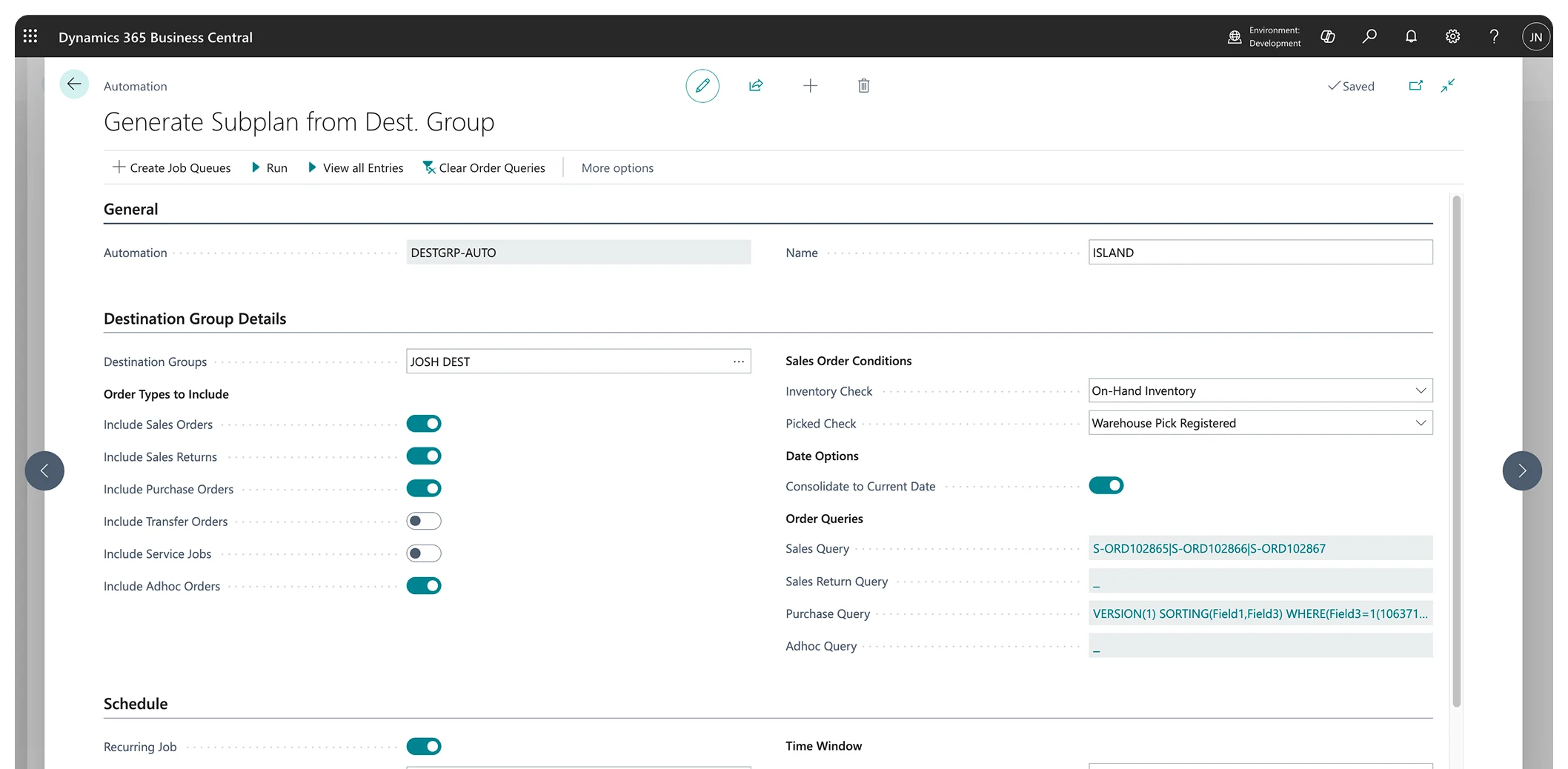
Subplan Automation
Configure recurring subplan creation from destination groups using selected order types and readiness conditions.
- Select the destination group, included order types, and order queries.
- Set inventory and warehouse-pick conditions for eligible sales orders.
- Configure recurring processing and create job queue entries for the automation.
Scheduling
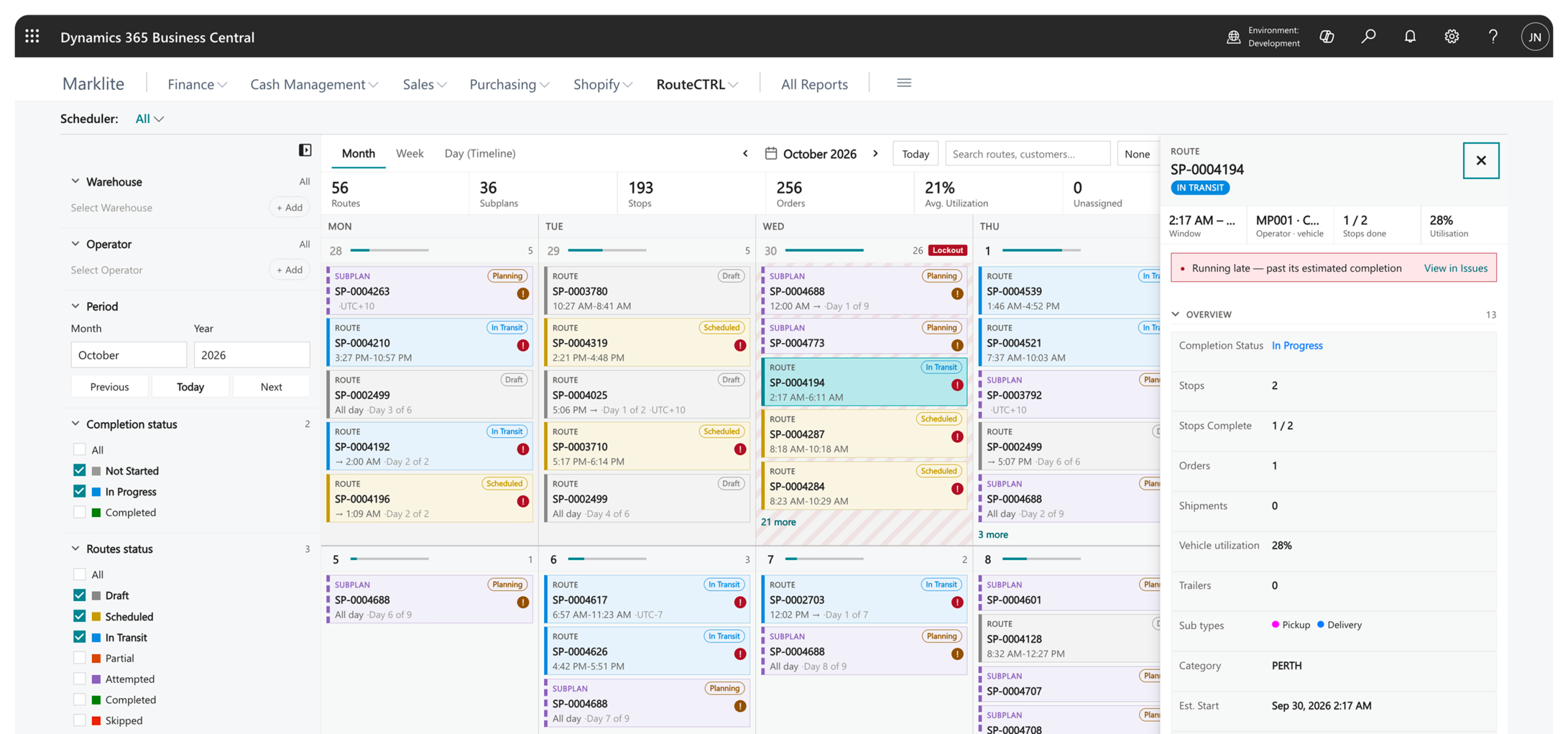
Route Scheduler
Review routes and subplans in a calendar, with their assigned resources, scheduled times, and completion status.
- Switch between month, week, and day timeline views.
- Filter the calendar by warehouse, operator, and route or completion status.
- Check scheduled assignments, utilization, and flagged exceptions for the selected period.
Scheduling
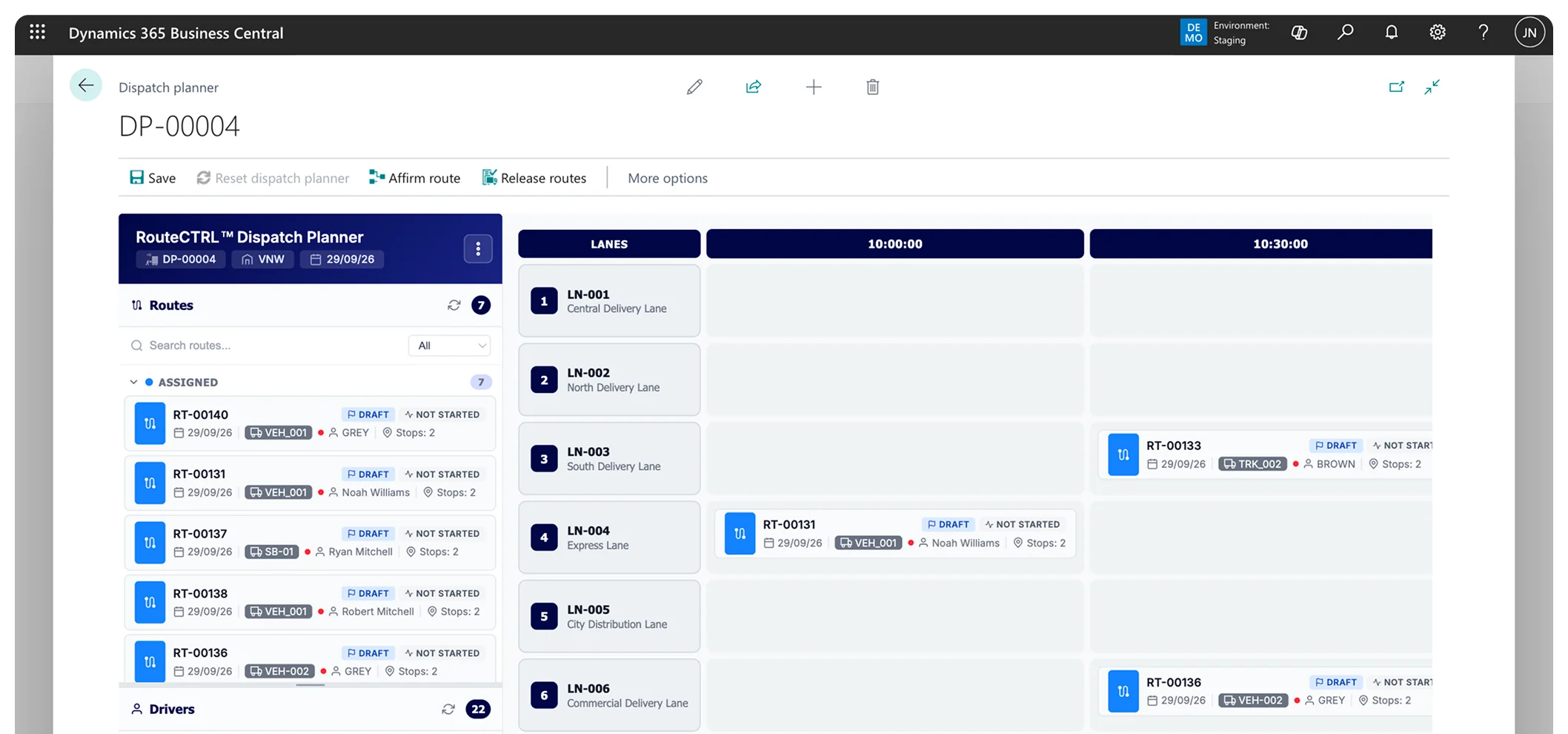
Dispatch Planner
Organize routes into departure lanes and time slots, with vehicle and operator assignments visible on each route card.
- Place routes in the relevant departure lanes and time slots.
- Check the assigned vehicle, operator, status, and stop count on each route card.
- Affirm reviewed routes and release them from the dispatch board.
Scheduling
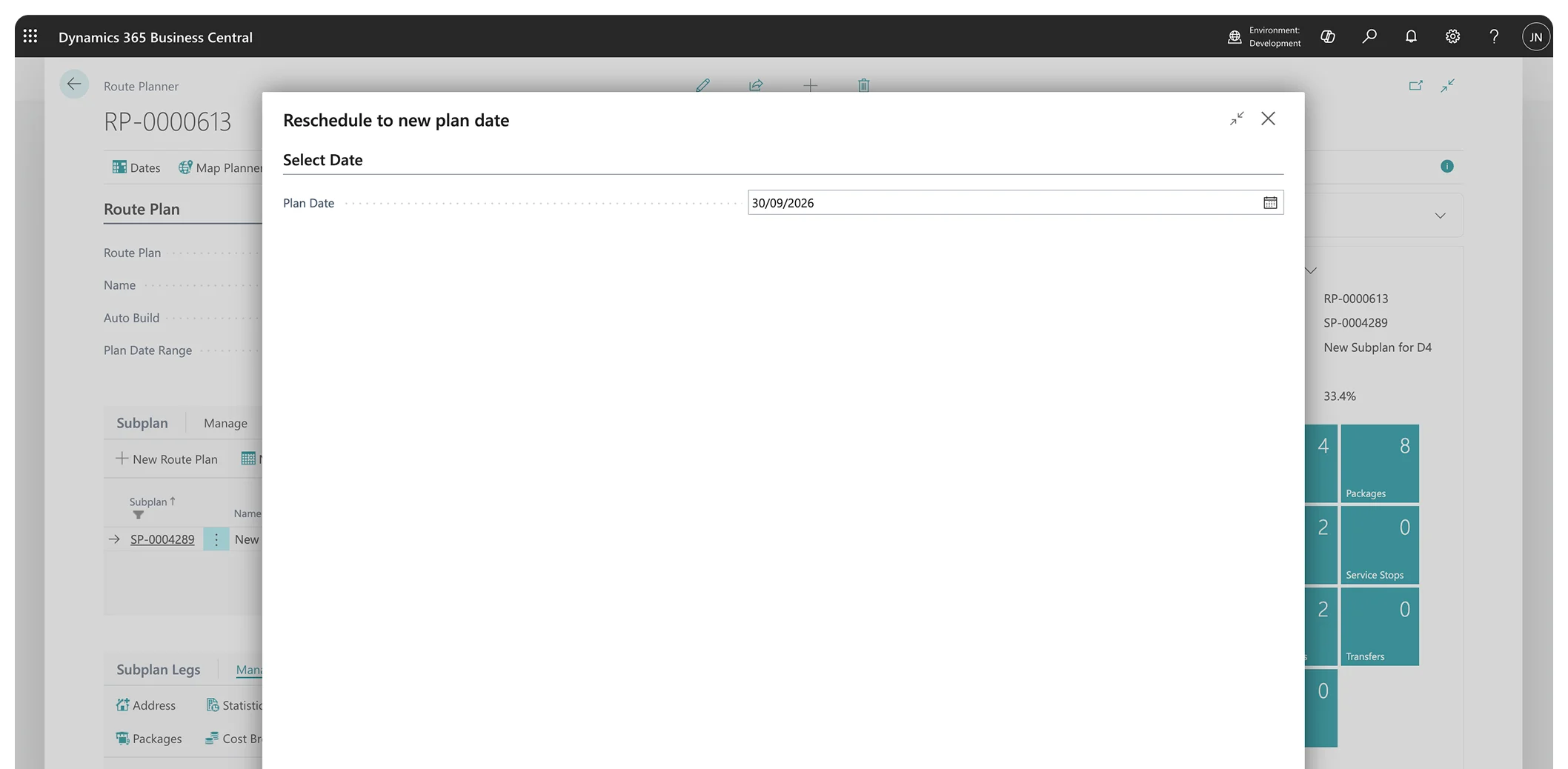
Route Rescheduling
Set a new plan date for selected routes or subplans when delivery and collection dates change.
- Identify the selected route plan or subplan before rescheduling.
- Choose the revised date in the rescheduling dialog.
- Confirm the new plan date for the selected assignment.
Fleet
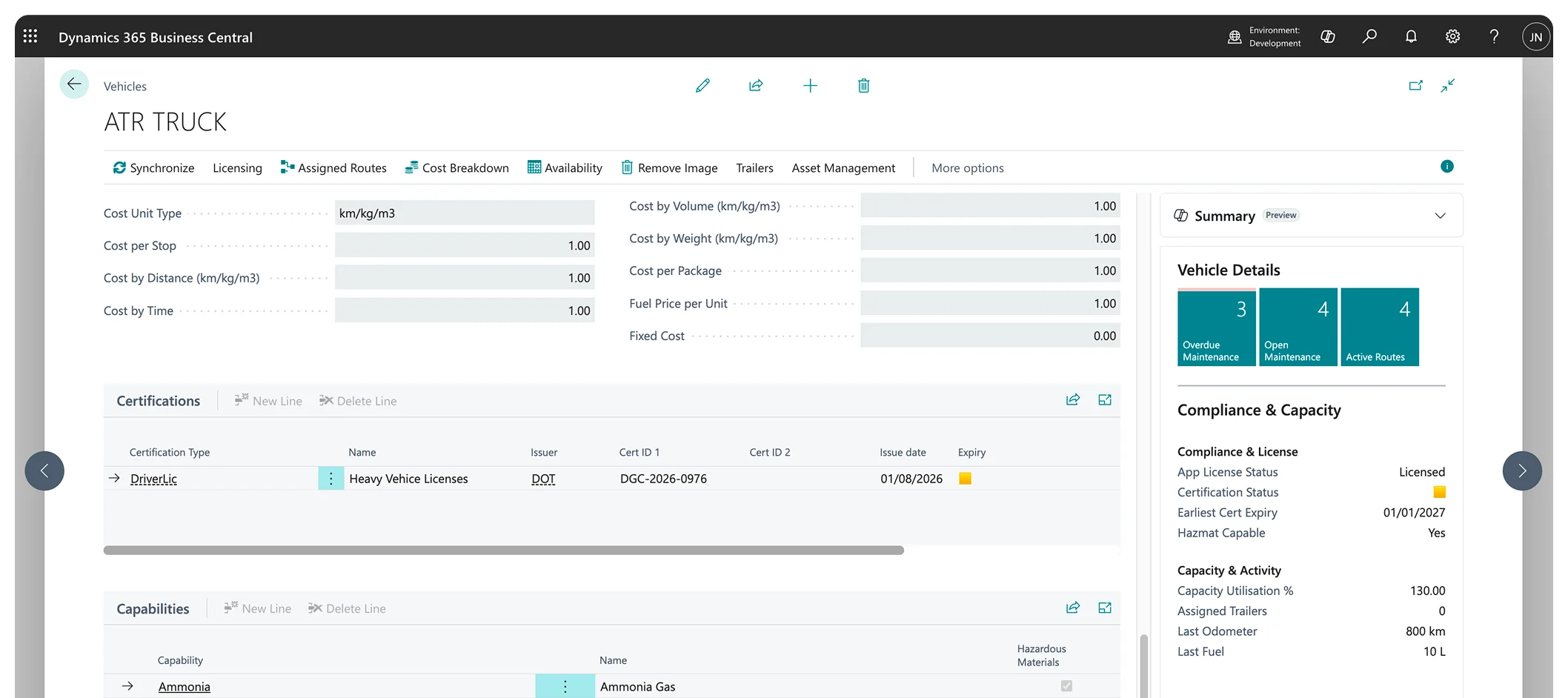
Vehicle Capabilities and Certifications
Review a vehicle’s capabilities, certification records, and compliance summary when assessing its suitability for an assignment.
- Check certification types, issuers, reference numbers, and expiry dates.
- Review the operational capabilities recorded against the vehicle.
- Check certification status and the vehicle’s capacity and activity summary.
Planning
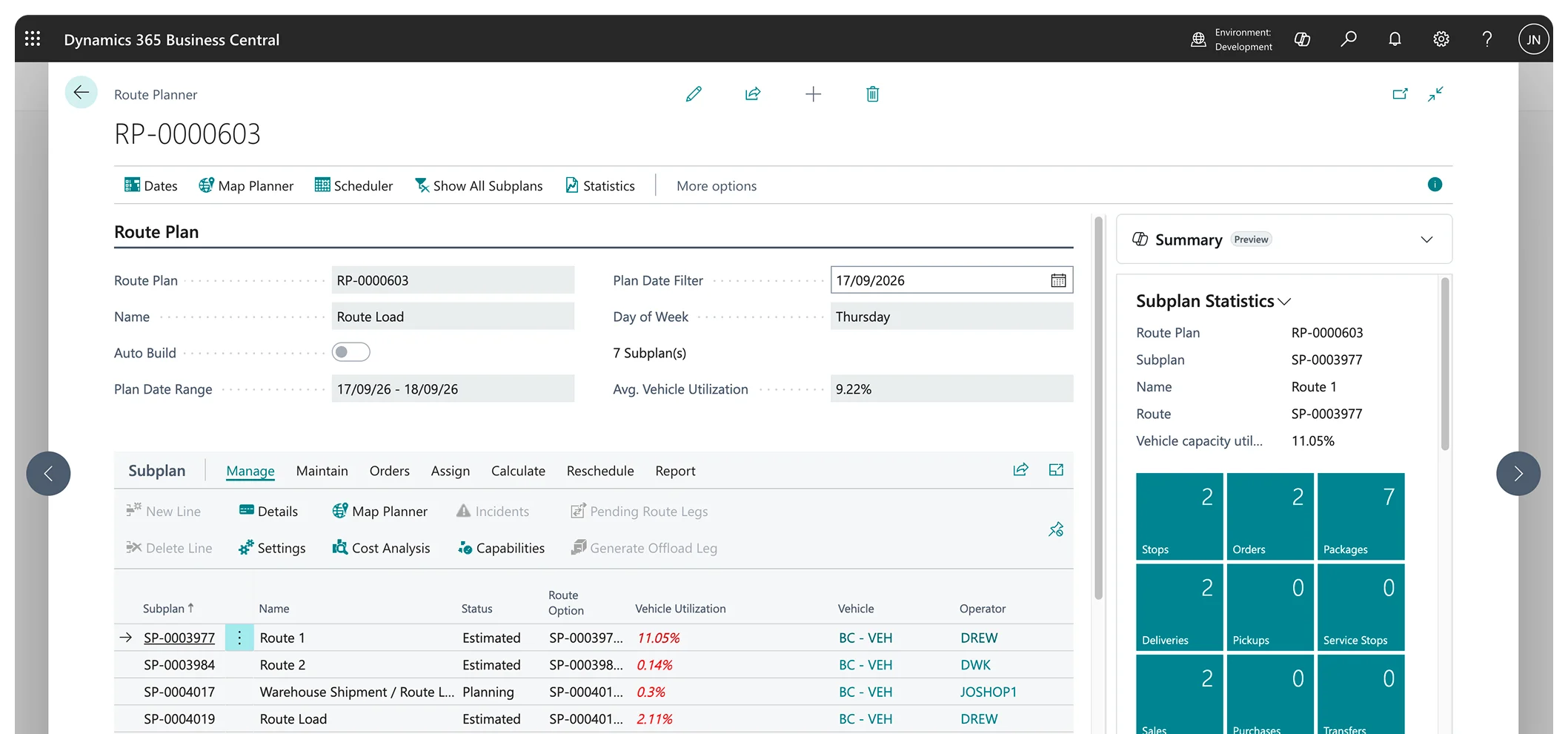
Subplan Management
Review the subplans within a dated route plan, including their planning status and assigned vehicles.
- Identify each subplan by its name and planning status.
- Check the vehicle allocated to each subplan.
- Access calculation and rescheduling actions for selected subplans.
Transport
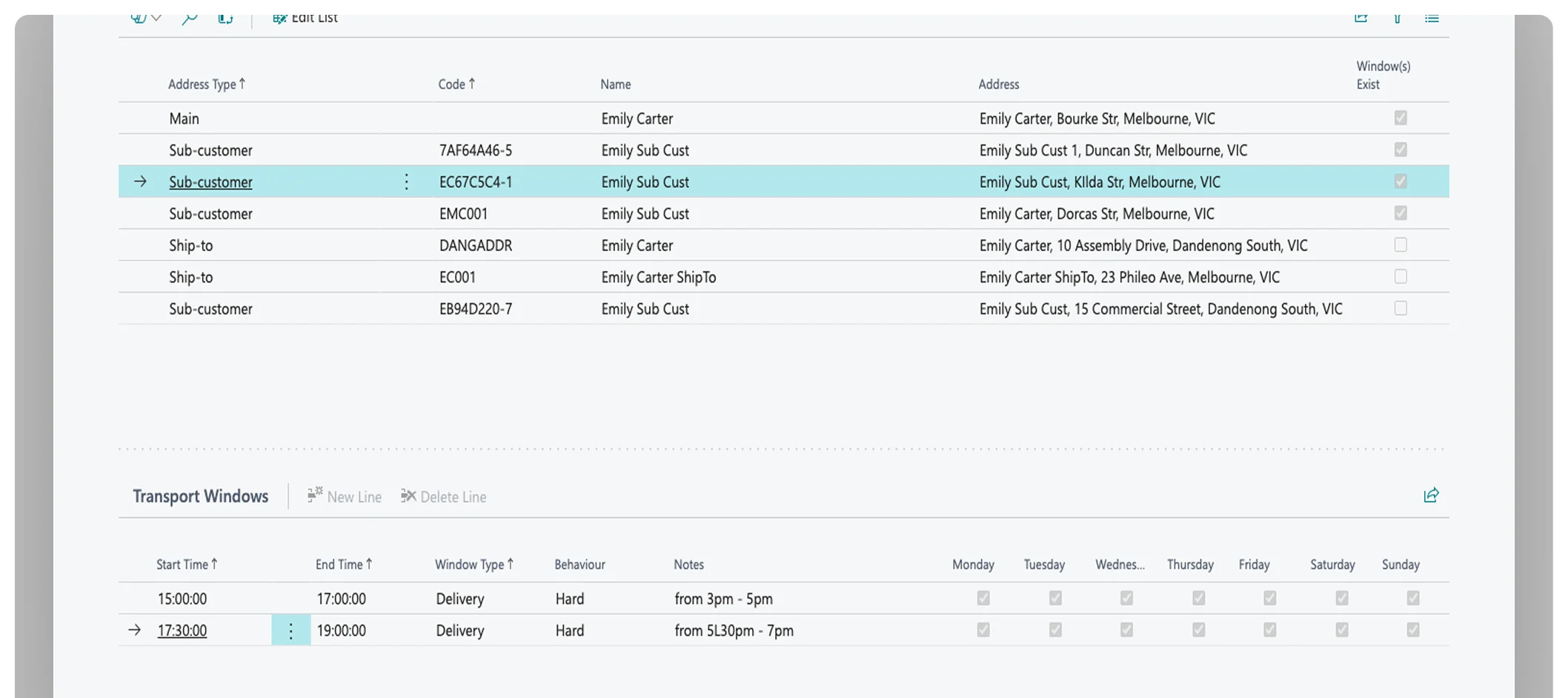
Transport Window Management
Define delivery and collection hours against customer addresses so planners can account for when handovers can take place.
- Set the start and end time for each address’s transport window.
- Specify the delivery or pickup window type and applicable weekdays.
- Add notes about receiving hours, access arrangements, or collection requirements.
Orders
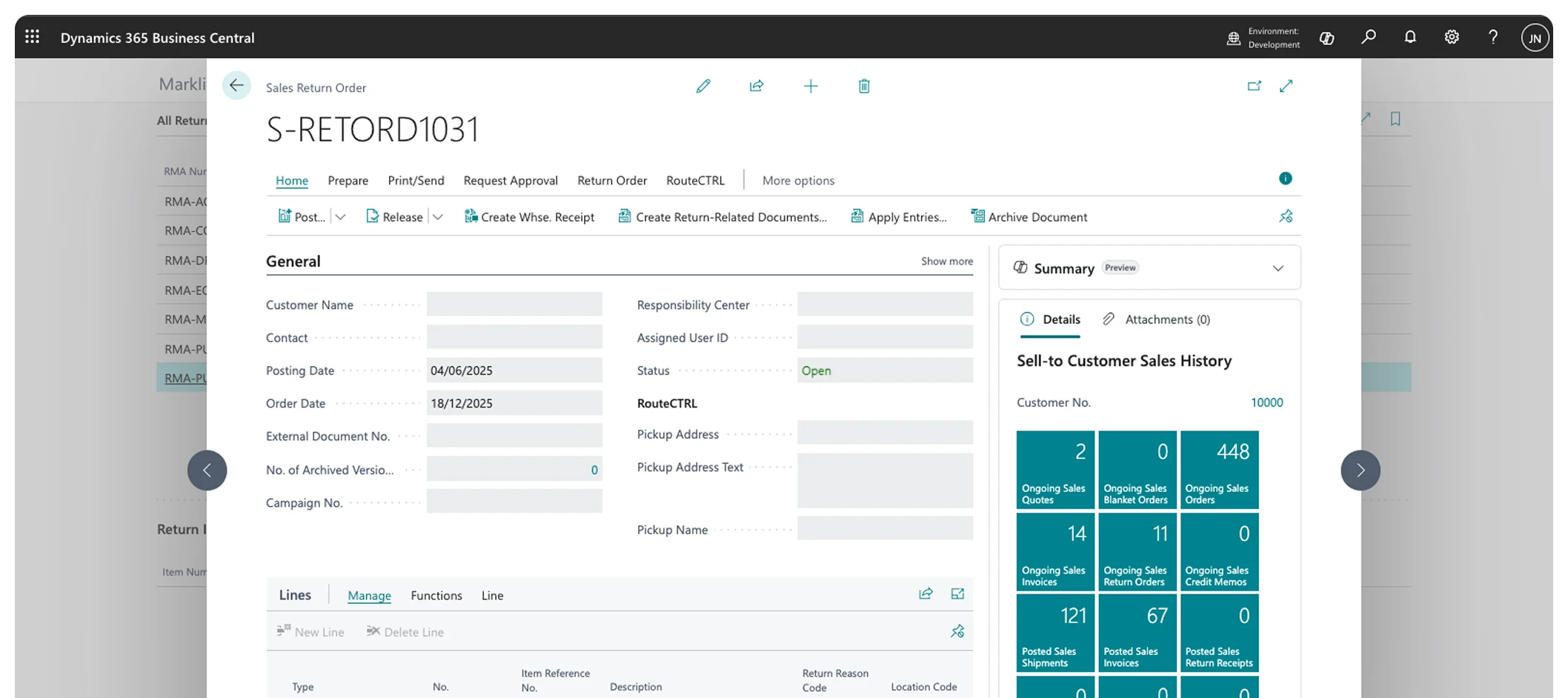
Returns Management
Record customer and pickup details on sales return orders before arranging collection.
- Review the return order’s customer, dates, and status.
- Check the RouteCTRL pickup address, address text, and pickup name.
- Review return-order lines, reason codes, and location details.
Transport
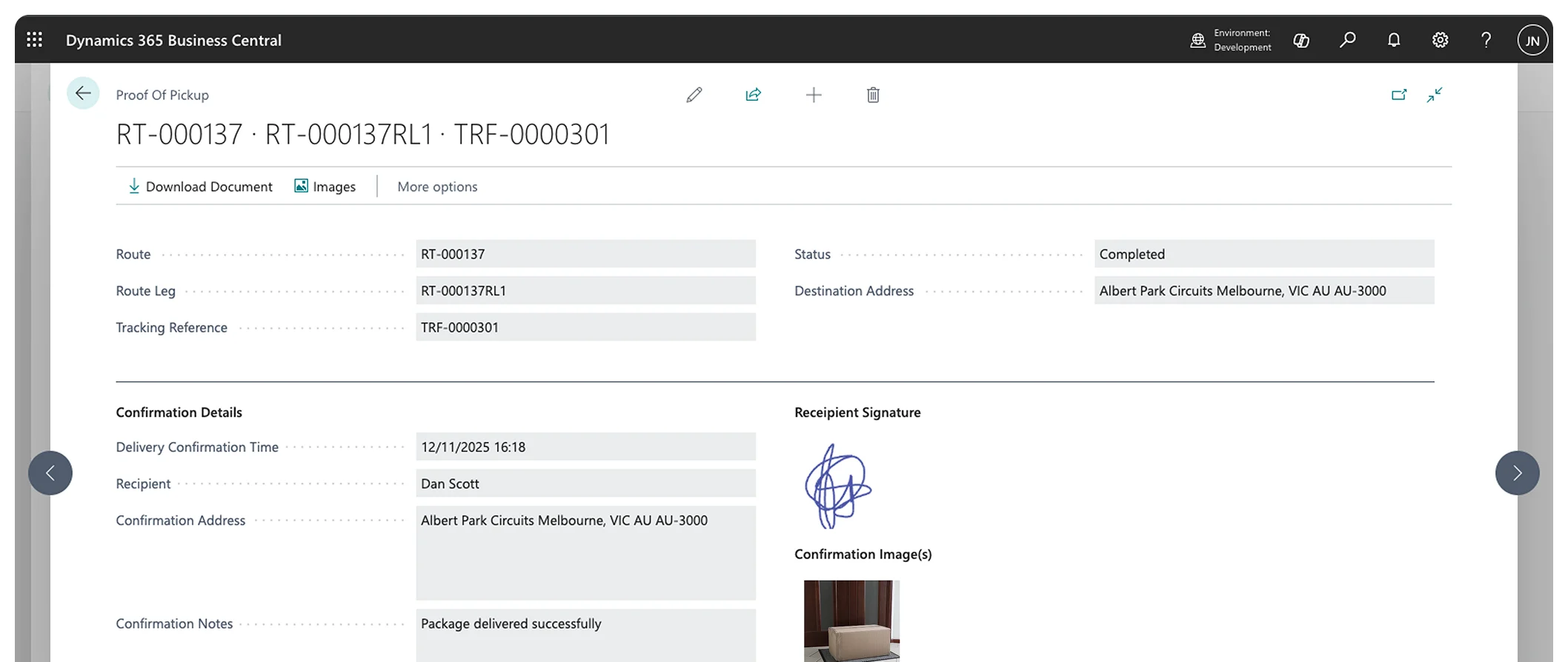
Proof of Delivery and Pickup
Review handover evidence against the relevant route stop when investigating delivery or collection queries.
- Check the recipient, confirmation time, address, and recorded notes.
- Review signatures and confirmation images submitted through the Operator App.
- Access the proof document associated with the completed stop.
Loads
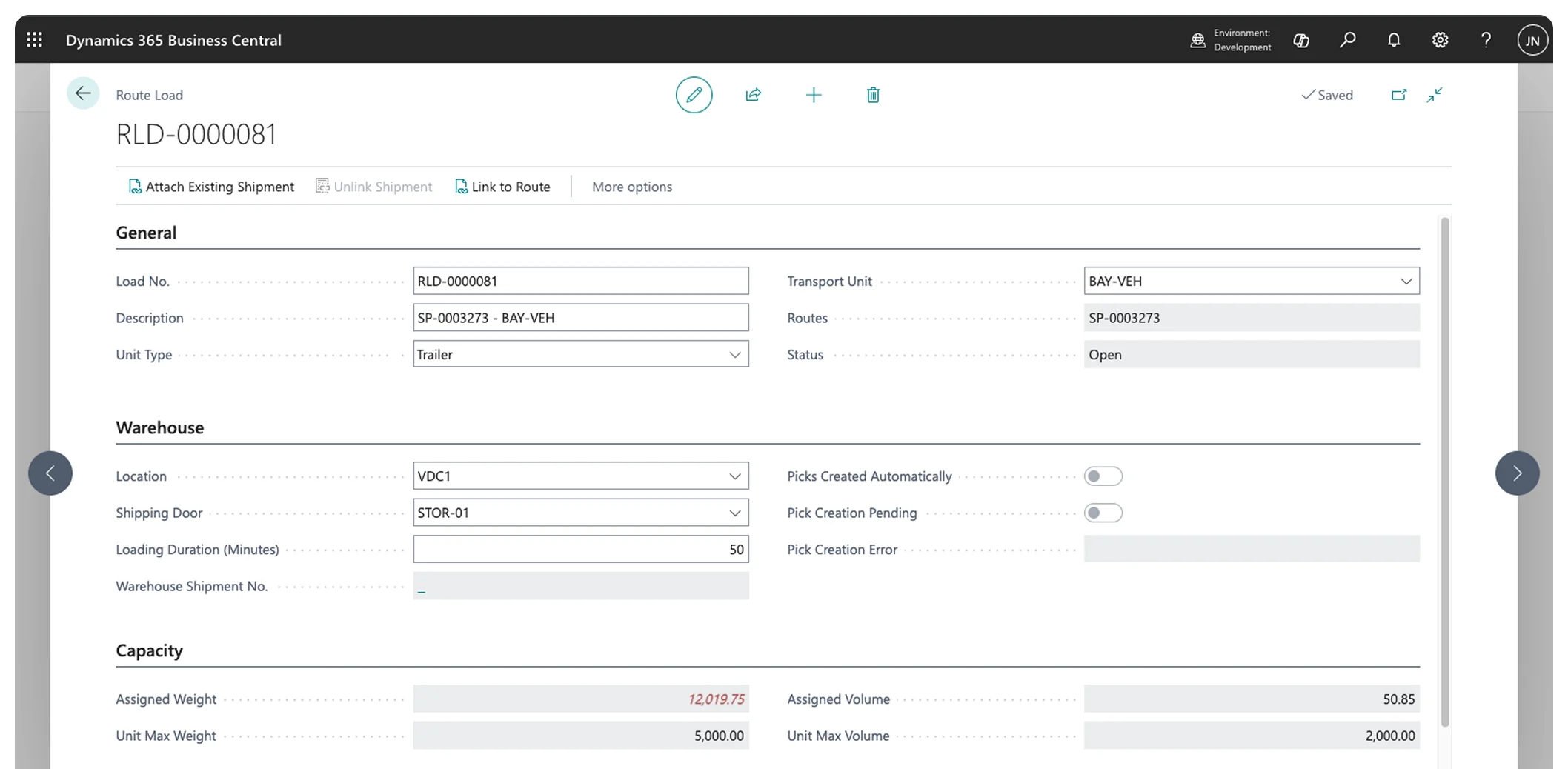
Route Loads
Set up a route load with its transport unit, warehouse location, shipping door, and loading duration.
- Identify the load number, unit type, transport unit, and linked route.
- Set the warehouse location, shipping door, and loading duration.
- Review the linked warehouse shipment and pick-creation status.
Loads
Load Allocation
Attach shipments to a route load and compare its assigned weight and volume with the transport unit’s capacity.
- Attach an existing shipment to the selected load.
- Compare assigned weight and volume with the unit’s recorded maximums.
- Link the load to its route and review the warehouse shipment reference.
Warehouse
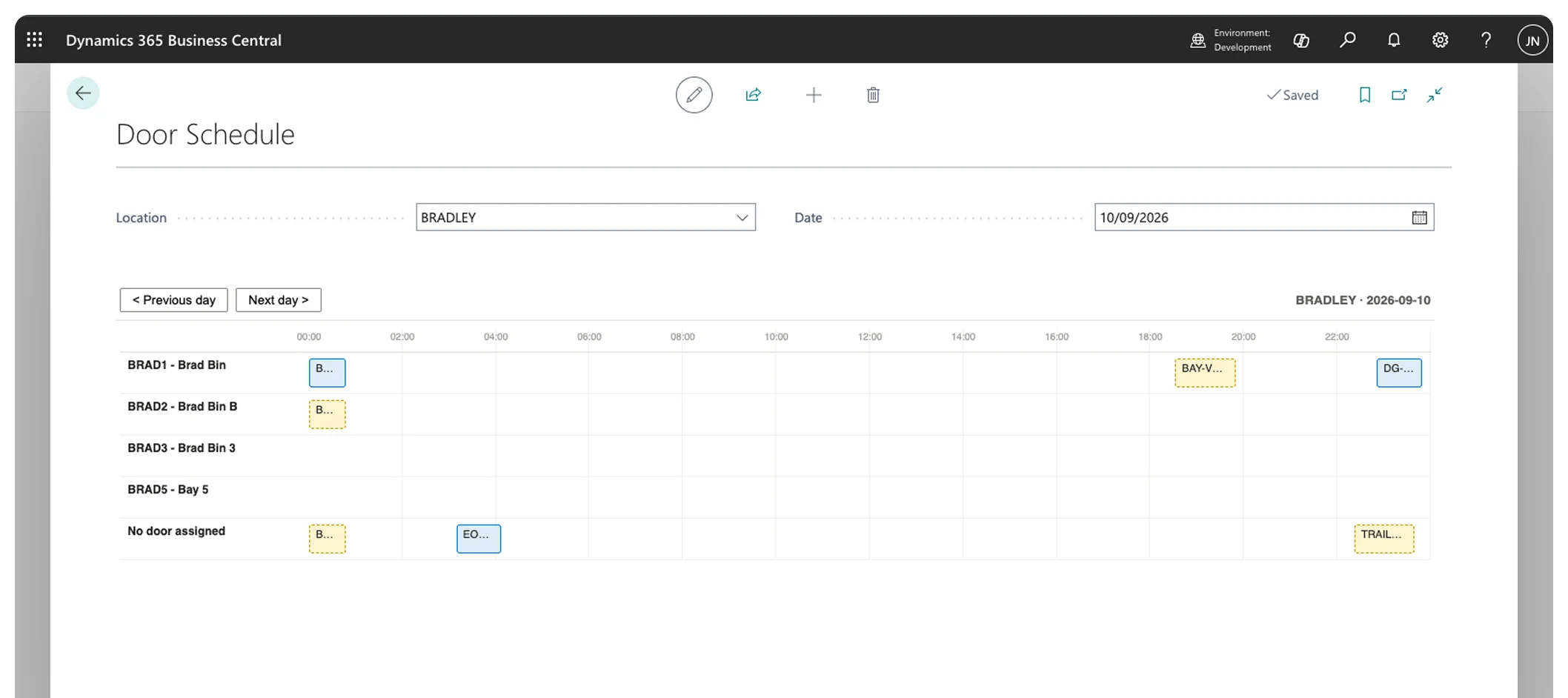
Shipping Door Schedule
Review loading bookings by warehouse location, shipping door, and time, including loads without a door assignment.
- Select the warehouse location and schedule date.
- Review bookings across shipping-door lanes and time slots.
- Identify bookings listed under the unassigned-door lane.
Warehouse
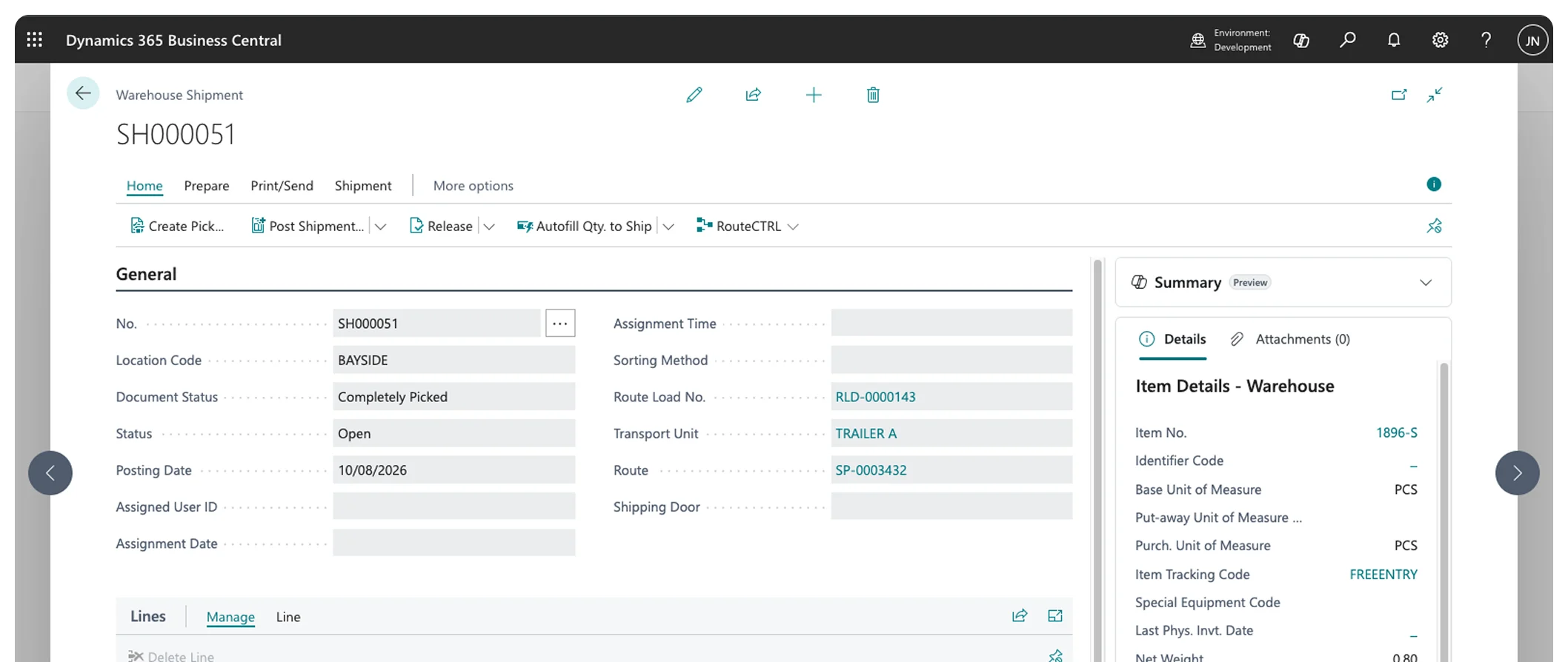
Warehouse Shipments
Review warehouse preparation alongside the linked route, route load, and transport unit in Business Central.
- Check document status and the warehouse shipment’s preparation details.
- Follow the linked route, route load, and transport unit references.
- Review the shipment location, shipping door, and item lines.
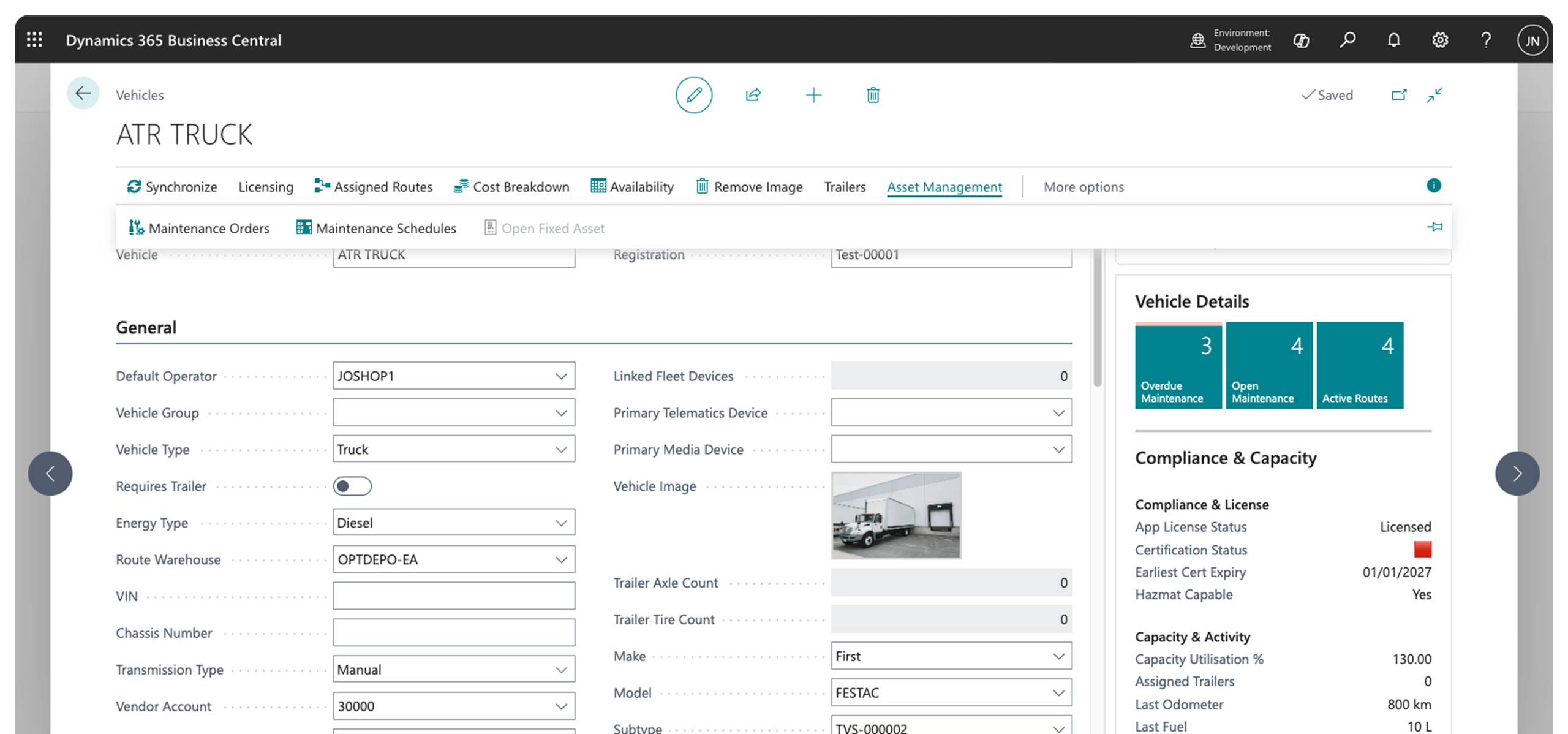
Fleet
Vehicle and trailer management
Review vehicle identity, operating details, and compliance and capacity summaries in Business Central.
- Record the registration, vehicle type, make, model, and energy type.
- Check the default operator, route warehouse, and trailer requirements.
- Review certification status, capacity utilization, and maintenance and route counts.
Fleet
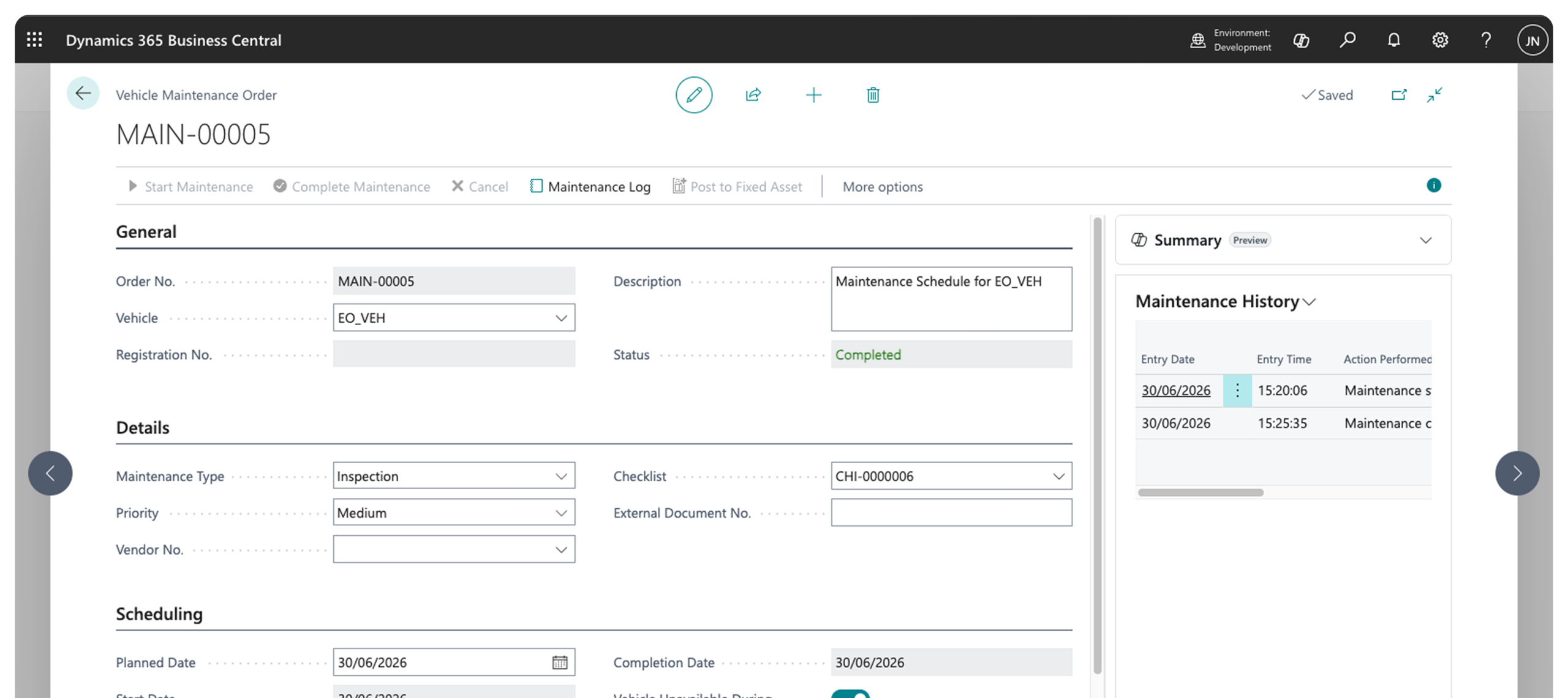
Vehicle Maintenance
Review a vehicle maintenance order with its status, priority, planned dates, checklist, and recorded history.
- Identify the vehicle, maintenance type, priority, and order status.
- Check the planned and completion dates recorded for the maintenance order.
- Review the linked checklist and maintenance history.
Compliance
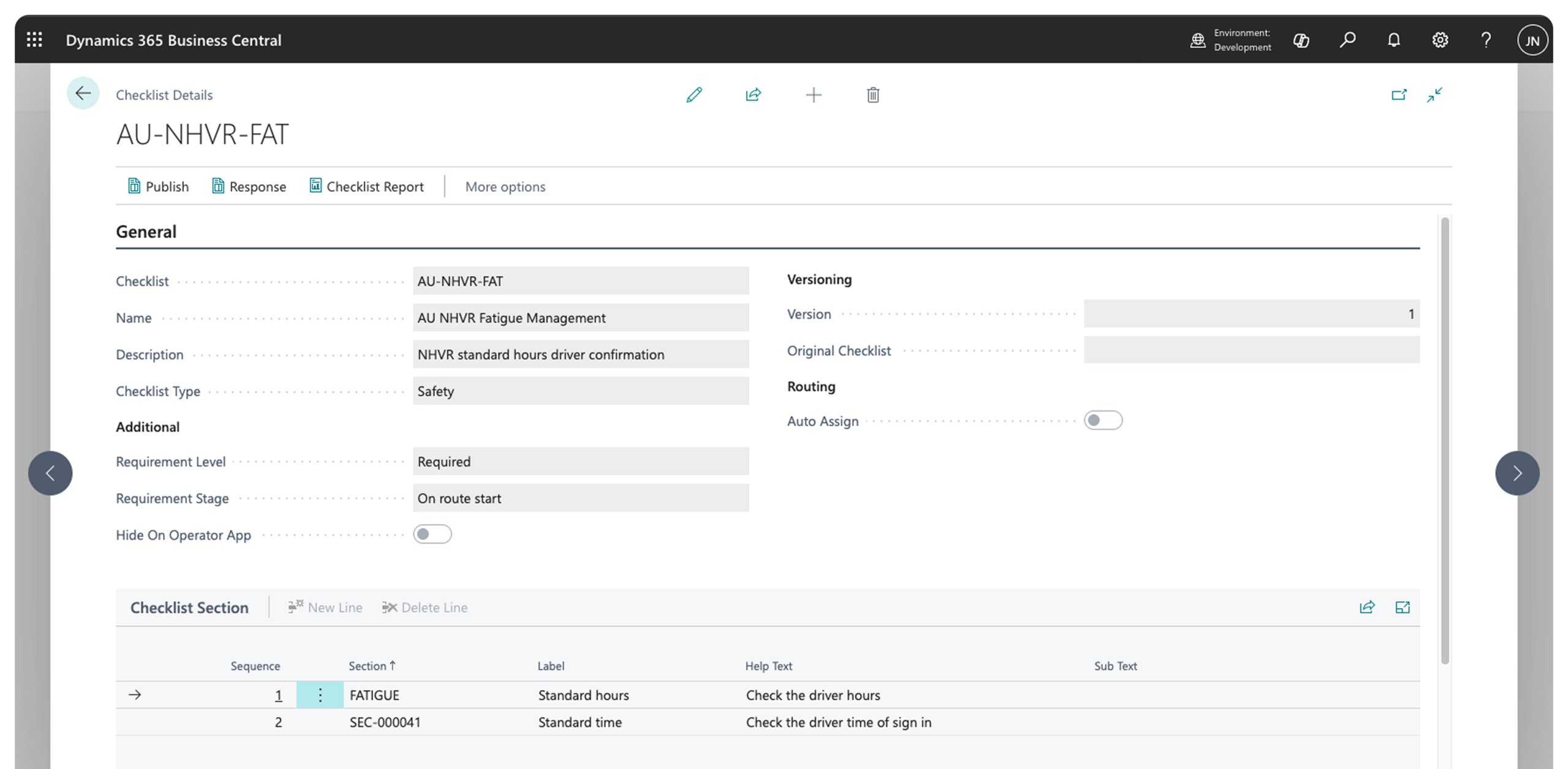
Safety and Compliance Checklists
Configure required safety checks, including fatigue declarations, with defined sections and a route-stage requirement.
- Organize checklist sections with labels and supporting instructions.
- Set the requirement level and the route stage at which the checklist applies.
- Publish the checklist and access its responses and report.
Compliance
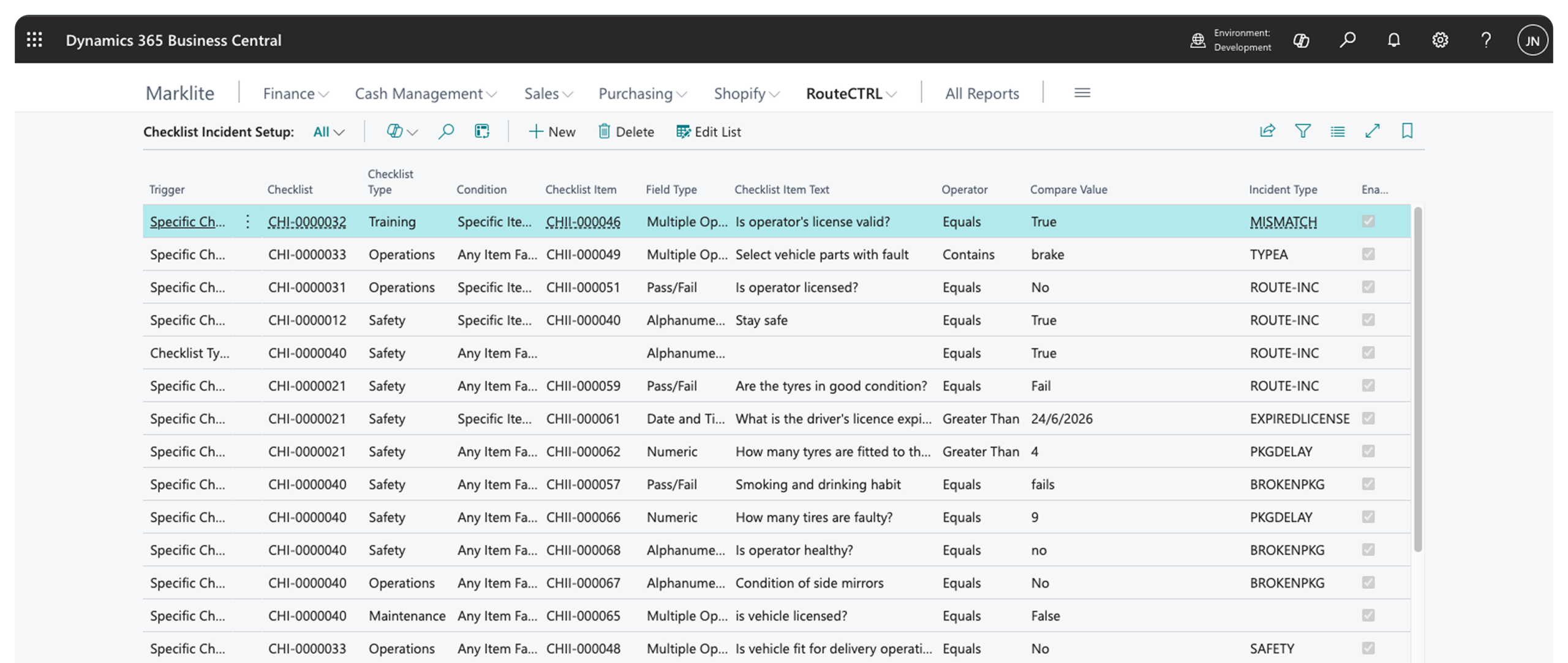
Checklist Incident Rules
Create incidents from defined checklist responses so reported issues can be identified consistently.
- Apply rules to a specific checklist, checklist type, or checklist item.
- Define the response condition that triggers an incident.
- Assign an incident type and enable the rule for the relevant checks.
Live operations
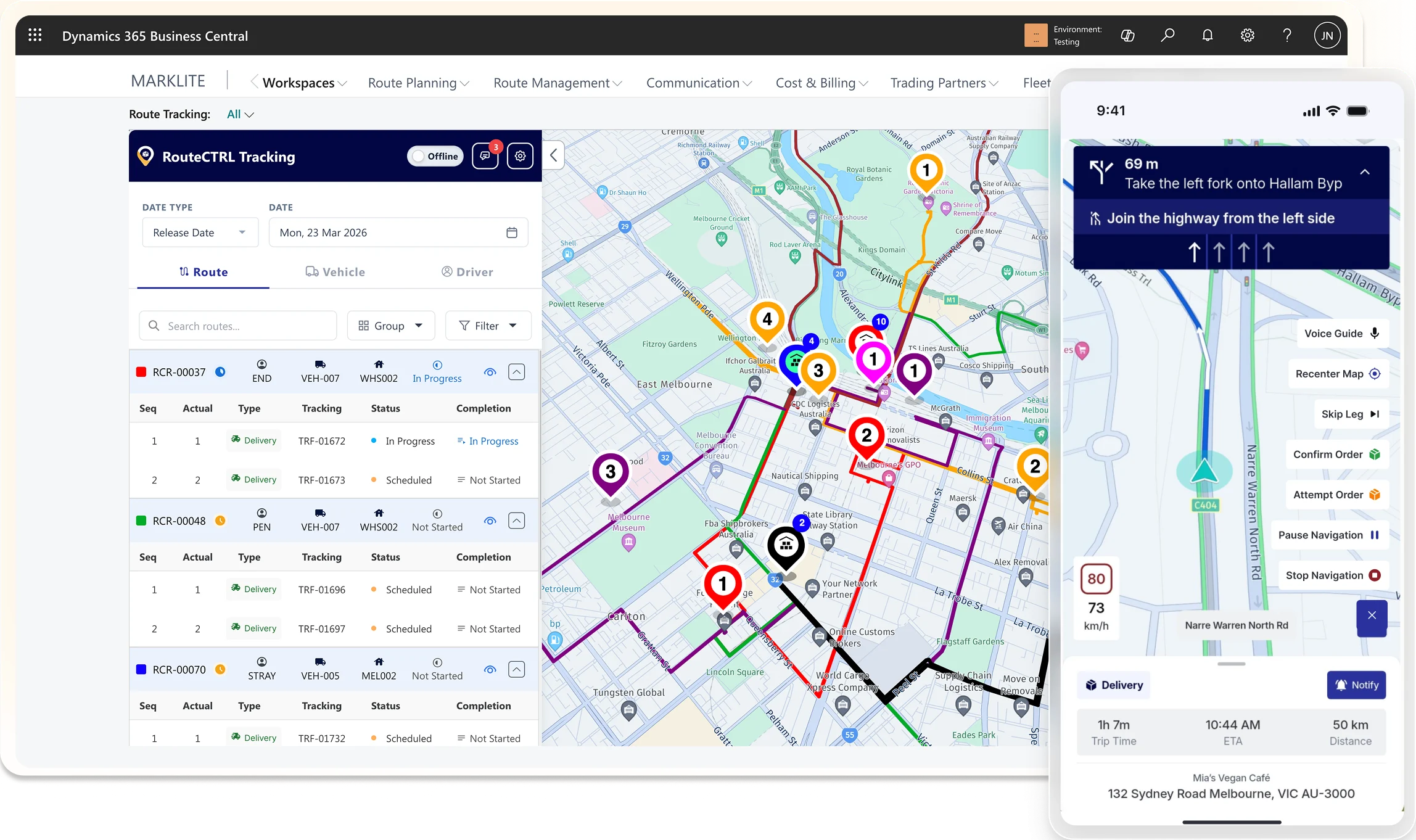
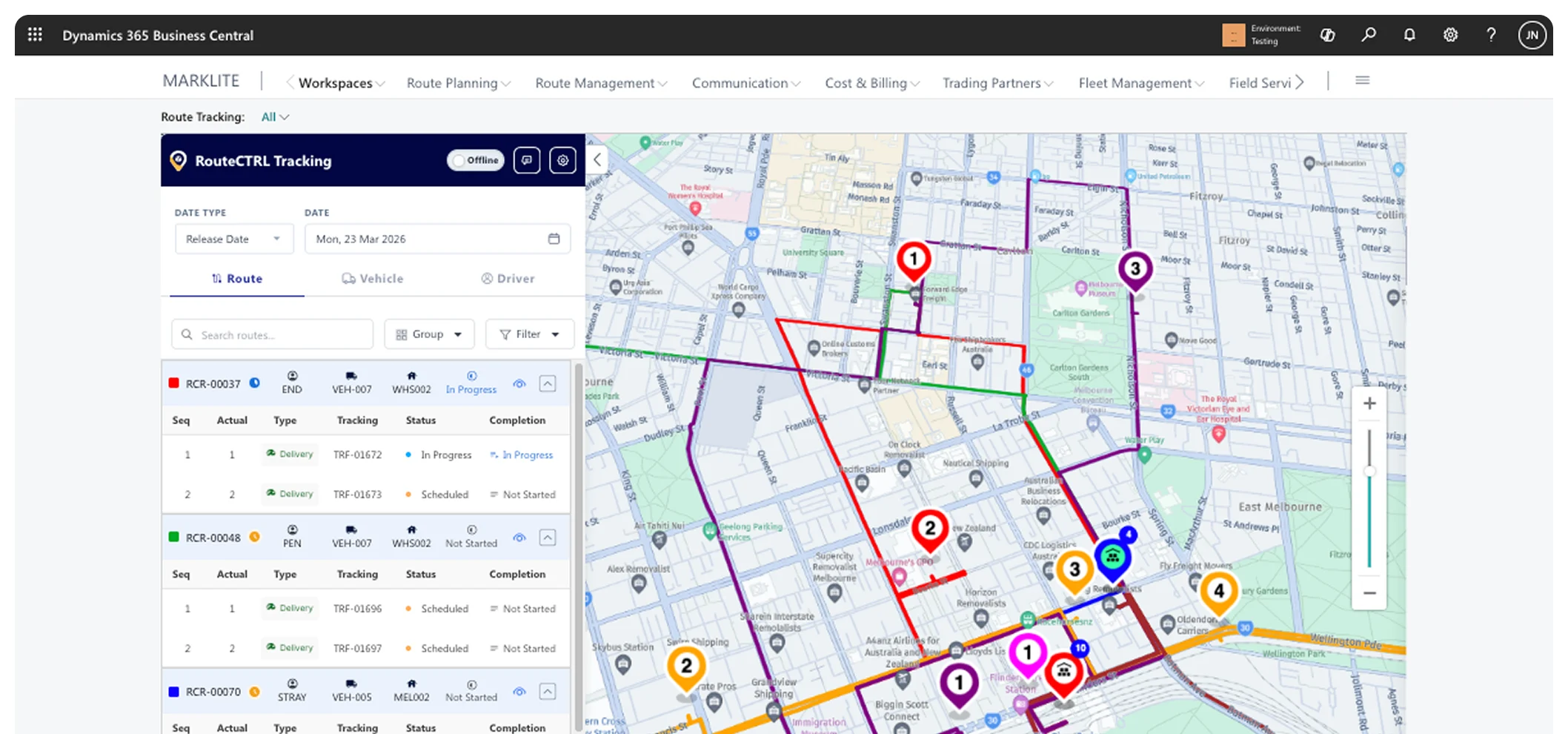
Route Tracking
Review route and stop progress alongside mapped route paths, with assigned operators and vehicles shown in the route list.
- Select the date and use search, grouping, or filters to find routes.
- Check each route’s assigned operator, vehicle, and completion status.
- Expand a route to review stop sequences, tracking references, and individual stop statuses.
Live operations
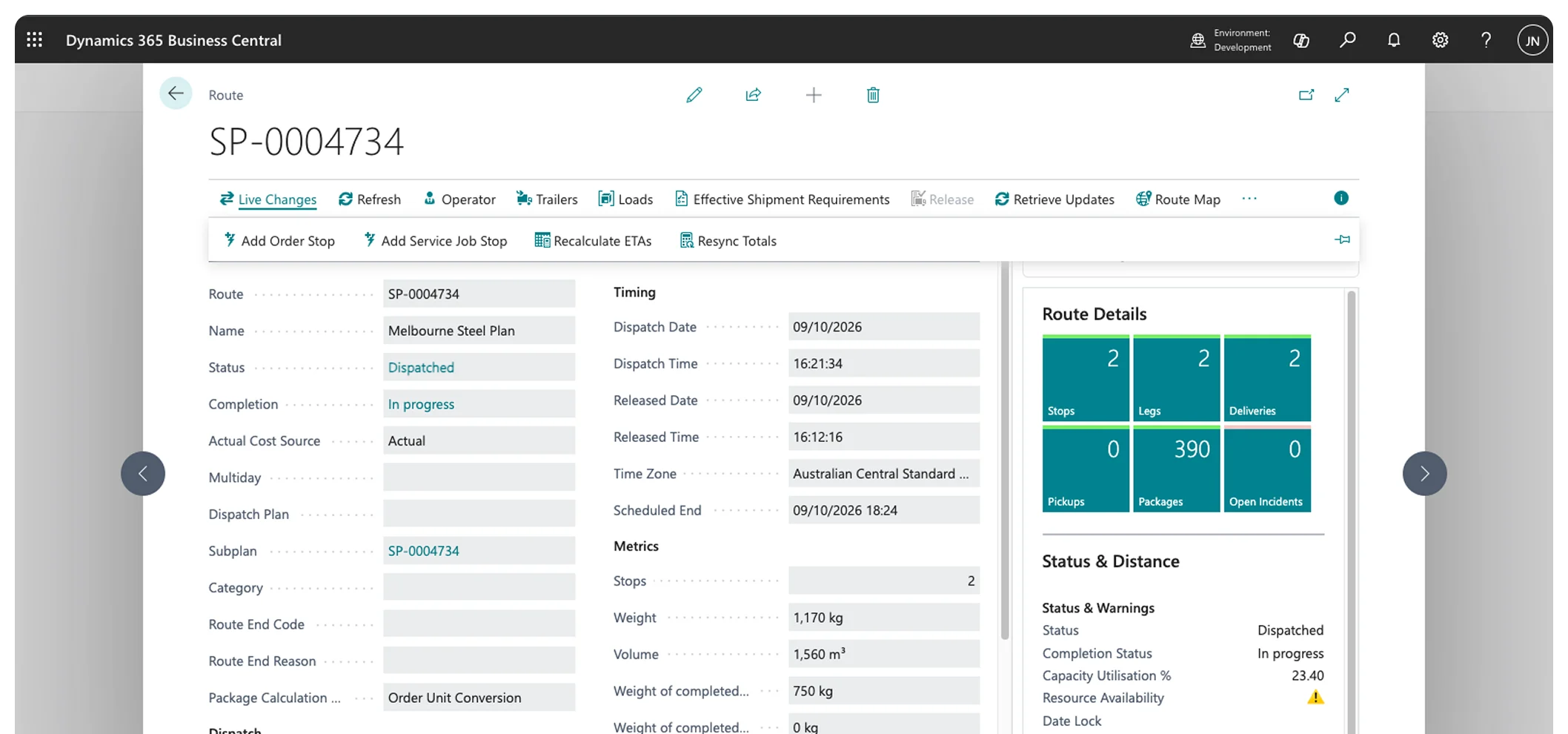
Live Route Changes
Add deliveries or service visits to a dispatched route and update its estimates as requirements change during execution.
- Add order stops to an existing route.
- Include additional service job stops during execution.
- Recalculate ETAs and resynchronize route totals after changes.
Live operations
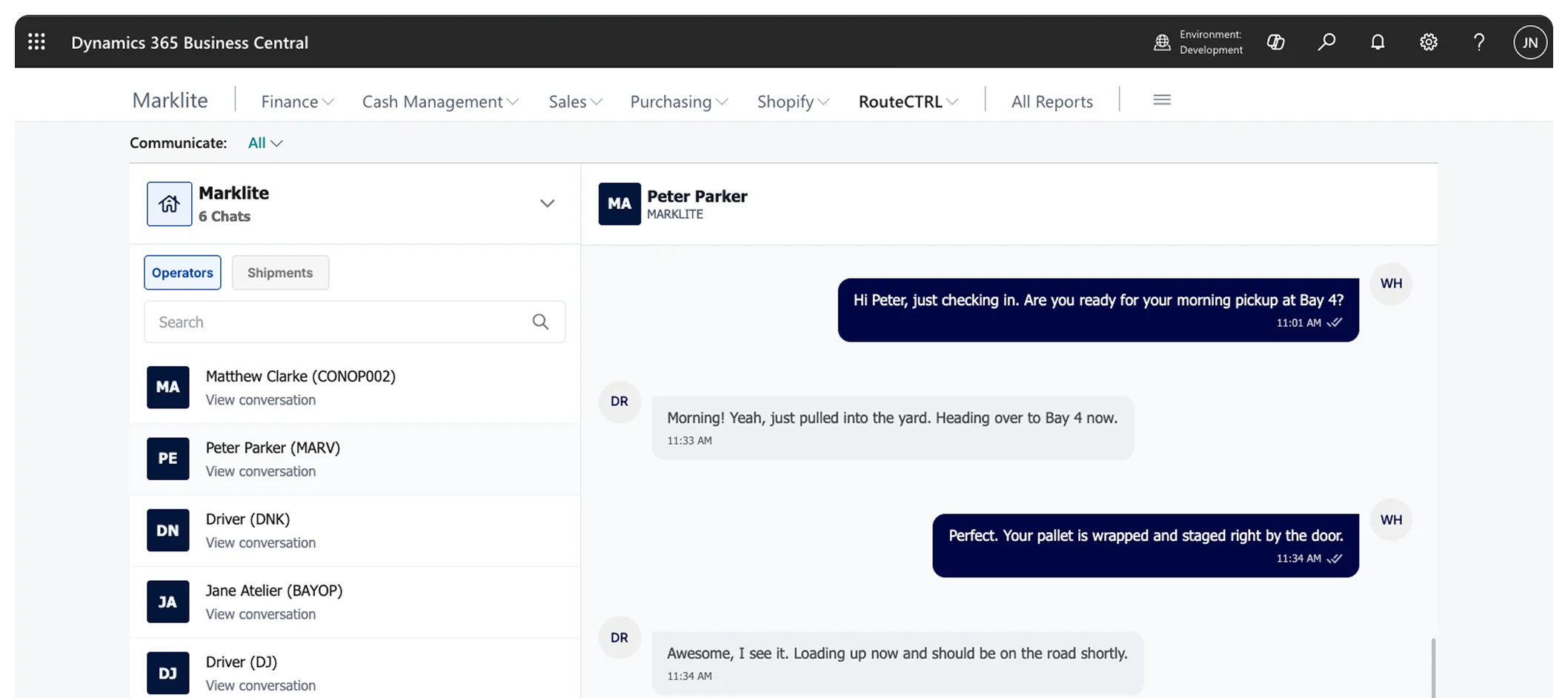
Live Communication
Exchange dispatch instructions and operator updates through a conversation history with recorded message times.
- Select an operator from the conversation list.
- Review sent and received messages with their timestamps.
- Clarify access arrangements, loading preparation, or delays within the conversation.
Live operations
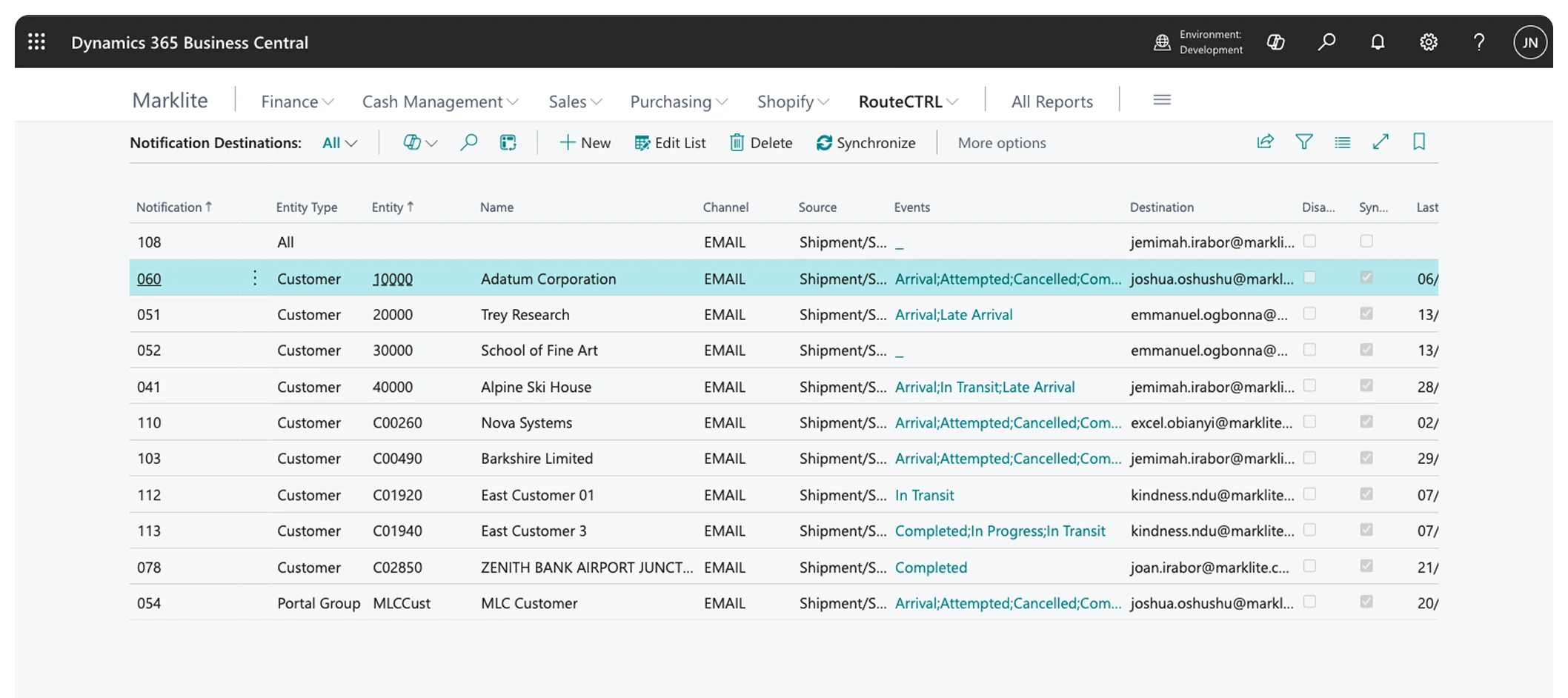
Shipment Notifications
Configure notification recipients and shipment events so each update has a defined channel and destination.
- Choose the customer, recipient group, or entity covered by the notification.
- Set the communication channel and destination address.
- Select the shipment events and review the notification’s enabled and synchronization status.
Cost
Transport Cost
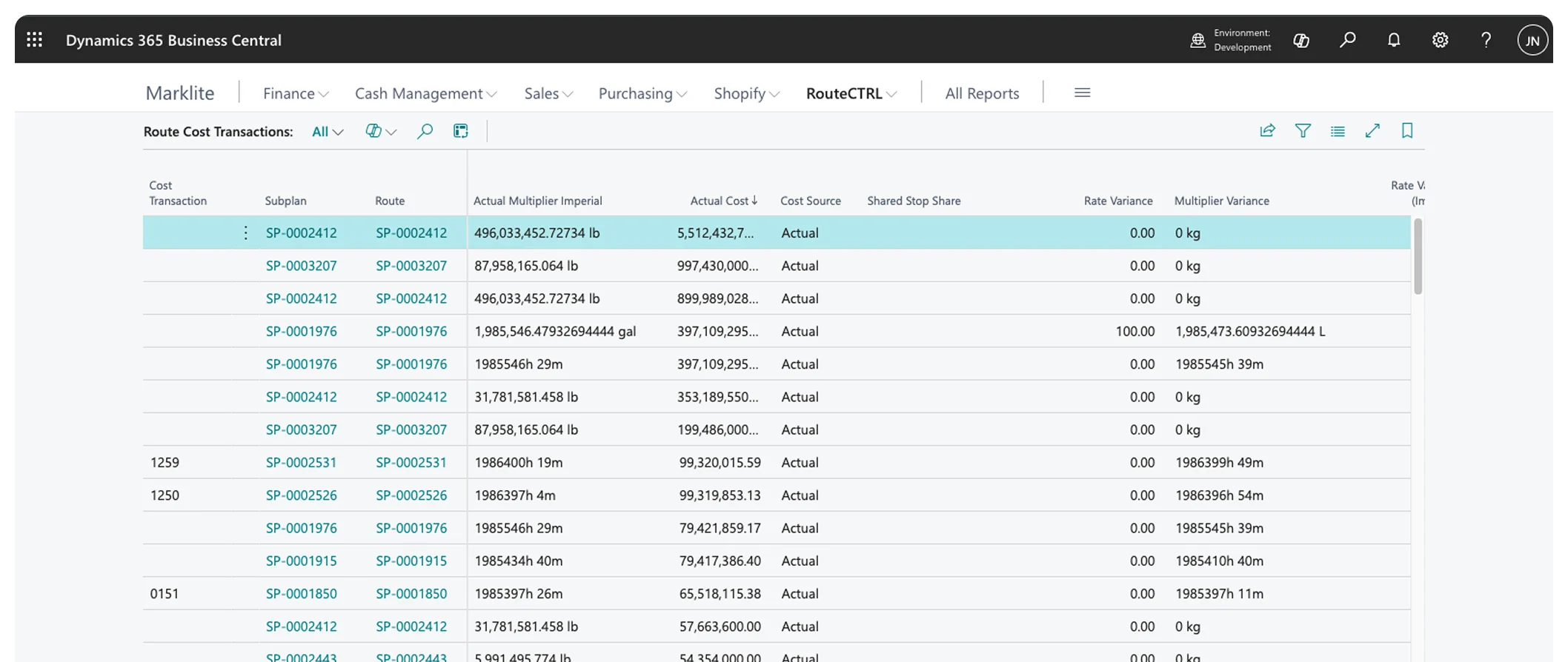
Review route cost transactions with their actual amounts, calculation units, and recorded variances.
- Trace each cost transaction to its route and subplan.
- Check the cost source and actual multiplier used for the entry.
- Review actual costs alongside rate and multiplier variances.
Cost
Cost Analysis
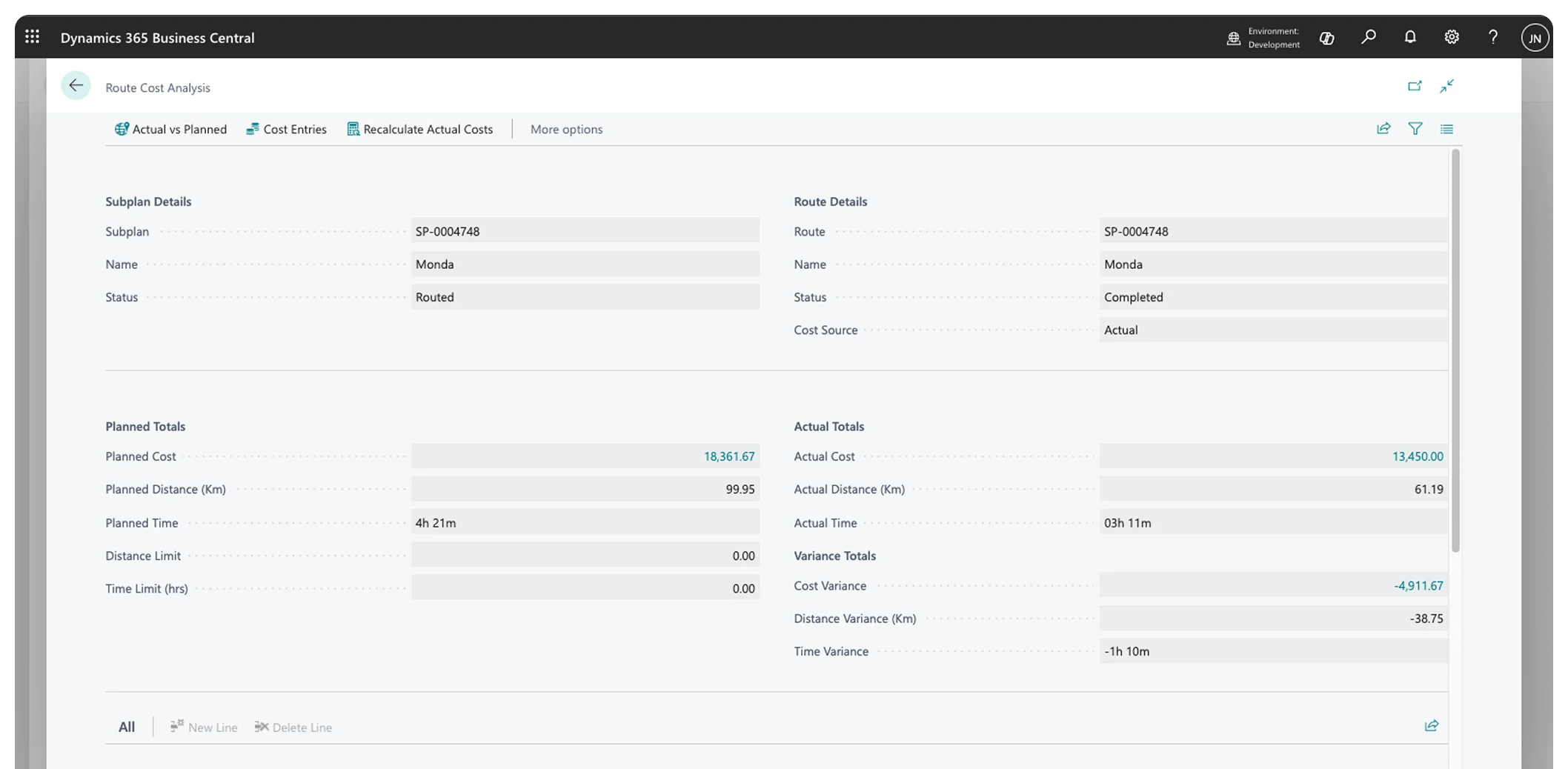
Compare planned and actual route costs to investigate where distance, duration, or operating expenses differed from the estimate.
- Review planned and actual cost, distance, and duration for each route.
- Identify overruns and savings through the recorded variances.
- Examine underlying cost entries when investigating differences.
Reports
Planned vs. Actual
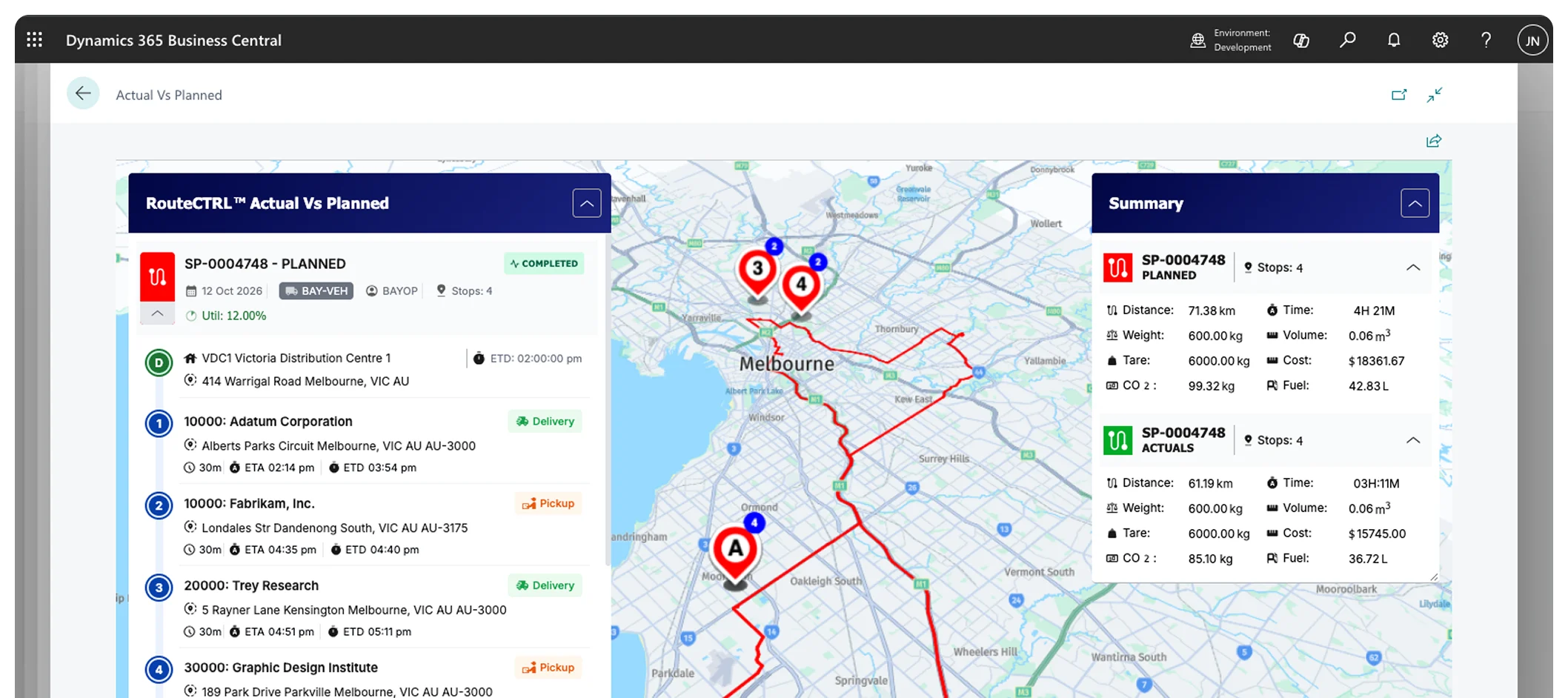
Compare planned and actual route paths and totals to identify differences in distance, duration, and operating cost.
- Compare the planned and actual paths on the map.
- Review distance, duration, cost, fuel, and CO₂ totals for each version of the route.
- Check mapped stop locations against the planned stop sequence.
Reports
Route Detail Reports
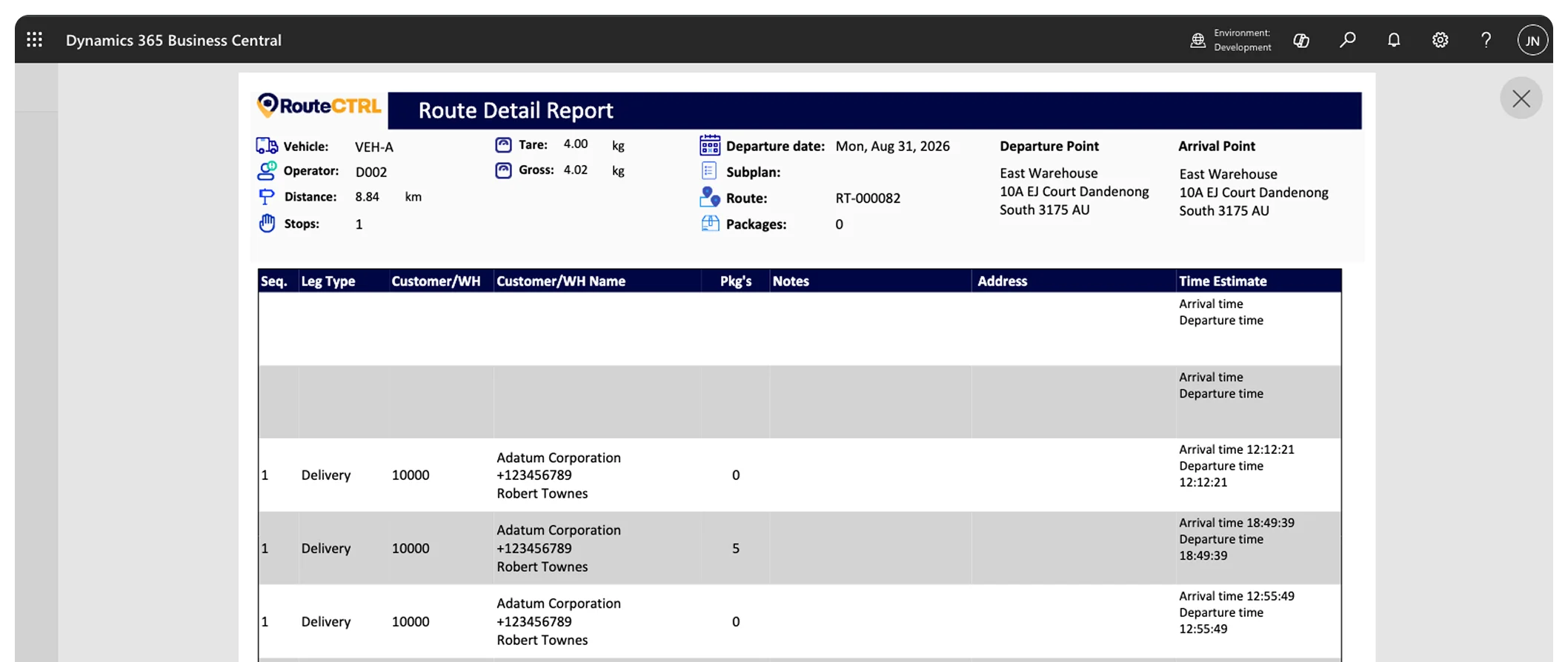
Review each route’s assigned resources, stop details, and estimated arrival and departure times in a structured report.
- Check the vehicle, operator, departure point, and arrival point.
- Review stop sequences, customer addresses, package quantities, and notes.
- Check the estimated arrival and departure times listed for each stop.
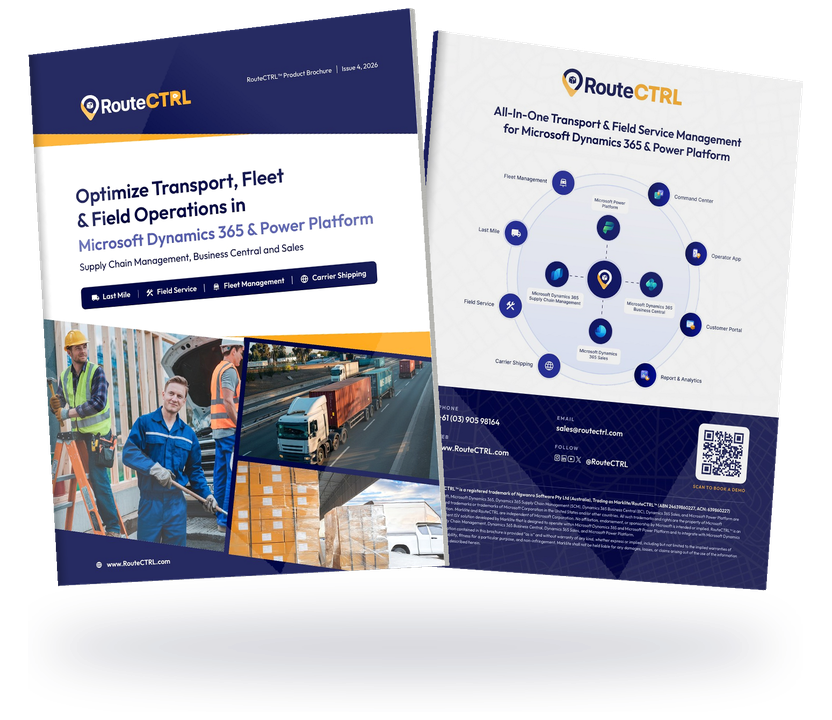
Feature brochure
Take a closer look at what RouteCTRL can do
Explore the features across RouteCTRL’s application suite and identify the capabilities that matter to your operation.
Insights & resources
Find practical answers to transport challenges

Win a LEGO Technic McLaren P1 at Convergence 2026: Visit RouteCTRL at Booth 110
Visit RouteCTRL at Booth 110 at Convergence 2026 to enter a free prize draw for a LEGO Technic McLaren P1, Sony ULT WEAR Headphones or a JBL Clip 5 Speaker.
Read article: Win a LEGO Technic McLaren P1 at Convergence 2026: Visit RouteCTRL at Booth 110
How to Plan Deliveries Backward from the Promised Date in Dynamics 365
Compare the cost and the service impact of each delivery plan before any route is built
Read article: How to Plan Deliveries Backward from the Promised Date in Dynamics 365
When Spreadsheet Route Planning Stops Working: Signs It’s Time to Plan Inside Dynamics 365
Eight signs, how to measure each one, and what changes when routes are planned on the order records
Read article: When Spreadsheet Route Planning Stops Working: Signs It’s Time to Plan Inside Dynamics 365
How to Add Route Planning to Dynamics 365 Without Disrupting Dispatch
Set up, pilot and roll out RouteCTRL one warehouse at a time, with each team's changes agreed before go-live
Read article: How to Add Route Planning to Dynamics 365 Without Disrupting Dispatch
How to Plan Delivery and Pickup Routes from Business Central Orders
Select orders, compare route options by cost and release routes with RouteCTRL, fully integrated into Microsoft Dynamics 365 Business Central
Read article: How to Plan Delivery and Pickup Routes from Business Central Orders
Route Planning in Microsoft Dynamics 365 and Power Platform
How to plan, dispatch and track delivery, pickup and field service routes from your Microsoft records
Read article: Route Planning in Microsoft Dynamics 365 and Power Platform
RouteCTRL is Heading to Ghana for DynamicsCon Regional: Africa 2026
RouteCTRL is proud to be part of DynamicsCon Regional: Africa 2026 in Accra, where we’ll be showcasing how Dynamics 365 users can simplify transport, field service, fleet, and mobile operations with one connected execution platform.
Read article: RouteCTRL is Heading to Ghana for DynamicsCon Regional: Africa 2026
Returns Are Transport Execution Too
Returns should not become a side process after delivery fails. This article examines why return pickups need route-level control, how visibility breaks down in reverse logistics, and how Dynamics 365 users can manage returns as part of transport execution.
Read article: Returns Are Transport Execution TooFAQ
Frequently Asked Questions
Find answers about RouteCTRL’s capabilities, Microsoft platform requirements, and licensing options for your operation.
RouteCTRL brings ERP-embedded route planning and dispatch into Microsoft Dynamics 365 Business Central. Teams plan from existing business records, send assignments to the Operator App, and review returned execution information alongside related orders and shipments.
RouteCTRL supports manual route planning in the Map Planner and route-option comparison in the Optimizer. In Dynamics 365 Business Central, the chosen Optimizer option creates a subplan for review. Planners then generate the route, open it, and release the reviewed assignment to the Operator App.
RouteCTRL connects Dynamics 365 Business Central service orders with technician scheduling, route planning, and mobile execution. Technicians receive their assignments in the Operator App and submit progress, checklist responses, and completion evidence for office teams to review against the service activity.
RouteCTRL can combine deliveries, pickups, and service visits within the same Dynamics 365 Business Central route. Planners account for each stop’s appointment window, expected service duration, and resource requirements, rather than treating every stop as an identical activity.
Dynamics 365 Business Central users select Retrieve update to retrieve the execution information reported through the RouteCTRL Operator App. Office teams use those updates to review route progress and outcomes. Mobile activity recorded offline must synchronize before the returned information can be retrieved.
RouteCTRL mobile completion records the stop outcome and supporting evidence. Dynamics 365 Business Central shipment posting, inventory updates, and invoicing remain separate actions. The implementation must specify which posting steps are automated and which require an office action.
Customers or their Microsoft partners can implement RouteCTRL in Dynamics 365 Business Central using the supplied documentation and standard guidance. The scope should cover data readiness, planning rules, user access, mobile workflows, testing, and training. A RouteCTRL-managed implementation can be scoped separately.
A RouteCTRL feature license applies to one Dynamics 365 Business Central company. Last Mile & Fleet Operations has an initial minimum purchase of five vehicle licenses. Field Service uses a separate feature license, with additional users, resources, and services licensed where required. Business Central licensing is separate.
Licensing combines operational feature licenses with additional access, resource, and service licenses where required.
A feature license applies to one Dynamics 365 Business Central company or one Supply Chain Management legal entity. Last Mile & Fleet Operations requires an initial minimum purchase of five vehicle licenses. Field Service has a separate feature license.
Licensing Last Mile & Fleet Operations, Field Service, or both includes one shared RouteCTRL office-access entitlement per environment: one Administrator, one Functional Manager, and unlimited Read-Only Users.
Additional Administrator and Functional Manager users require additional RouteCTRL licenses. Microsoft licensing remains separate.
The published price list shows monthly rates for reference. Payment is billed annually in advance for a 12-month subscription term per licensed entity.
Microsoft Dynamics 365 licensing, tracking hardware, connectivity, and third-party messaging charges are separate unless specifically included in a quotation. Implementation, customization, and professional services may also be quoted separately.
Standard implementation documentation and guidance are distinct from a RouteCTRL-managed implementation service.
Additional vehicles, operators, users, and services can be licensed as requirements change. Configuration and rollout work depend on what is being added.
Additional quantities are priced under the terms applicable when purchased. Total licensed quantities are reassessed at renewal. Reductions and other subscription changes depend on the applicable agreement.
Discuss the proposed scope with RouteCTRL before committing to licenses. Confirm minimum quantities, duration, charges, success criteria, and how the pilot would move into a production subscription. Any proposed pilot arrangement should be assessed against the published licensing terms.
The RouteCTRL team can review your operational requirements, resource quantities, user roles, and optional services. Use that deployment scope and the current price list to establish the required license mix and expected charges before purchase.