
 RouteCTRL Command Center
Bring your live operations under one command
Bring live route monitoring, fleet tracking, driver safety, and compliance together. Replace fragmented systems with one operational hub, available independently or connected to your Microsoft stack.
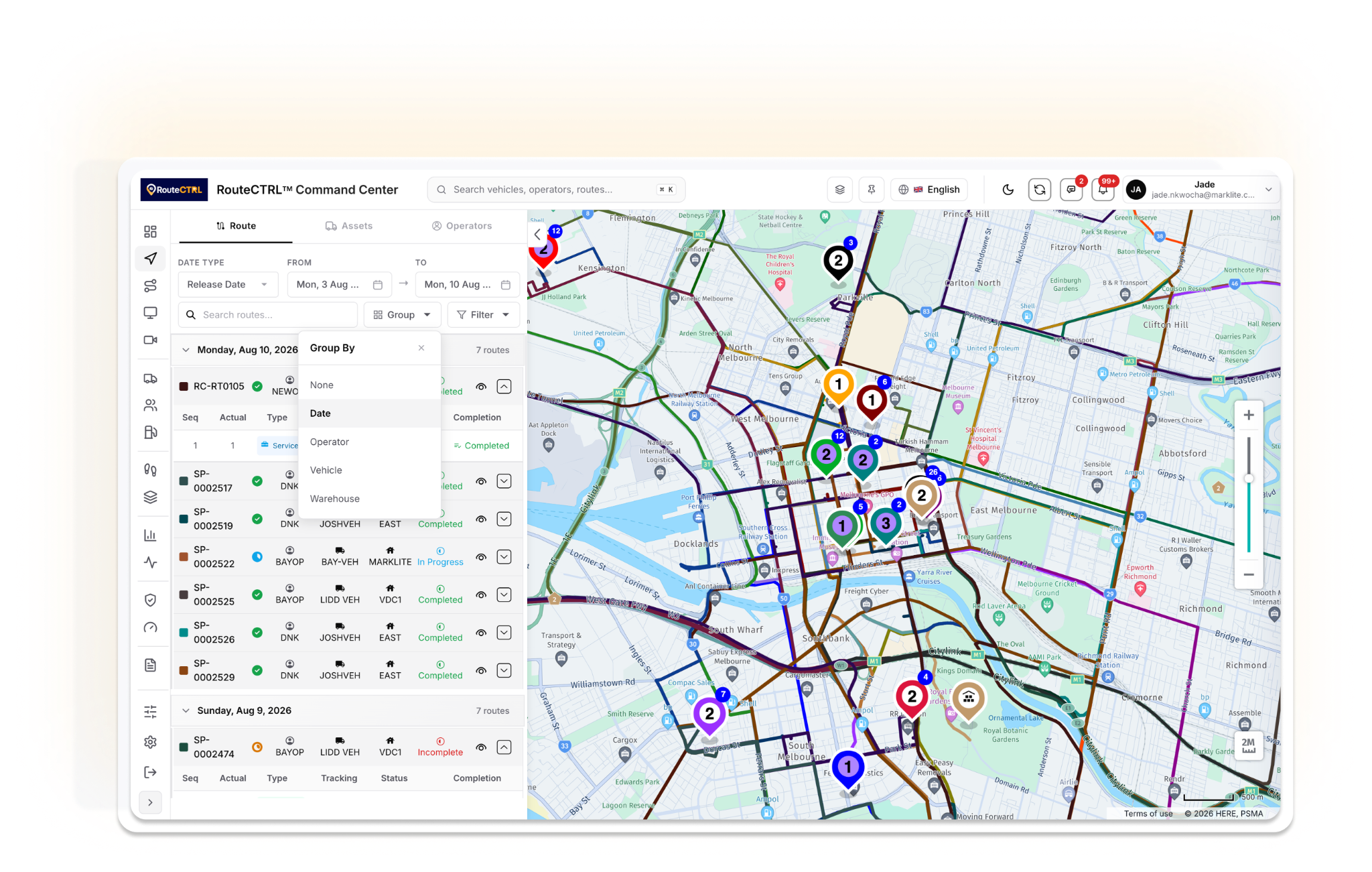
Why RouteCTRL
Turn live information into clear priorities
-
Catch disruption earlier
Intervene before an isolated delay affects more deliveries. Give your team time to coordinate a response and set realistic expectations with affected customers.
-
Cut investigation time
Spend less time chasing updates and piecing together the day’s events. Keep dispatchers focused on decisions that need their judgment as operational demand grows.
-
Keep operational reviews focused
Base performance discussions on recorded events and outcomes. Establish where execution fell short, address recurring issues, and give teams a clear basis for corrective action.
Features
Monitor live operations and investigate the exceptions that need your attention
Live operations
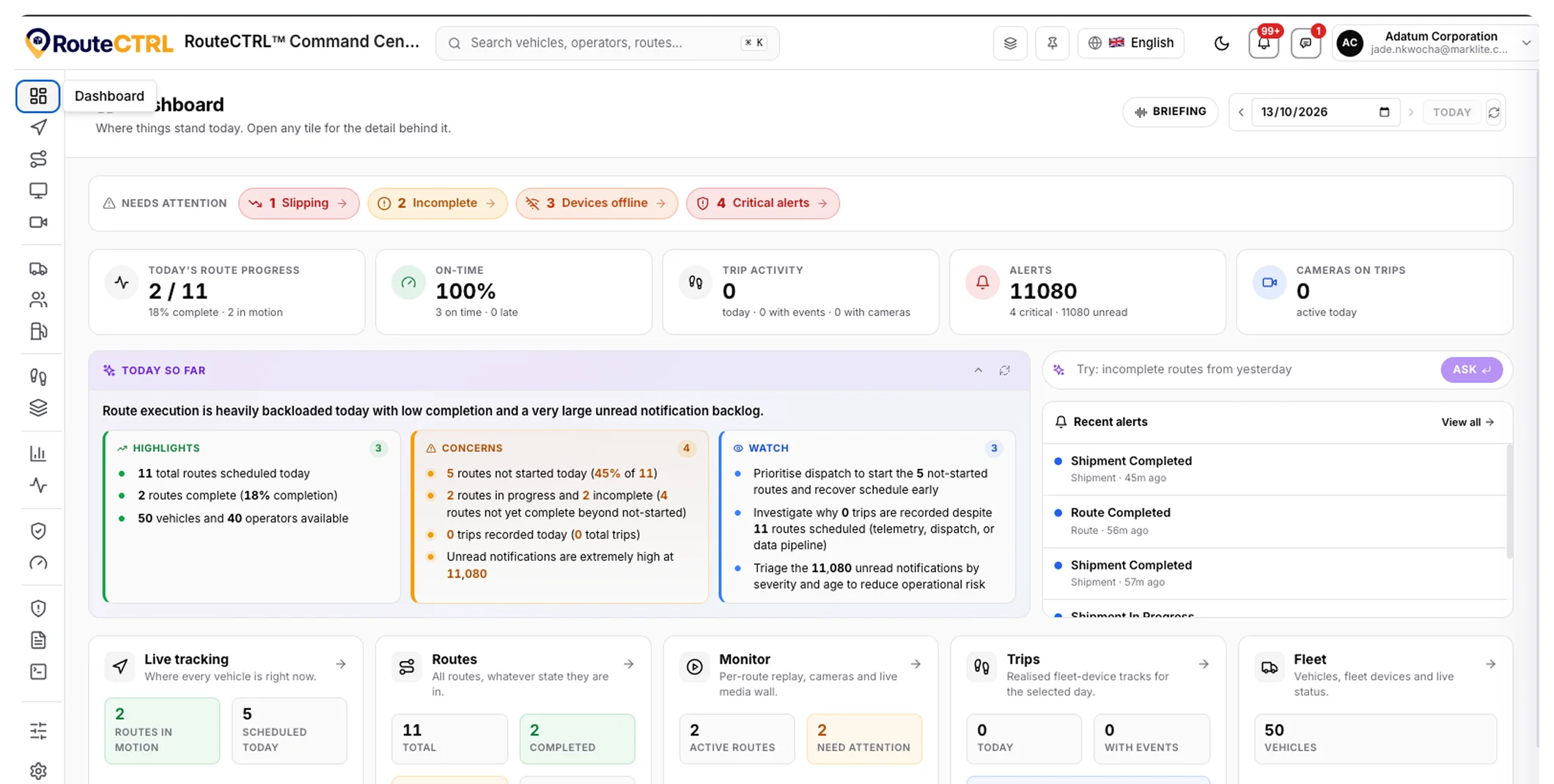
Operations Dashboard
Prioritize dispatch follow-up from a dashboard that separates outstanding exceptions from the wider picture of route progress and fleet activity.
-
Exception monitoring
Spot slipping routes, incomplete journeys, offline trackers, and critical unread alerts in the Needs attention panel.
-
Exception details
Open any exception shortcut to see the affected records, without rebuilding filters or searching through the full route list.
-
Operational KPIs
Check completion rates, on-time performance, trip activity, and camera coverage to assess the scale of the day’s outstanding issues.
Live operations
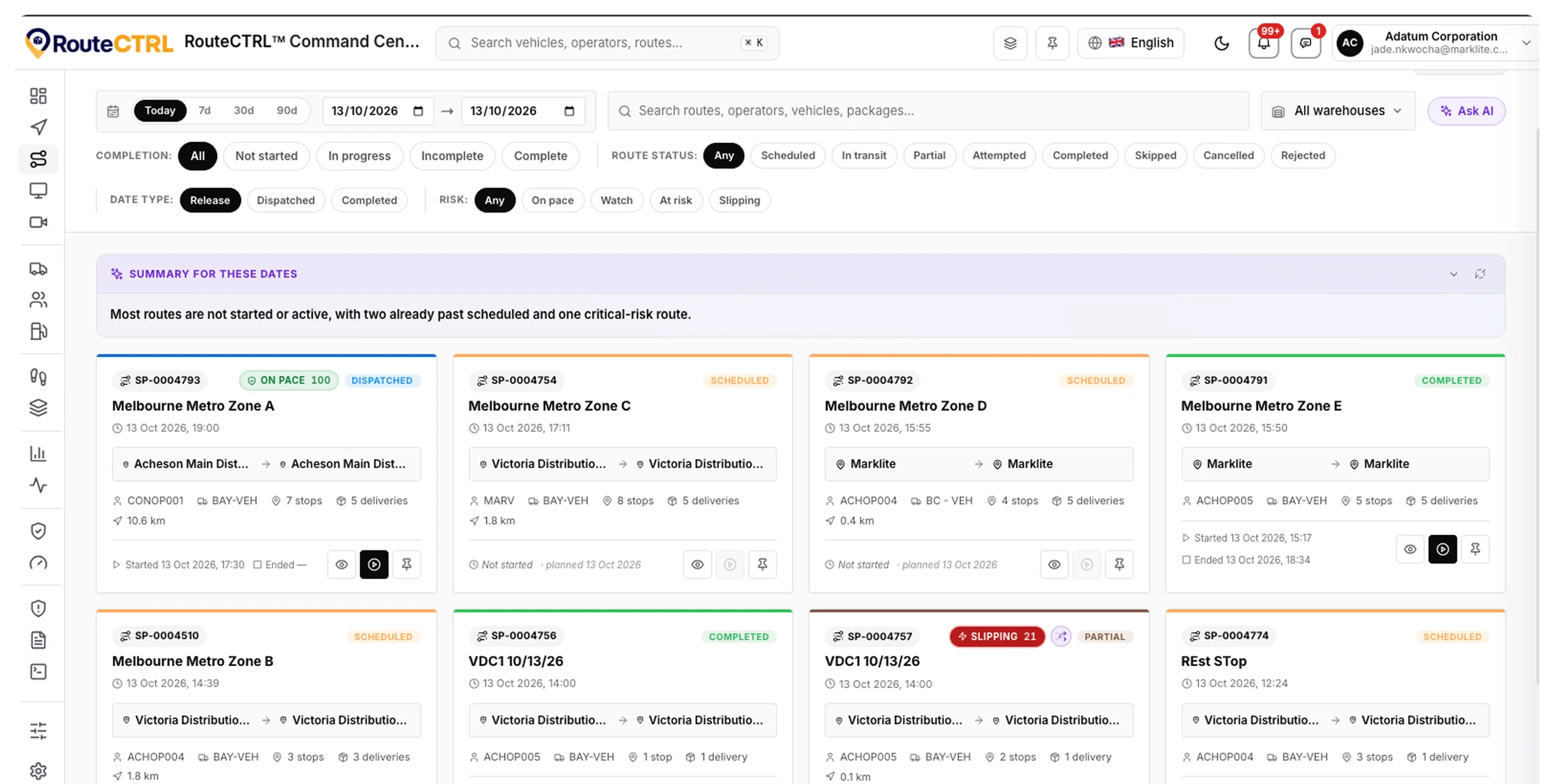
Route Risk Monitoring
Live risk scoring compares active routes against their schedules, showing dispatchers which journeys are on track and which need intervention.
-
Route risk classification
Distinguish On pace, Watch, At risk, and Slipping routes through ratings that update as execution progresses.
-
Schedule variance
Combine risk filters with dates and warehouse selection to isolate developing delays within the operations your team manages.
-
Route completion status
Check completion and execution status alongside risk ratings to distinguish unfinished routes from journeys already falling behind schedule.
Live operations
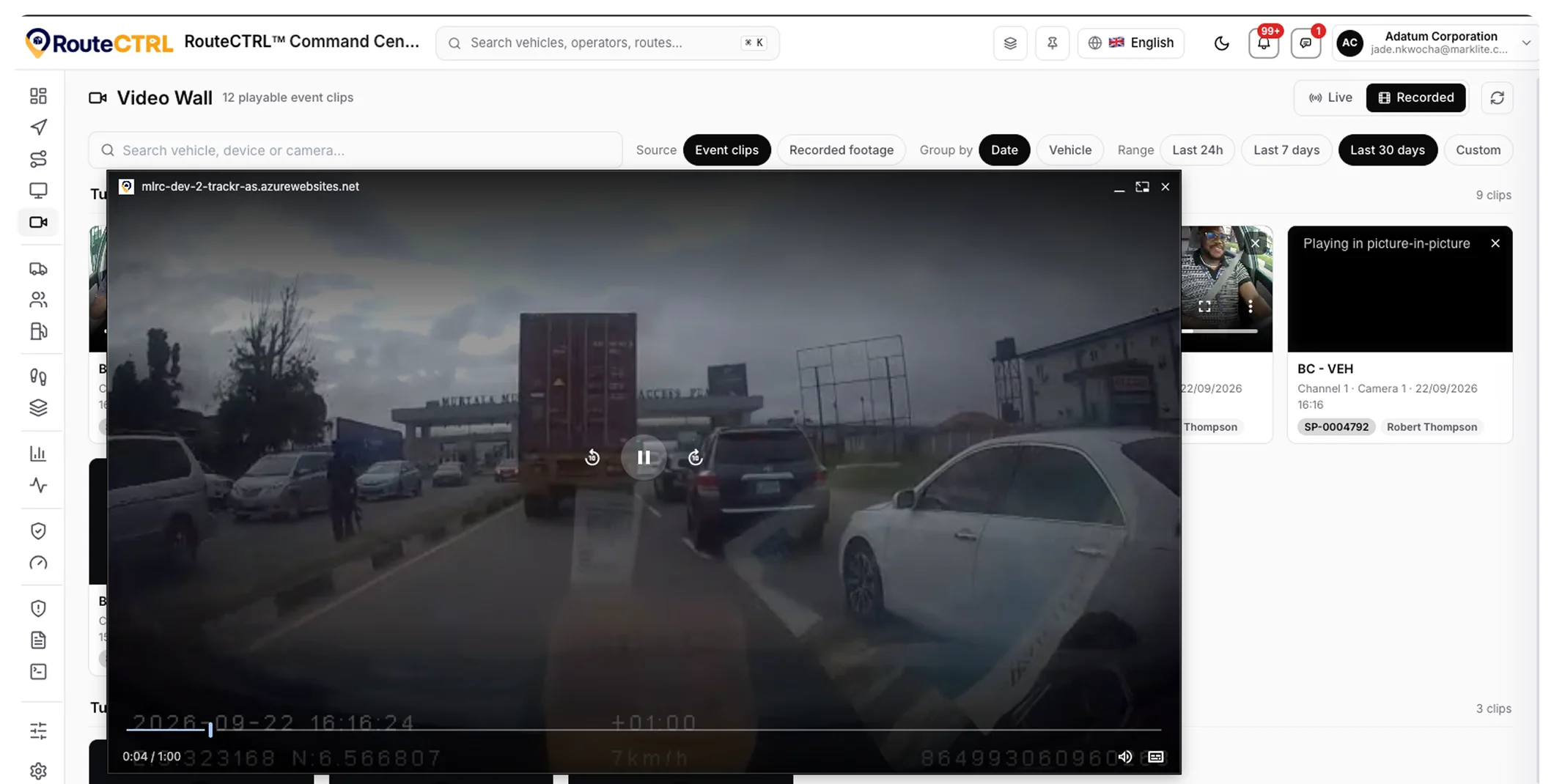
Tri-View
Tri-View synchronizes the route list, live map, and camera monitor so dispatchers can investigate a journey without switching between pages.
-
Synchronized route views
Select a route once to bring its location and camera monitoring into view across all three panes.
-
Customizable panel layout
Enlarge a pane for closer inspection, hide those you do not need, and return to your saved layout between visits.
-
Fleet monitoring
Use fleet mode to replace the route list with fleet devices when monitoring vehicles independently of dispatched routes.
Live operations
Route Search and Prioritization
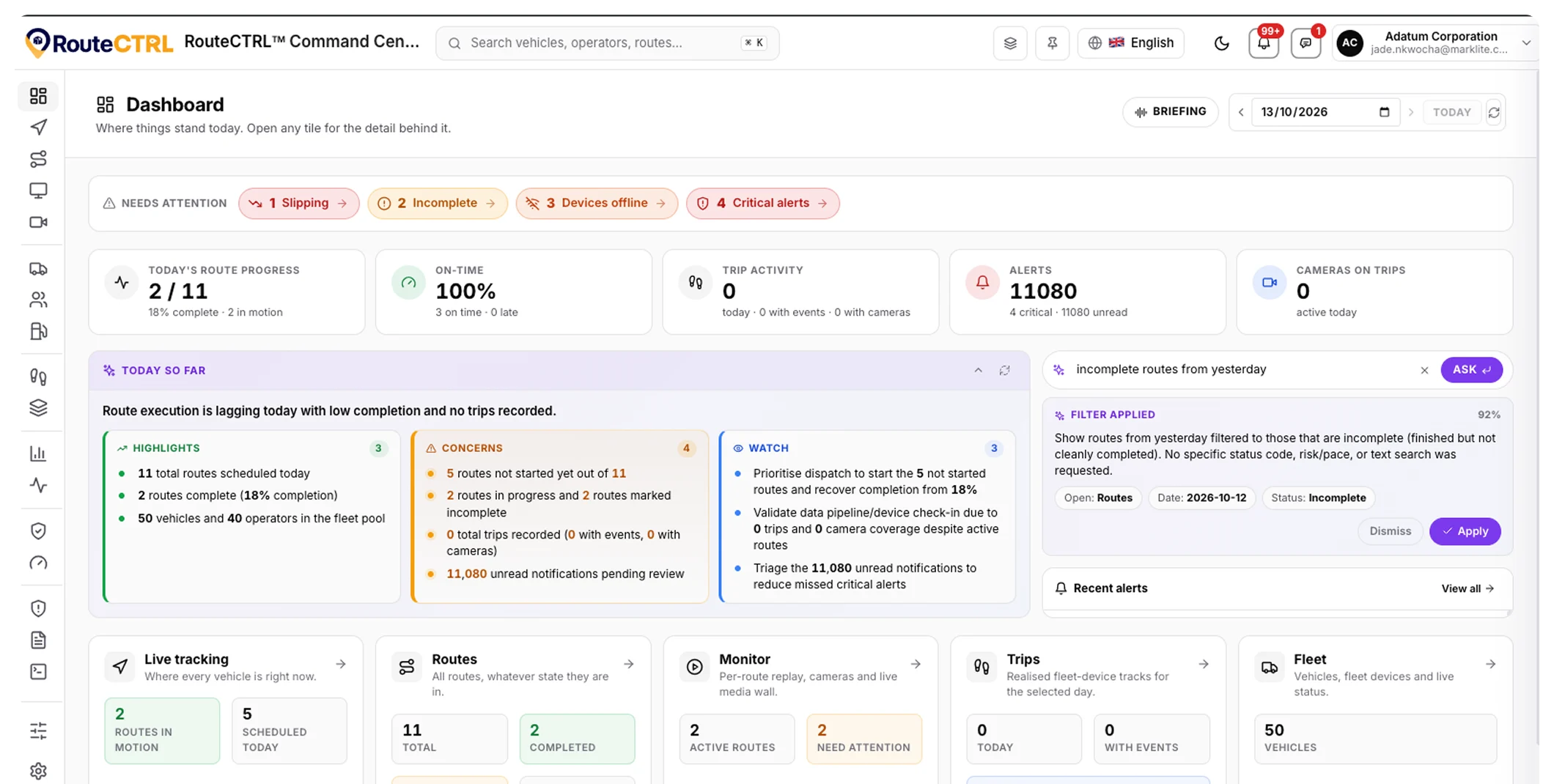
Describe the routes you need, and the Command Center builds filters you can review and apply to the route list.
-
Ask in plain language
Ask for “incomplete routes from yesterday” to turn a dispatch question into a filtered selection without configuring each criterion manually.
-
Advanced route search
Search by route, operator, vehicle, or shipment when a customer inquiry provides only one part of the journey’s details.
-
Pinned routes
Pin routes that need follow-up and reopen them from any page as you monitor progress throughout the day.
Live operations
Event Logs and Alerts
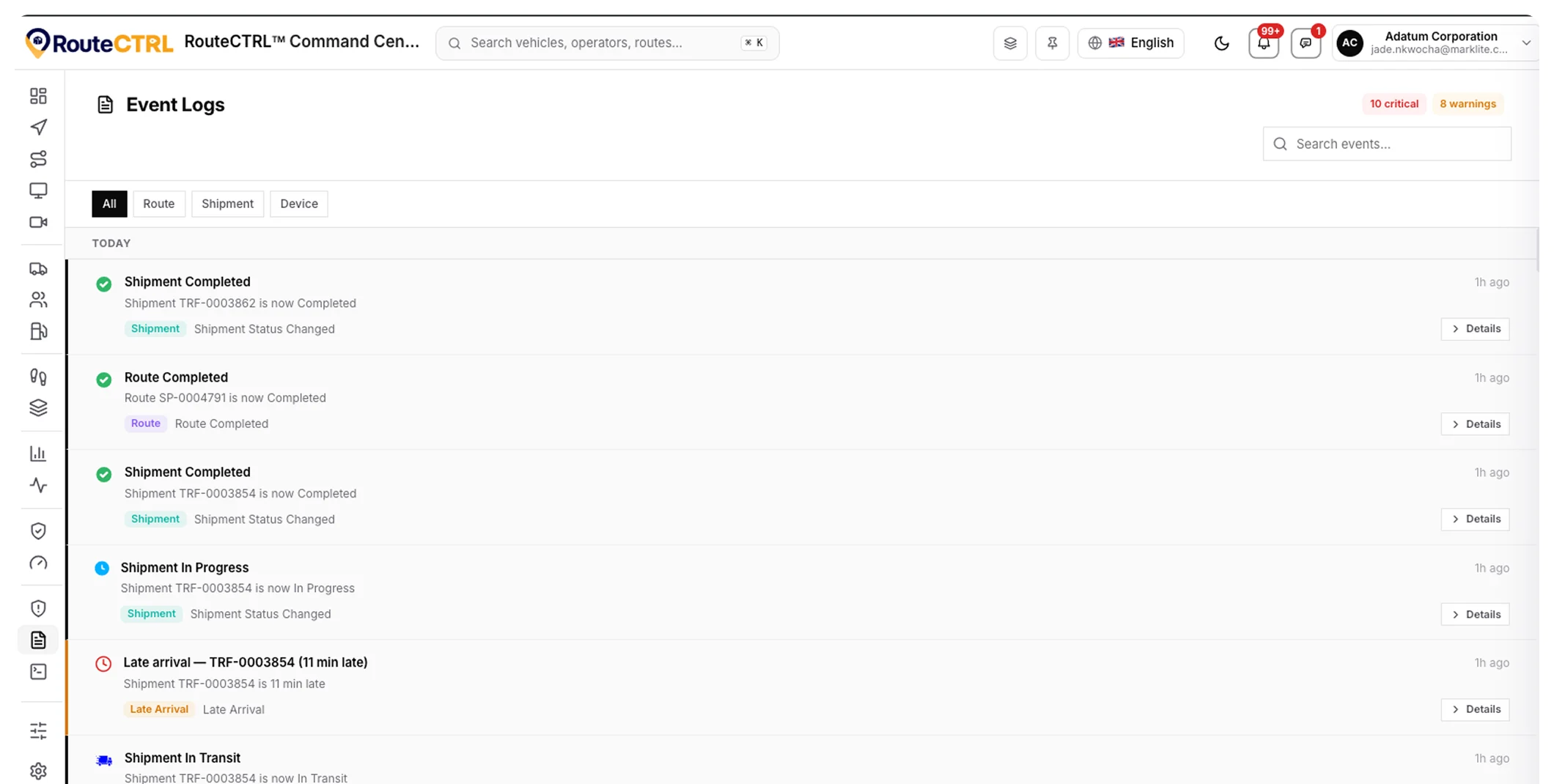
Route, shipment, and device events appear in one searchable feed, giving dispatchers a record to investigate when something changes.
-
Event severity levels
Separate critical alerts from warnings and informational events to focus the review on the severity of the reported issue.
-
Event filtering
Filter by category and event type, then expand an entry to inspect its details instead of relying on the notification.
-
AI activity summaries
Review unread counts and an AI activity summary to catch up on events that occurred while your attention was elsewhere.
Tracking
Live Fleet Tracking
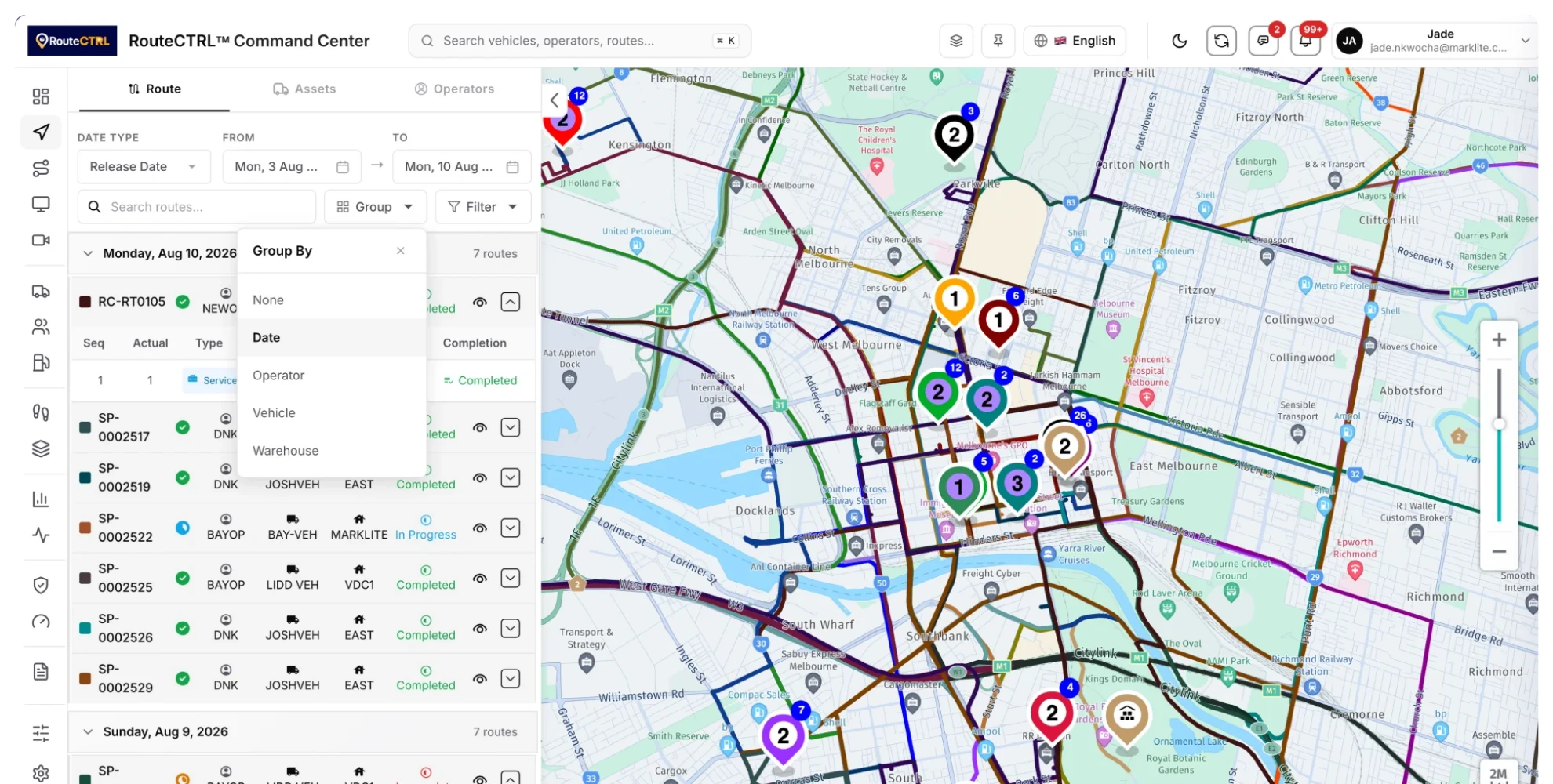
Follow vehicle movements as telemetry arrives, giving dispatchers an updated map of fleet positions without manually refreshing the screen.
-
Live route mapping
View route paths as journeys unfold to see where vehicles are traveling in relation to their assigned stops.
-
Vehicle follow mode
Select a vehicle and follow its position continuously when monitoring a delayed journey or responding to a customer inquiry.
-
Tracking view modes
Switch between route, asset, and operator views to locate the information relevant to the movement you are investigating.
Fleet
Asset Directory
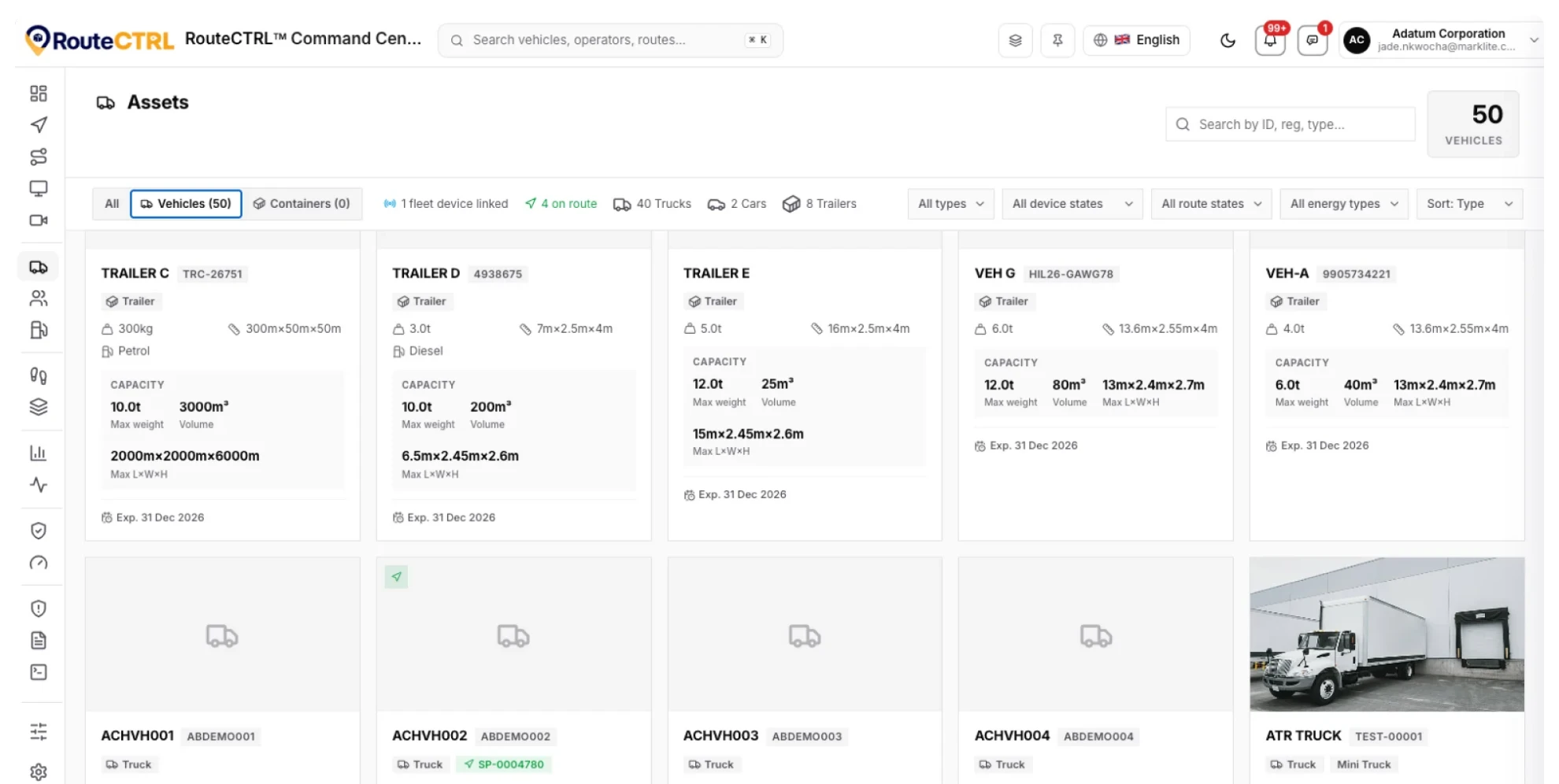
Find vehicles, trailers, and containers in a searchable directory that brings equipment specifications and operational status into the same view.
-
Asset specifications
Review weight capacity, volume, and dimensions to understand the physical limits recorded against each vehicle or trailer.
-
Asset filtering
Filter by asset type, device state, route state, and energy type to narrow the fleet to the equipment under review.
-
Find specific assets
Search by identifier, registration, or type to locate an asset and inspect its details without scrolling through the entire fleet.
Fleet
Connected Vehicle Devices
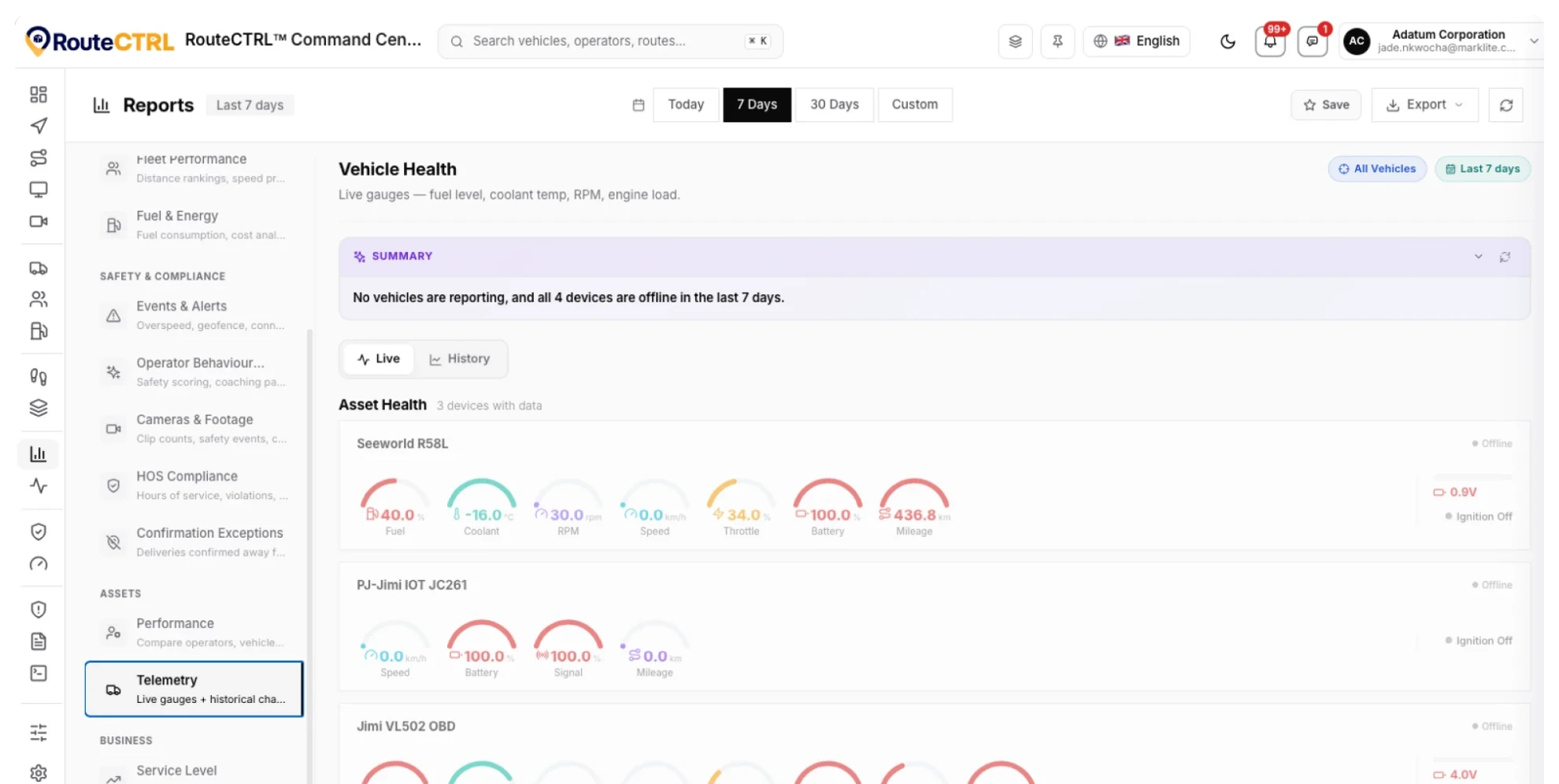
Bring telematics units, cameras, and sensors under one vehicle record so teams can inspect each device in its asset context.
-
Device assignments
Review the devices linked to a vehicle and their assigned roles to understand which equipment supplies tracking, video, or readings.
-
Device selection
Select a device to switch the displayed telemetry and trip information to that source.
-
Device records
Open the selected device’s latest trip directly to investigate its recorded movement without searching the wider trip list.
Fleet
Vehicle Telemetry and Diagnostics
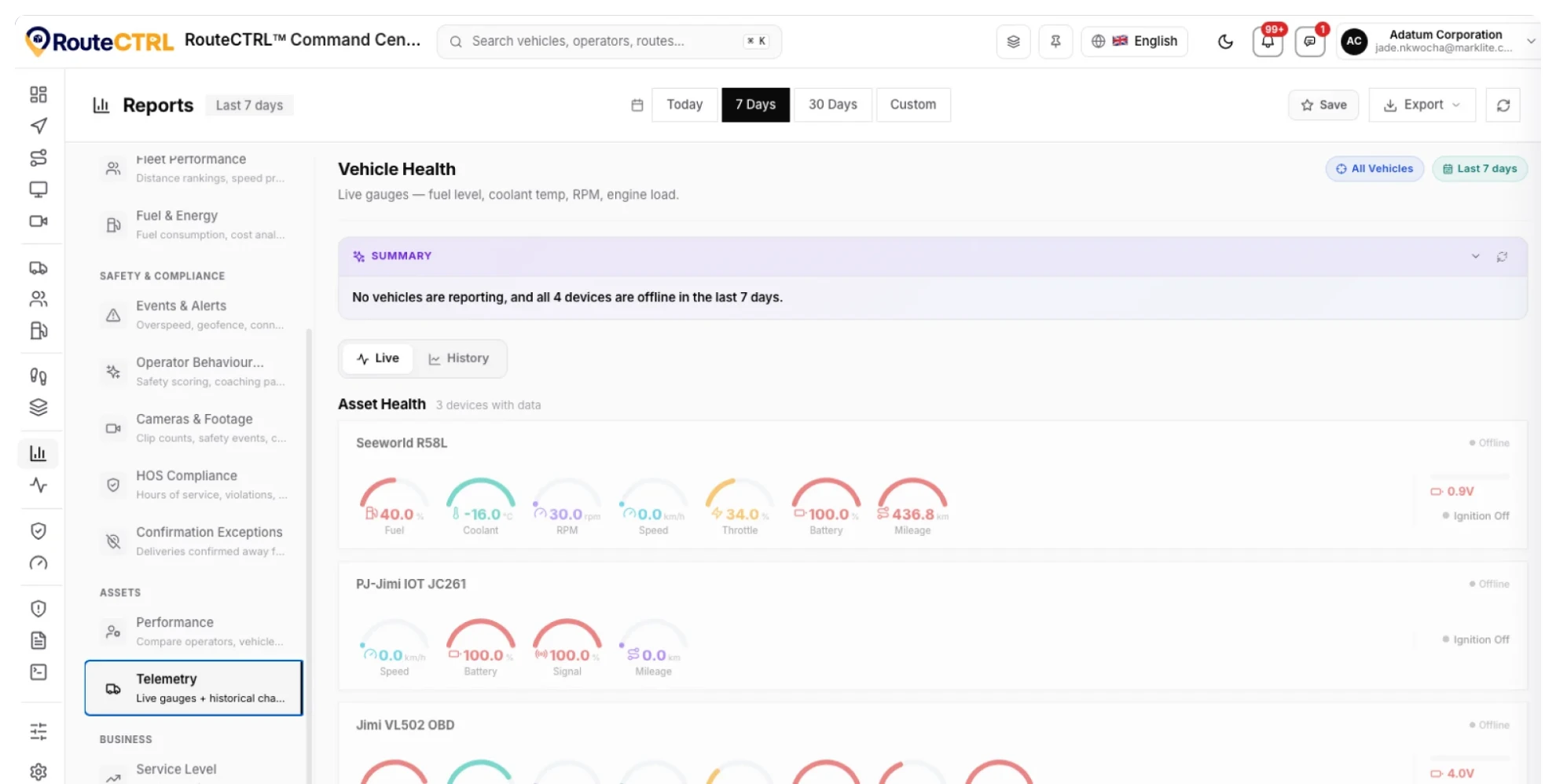
Inspect readings from connected vehicle devices to assess current movement and investigate reported faults using the data available.
-
Live vehicle telemetry
View live speed, heading, and orientation alongside an inline map to understand the vehicle’s reported movement and position.
-
Diagnostic fault codes
Review available OBD and CAN diagnostic trouble codes to identify reported faults that warrant technical investigation.
-
Vehicle event history
Check recent vehicle movements in chronological order, with the newest entries first, when reviewing activity around a reported issue.
Tracking
Geofences
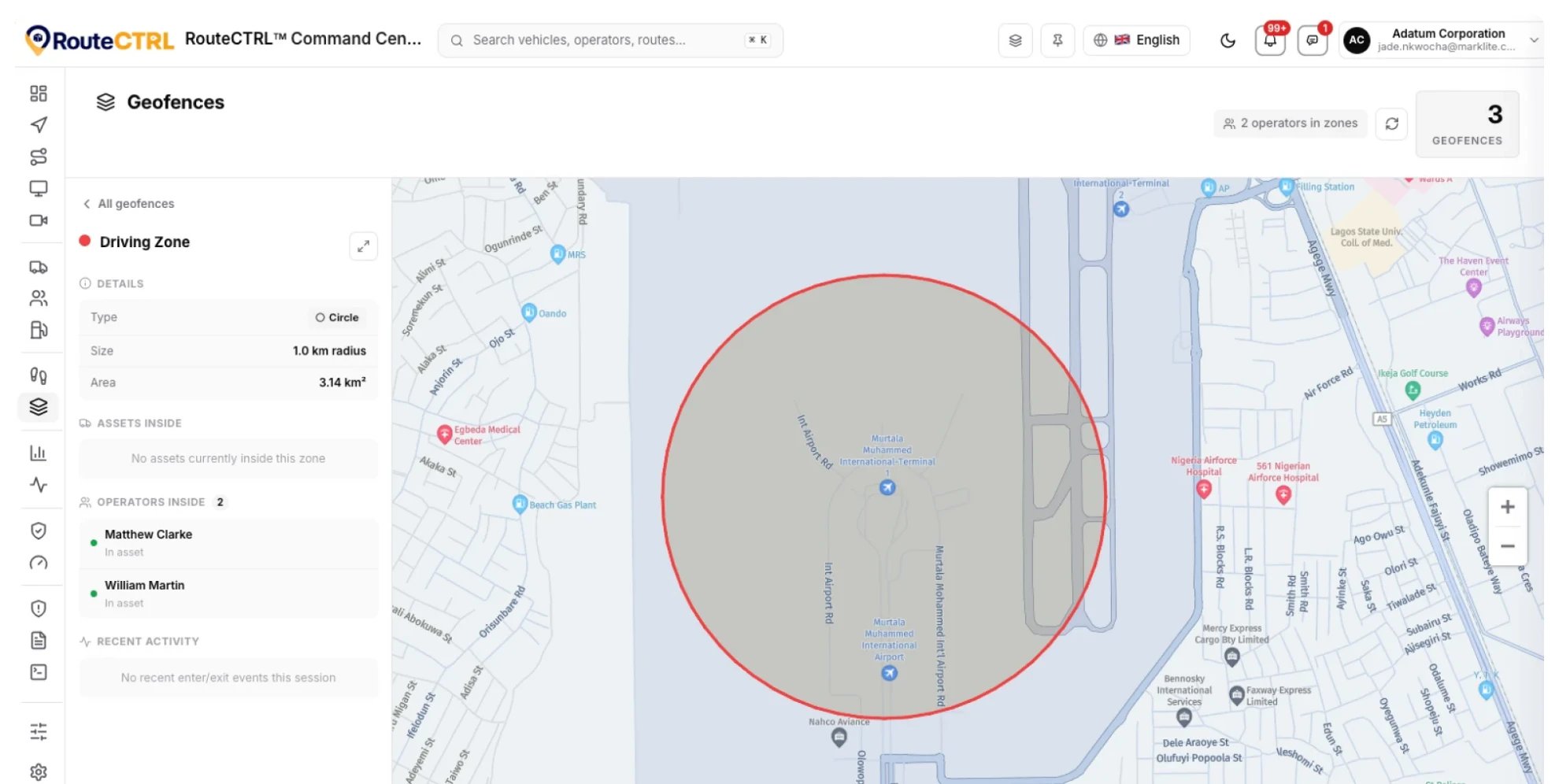
Monitor arrivals and departures at defined locations through mapped boundaries that generate events when tracked vehicles enter or leave.
-
Geofence zones
Draw and manage zones around depots, customer sites, or other locations where vehicle movements need closer oversight.
-
Geofence map view
Display geofence boundaries on the tracking map to see vehicle positions in relation to the areas being monitored.
-
Entry and exit events
Review entry and exit events by vehicle to establish when an asset crossed a boundary during its journey.
Compliance
Operator Records & Licenses
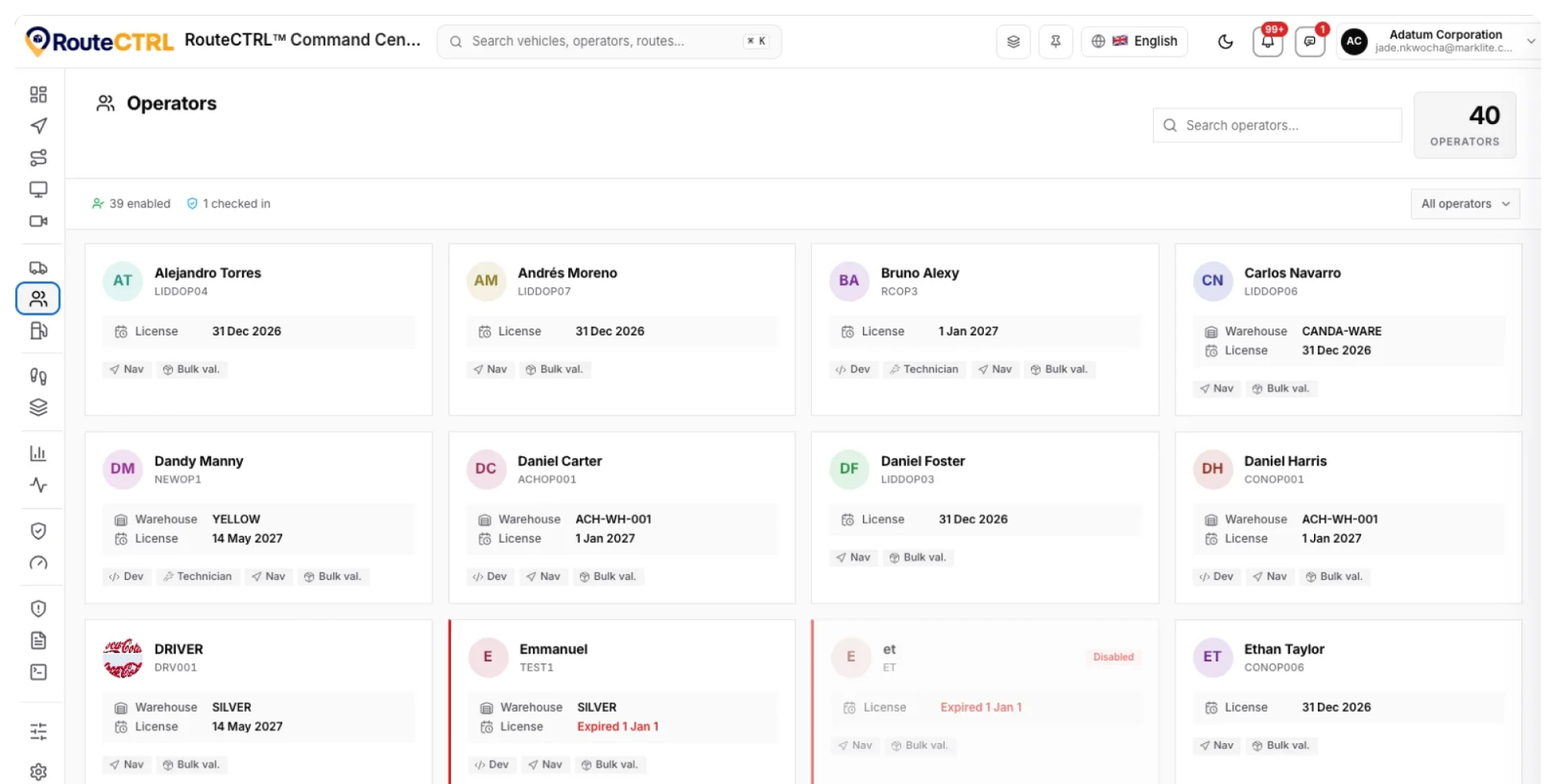
Review operator status and license validity in one directory so fleet teams can identify expired credentials and follow up.
-
License validity checks
See license expiry dates on operator cards, with expired entries highlighted to make outstanding renewals easier to identify.
-
Vehicle class permissions
Check warehouse associations to establish which location an operator belongs to when coordinating license reviews or operational follow-up.
-
Operator account status
Distinguish enabled and disabled operators and view check-in counts to understand the current state of the operator roster.
Safety
Driver Performance and Safety
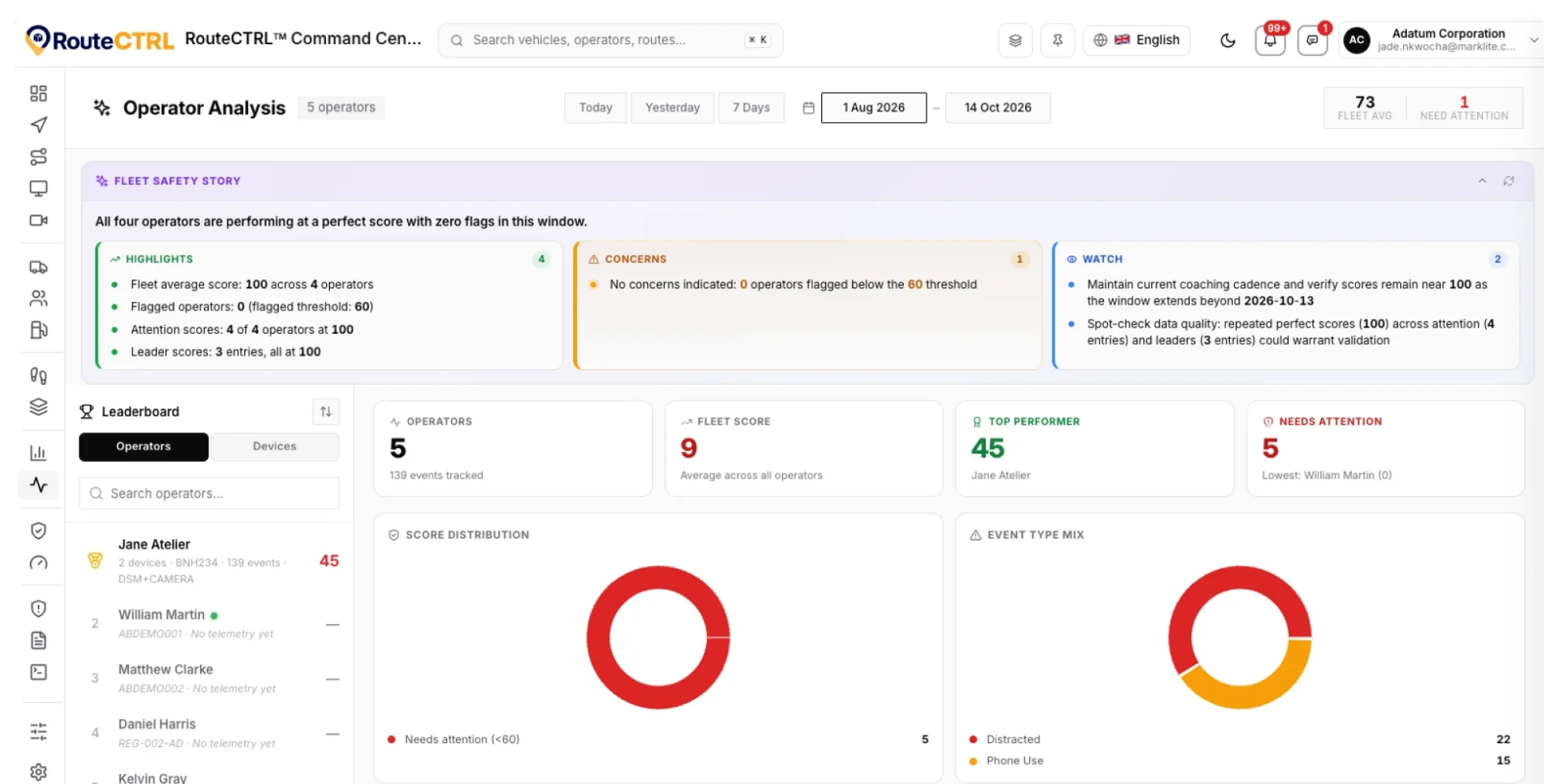
Bring driver performance trends, classified driving events, and fleet safety scores together to identify patterns that need closer review.
-
Driver performance scores
Review individual operator performance over time to assess whether recurring concerns are improving or require further attention.
-
Safety event investigation
Examine classified driver-behavior events to understand the recorded activity behind a safety concern before deciding how to respond.
-
Driving risk trends
Follow fleet-wide safety scores alongside trip and stop trends to assess safety results in the context of operational activity.
Compliance
Compliance & Tachograph Reporting
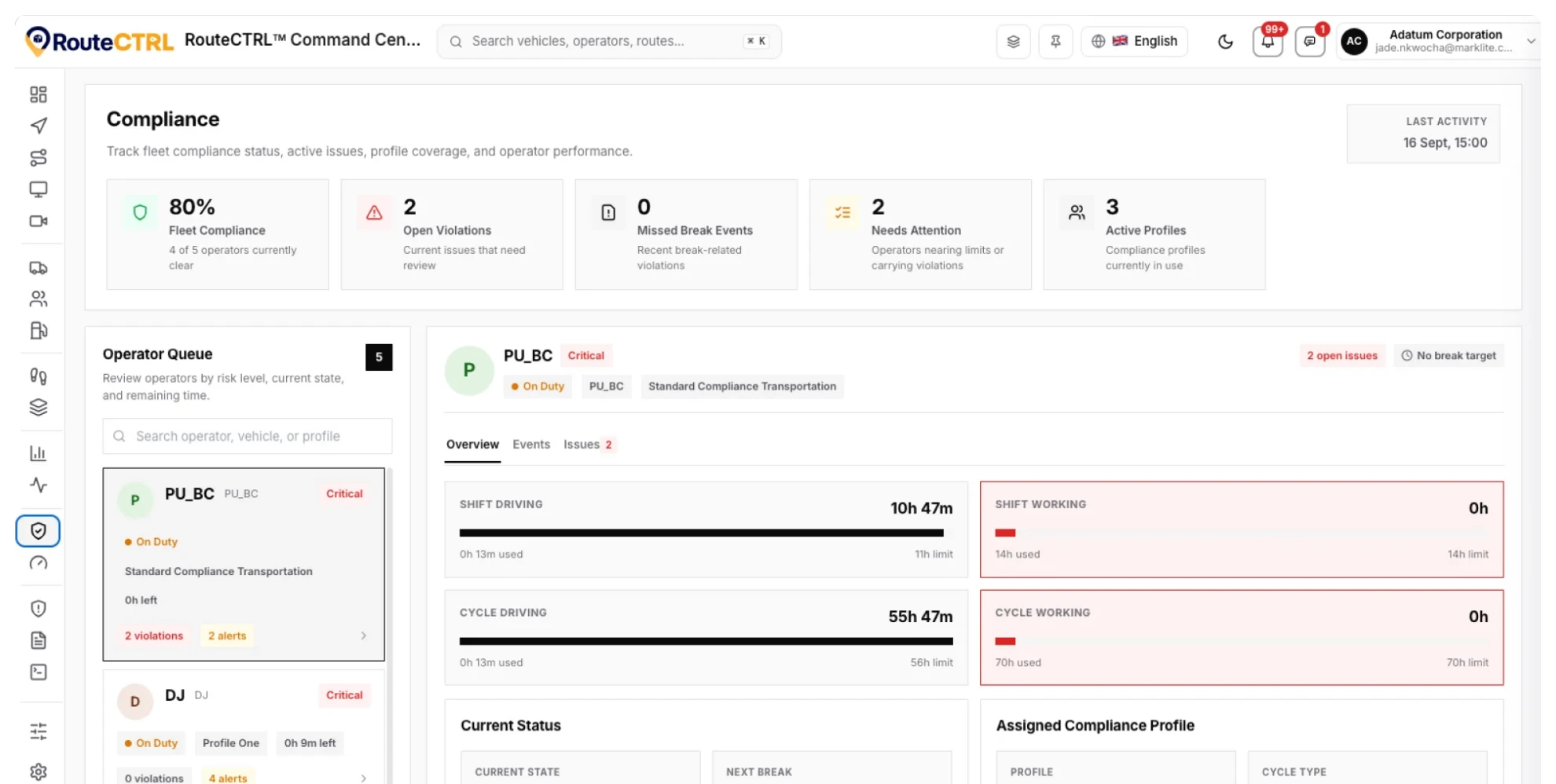
Review driver activity through dedicated compliance reports, with hours-of-service information and tachograph records available for investigation in the Command Center.
-
Driver hours reporting
Open hours-of-service reports to review recorded driver hours and identify entries that require further investigation.
-
Tachograph data review
Examine tachograph reports alongside the Command Center’s wider operational information when reviewing driver activity and compliance concerns.
-
AI report analysis
Ask questions about a tachograph report in plain English to explore its contents and focus your review on specific details.
Product brochure
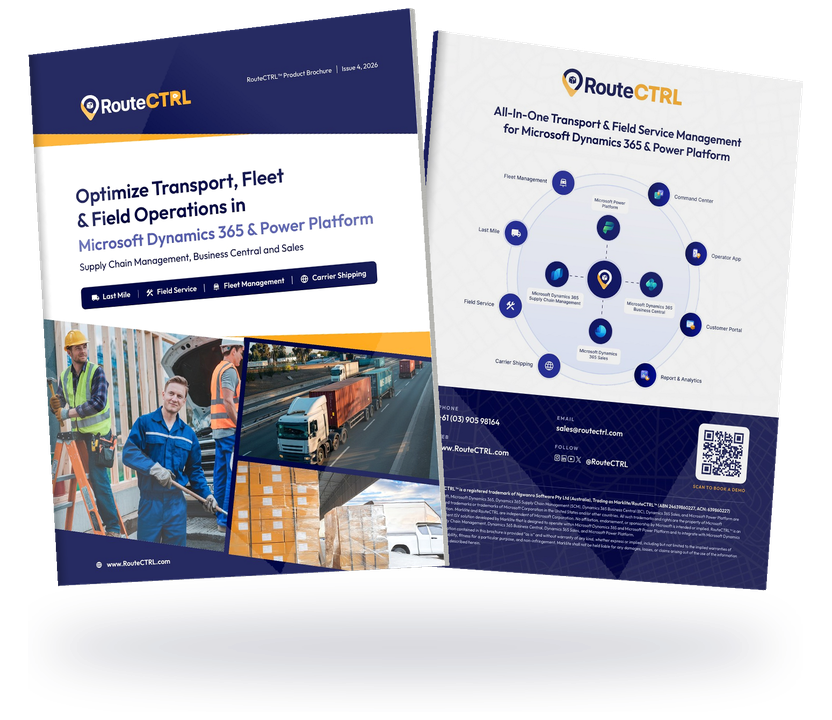
Get a closer look at RouteCTRL’s capabilities
Explore how RouteCTRL supports delivery planning, scheduling, dispatch, fleet management, and route execution alongside your Dynamics 365 Business Central processes.
Insights & resources
Find practical answers to transport challenges

Win a LEGO Technic McLaren P1 at Convergence 2026: Visit RouteCTRL at Booth 110
Visit RouteCTRL at Booth 110 at Convergence 2026 to enter a free prize draw for a LEGO Technic McLaren P1, Sony ULT WEAR Headphones or a JBL Clip 5 Speaker.
Read article: Win a LEGO Technic McLaren P1 at Convergence 2026: Visit RouteCTRL at Booth 110
How to Plan Deliveries Backward from the Promised Date in Dynamics 365
Compare the cost and the service impact of each delivery plan before any route is built
Read article: How to Plan Deliveries Backward from the Promised Date in Dynamics 365
When Spreadsheet Route Planning Stops Working: Signs It’s Time to Plan Inside Dynamics 365
Eight signs, how to measure each one, and what changes when routes are planned on the order records
Read article: When Spreadsheet Route Planning Stops Working: Signs It’s Time to Plan Inside Dynamics 365
How to Add Route Planning to Dynamics 365 Without Disrupting Dispatch
Set up, pilot and roll out RouteCTRL one warehouse at a time, with each team's changes agreed before go-live
Read article: How to Add Route Planning to Dynamics 365 Without Disrupting Dispatch
How to Plan Delivery and Pickup Routes from Business Central Orders
Select orders, compare route options by cost and release routes with RouteCTRL, fully integrated into Microsoft Dynamics 365 Business Central
Read article: How to Plan Delivery and Pickup Routes from Business Central Orders
Route Planning in Microsoft Dynamics 365 and Power Platform
How to plan, dispatch and track delivery, pickup and field service routes from your Microsoft records
Read article: Route Planning in Microsoft Dynamics 365 and Power Platform
RouteCTRL is Heading to Ghana for DynamicsCon Regional: Africa 2026
RouteCTRL is proud to be part of DynamicsCon Regional: Africa 2026 in Accra, where we’ll be showcasing how Dynamics 365 users can simplify transport, field service, fleet, and mobile operations with one connected execution platform.
Read article: RouteCTRL is Heading to Ghana for DynamicsCon Regional: Africa 2026
Returns Are Transport Execution Too
Returns should not become a side process after delivery fails. This article examines why return pickups need route-level control, how visibility breaks down in reverse logistics, and how Dynamics 365 users can manage returns as part of transport execution.
Read article: Returns Are Transport Execution TooFAQ
Frequently Asked Questions
Find answers about RouteCTRL’s capabilities, Microsoft platform requirements, and licensing options for your operation.
RouteCTRL Command Center is a browser dashboard for monitoring route progress, vehicle and asset locations, incidents, and operational events. Dispatchers and fleet teams use the data supplied by connected applications and tracking services to investigate delays, movements, and exceptions.
A Dynamics 365 user license is not required solely to access the RouteCTRL Command Center browser dashboard. Users need a RouteCTRL Command Center user license. Access to connected Microsoft applications remains subject to those applications’ own licensing requirements.
RouteCTRL Command Center uses information from connected business applications, the Operator App, and configured tracking services. Device-based GPS and telemetry require compatible hardware, connectivity, and service configuration. Operator App activity is a separate source, so the available data can differ between vehicles.
RouteCTRL Command Center uses geofences to define boundaries around depots, customer sites, and other locations. Entry and exit events from the configured tracking source show when a vehicle crossed a boundary, helping teams investigate arrivals, departures, and unexpected movement.
RouteCTRL Command Center provides tracking history and playback for recorded vehicle activity. Teams can review the available trip, stop, and event records when investigating a delay or unusual movement. The level of detail depends on what the connected source captured.
RouteCTRL Command Center displays incidents and available device events, including supported speed and driving-behavior events. The connected device and service determine which signals are supplied. Fleet teams review the event records and their context before deciding what follow-up is needed.
RouteCTRL Command Center provides monitoring and investigation through a browser dashboard. Route planning, resource assignment, and release take place in the relevant RouteCTRL Microsoft application. The dashboard provides visibility into connected activity rather than replacing the planning workflow.
Licensing combines operational feature licenses with additional access, resource, and service licenses where required.
A feature license applies to one Dynamics 365 Business Central company or one Supply Chain Management legal entity. Last Mile & Fleet Operations requires an initial minimum purchase of five vehicle licenses. Field Service has a separate feature license.
Licensing Last Mile & Fleet Operations, Field Service, or both includes one shared RouteCTRL office-access entitlement per environment: one Administrator, one Functional Manager, and unlimited Read-Only Users.
Additional Administrator and Functional Manager users require additional RouteCTRL licenses. Microsoft licensing remains separate.
The published price list shows monthly rates for reference. Payment is billed annually in advance for a 12-month subscription term per licensed entity.
Microsoft Dynamics 365 licensing, tracking hardware, connectivity, and third-party messaging charges are separate unless specifically included in a quotation. Implementation, customization, and professional services may also be quoted separately.
Standard implementation documentation and guidance are distinct from a RouteCTRL-managed implementation service.
Additional vehicles, operators, users, and services can be licensed as requirements change. Configuration and rollout work depend on what is being added.
Additional quantities are priced under the terms applicable when purchased. Total licensed quantities are reassessed at renewal. Reductions and other subscription changes depend on the applicable agreement.
Discuss the proposed scope with RouteCTRL before committing to licenses. Confirm minimum quantities, duration, charges, success criteria, and how the pilot would move into a production subscription. Any proposed pilot arrangement should be assessed against the published licensing terms.
The RouteCTRL team can review your operational requirements, resource quantities, user roles, and optional services. Use that deployment scope and the current price list to establish the required license mix and expected charges before purchase.